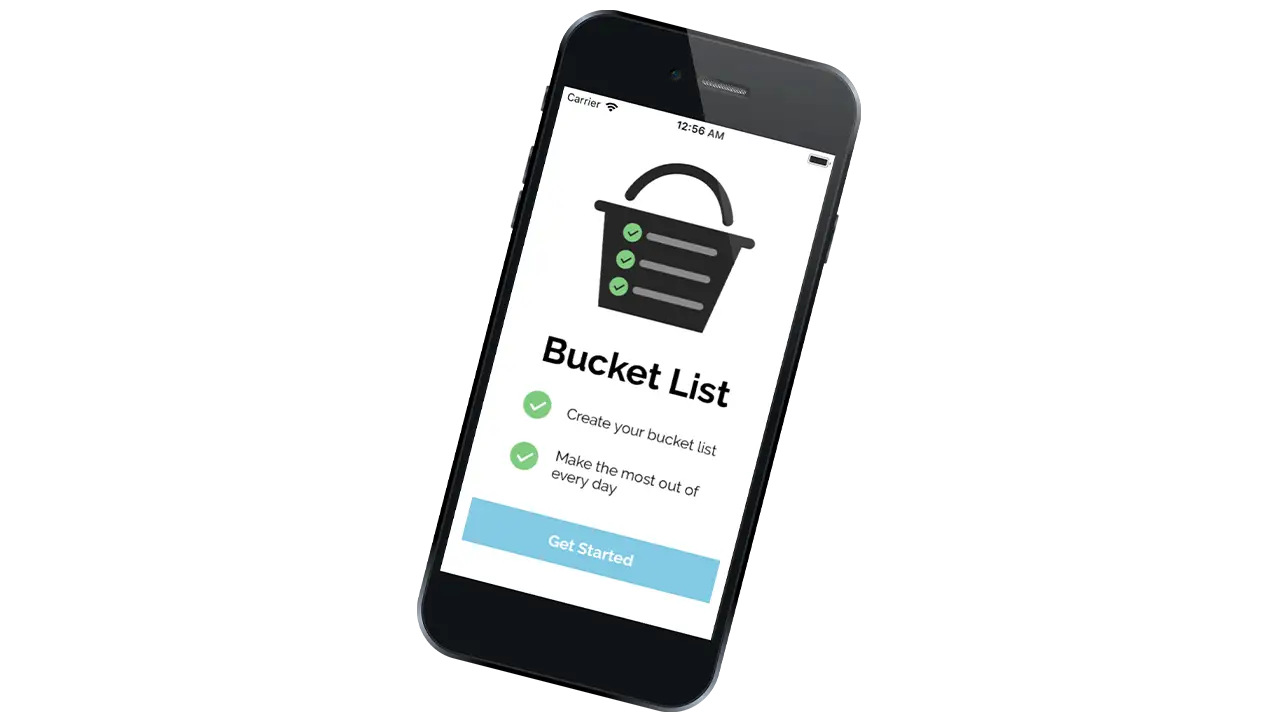
In just 10 weeks, I created “Bucket List,” a native mobile application built with Xcode and Swift. Users can add to and customize goals on their bucket list and easily check them off. I love making to-do lists and checking off tasks, so I chose to create a list app. After some research, I found that there were many to-do list apps available in the App Store but not specifically bucket list apps. Due to various design choices and some programming challenges, the end result of this app turned out differently from what I initially expected but overall successfully provides a user-friendly experience. Read the sections below to find out how I tackled this project.
The Challenge
When I was younger, my friends and I had an email chain where we would add our own goals to a “master” bucket list which we all shared. Since I was only a kid I didn’t think of the typical bucket list goals – skydiving, bungee jumping, etc. – instead, my goals tended to be much more accessible – water balloon fight, ice skating, etc. Along with my friends, I noticed that I always added items to the list based on what season it was. I wanted to make sure I got the most out of every year. Consequently, choosing which season each item on the list will be accomplished became a focus of my design for this app.
Working in Xcode for the first time was a major challenge throughout the process of creating this app. I was constantly researching how to do what I thought were small tasks (e.g. change the color of a button). Because I am a beginner with Xcode as well as Swift, working on this app proved to be very time-consuming and complex.
The Process
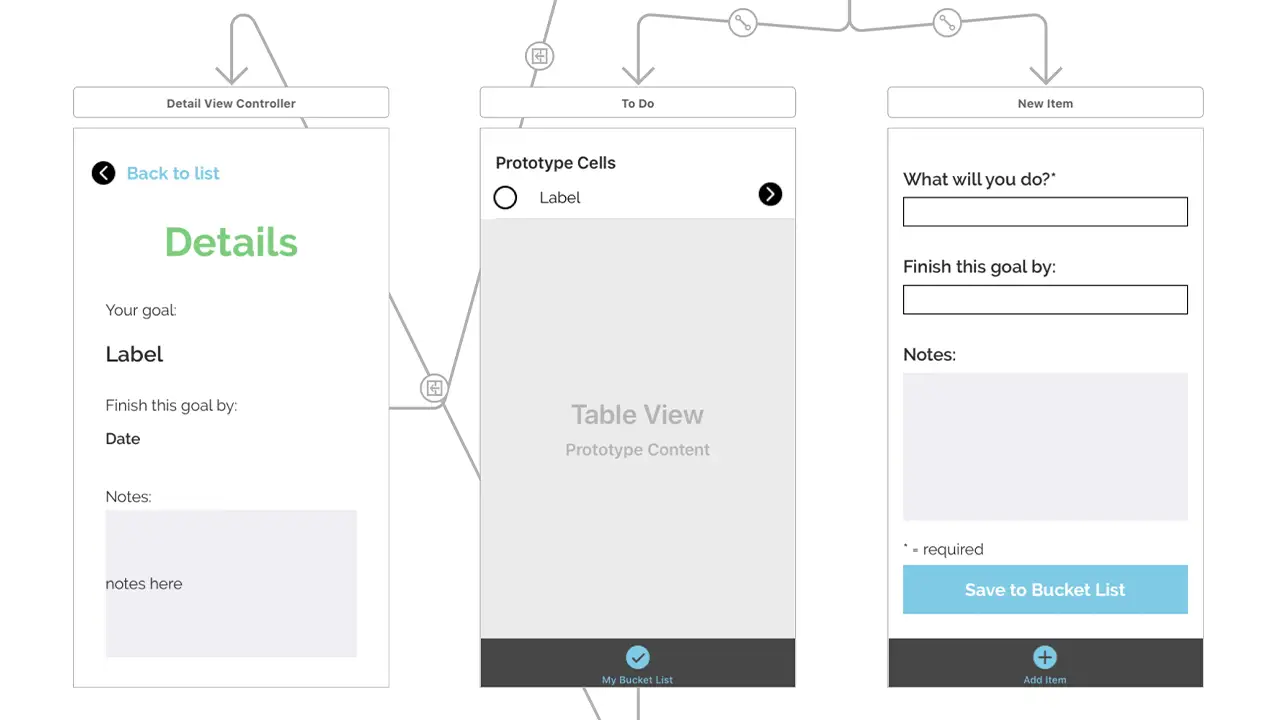
I started this process with a lot of sketching in order to get out as many ideas as possible and as quickly as possible. After I had sketches for each screen of my app and established a user flow, I began creating digital mockups directly in Xcode. At the same time, I created an app icon in Illustrator and chose a color scheme, font, and decided on the styling of buttons, headers, and icons, and more. I wasn’t sure exactly what I would be able to do in Xcode and because of this, my design decisions changed a lot.
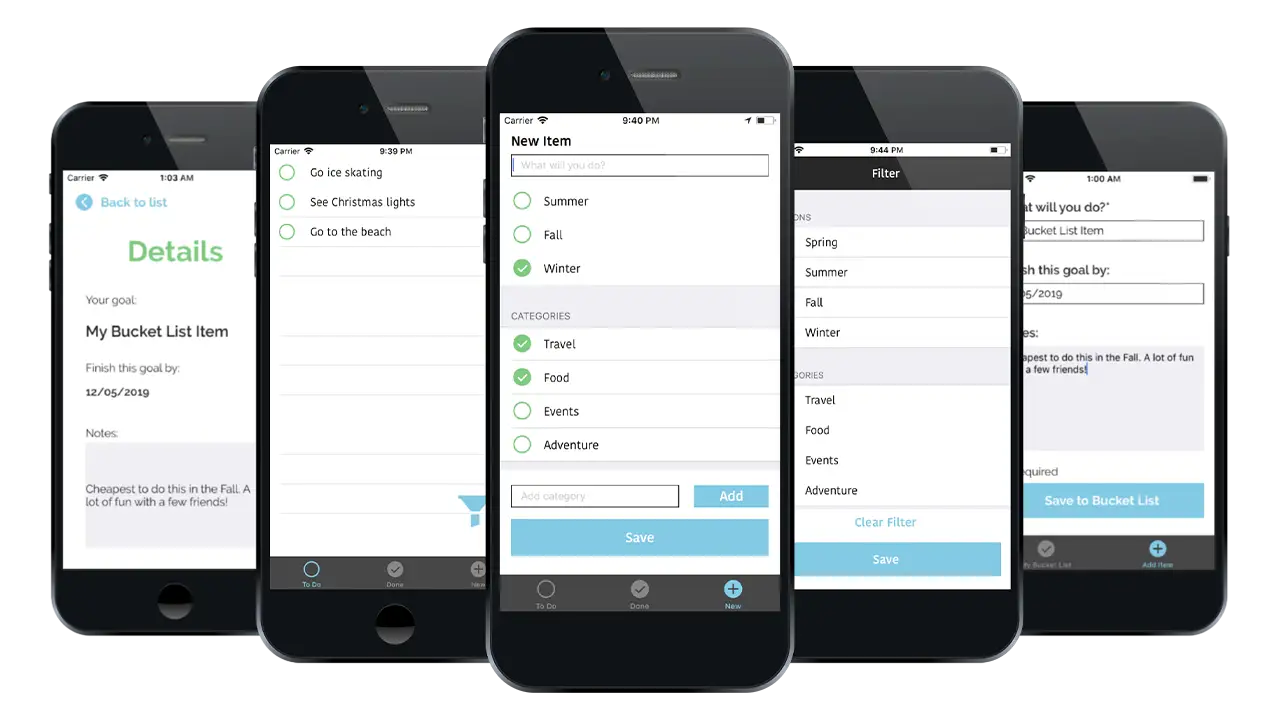
My initial design involved 3 tabs and a filter view. The first tab was the “to-do” screen, the second was the “done” screen, and the third was the “new item” screen. Users could see all of the bucket list items they have left to complete on the “to-do” screen and all of those they had completed on the “done” screen. They could add a new item on the third screen and assign it a season and/or various categories that they could create themselves. Users also had the ability to filter their “to-do” list by season and/or categories and swipe left to delete an item. I kept the interface for each screen very simple and used a circle motif for the incomplete, complete, and new items.
The Solution & The Results
After learning the basics of core data, I struggled to apply it to these designs. At first, I felt that it was important to have both the “to-do” and “done” screens so that the user could see their completed items and uncheck items if they felt they weren’t complete. I realized that this was actually unnecessary as it’s rare for a user to take an item off of the completed list once they have checked it off. Additionally, the app does not have the ability to delete all of the items on a list at once, the user can only delete items individually, meaning they would have to swipe on each item on the complete list to clear the list. Rather than add another feature to fix this, I chose to remove the “done” screen and simplify the app.
I also struggled with the filter functionality using core data. If I were to continue working on this project, I would focus more time on creating the ability to filter by season because it was an important part of why I created this app. In the high fidelity version, I chose to remove the filter and allow users to instead add more information when they are creating a new item, including setting a date to complete their goal and adding any important details to remember. They can then click the item on the “to-do” screen to see that information.
Although the end result is different from what I designed in the beginning, I am still happy with the outcome of this app. The challenges I faced allowed me to learn a lot about Xcode and Swift in a short period of time, and I am ready to apply those skills to the next app I create.
IDM362: Interactive App Design II by Victoria Stewart
Overview
This project was created for IDM 362: Interactive App Design II. The goal was become acquainted with Xcode. My original concept came from my place of work, for which I wanted to create an easily updatable menu for our selection of virtual reality experiences.
The Context and Challenge
As a full-time college student, I go to my weekly classes, but I also work a part-time job to have a small source of income over the school year. I work at a local restaurant in Fishtown, where they offer the chance to experience virtual reality through Samsung GearVR or the HTC Vive along with dinner. I’ve worked there for over 6 months at this point, and realized that we lacked a way to keep our game menus as up to date as how often we add new apps, as our current method of letting customers select their VR experience is via a printed menu that they can leaf through. I decided that the IDM 362 end goal of creating a simple native application through Xcode was the perfect opportunity to develop an app that could have practical use. The project was set on a 10 week timeline. My end goal was to create a virtual menu that shows off our selection of GearVR experiences, HTC Vive games, and our drink menu that is exclusive to the virtual reality section of the restaurant. The main focus of the project was to display all three sections clearly for users and to have it be easily added to as we constantly update our selections offered at my work. This was a solo project that I am going to actually present to my place of work. If they like the app, they will hopefully adopt the app and we can use it on a daily basis to help our customers select their next VR experience.
The Process and Insight
The process of this project was very structured. Each week of the project, over the course of the 10 weeks, I slowly built upon what we accomplished within our class the week before. I started out with some basic wireframes within Xcode. This was unusual for me, as I typically wireframe with a prototyping software such as Sketch, but the outcome was very good. Wireframing within Xcode allowed me to familiarize myself with the tool as I’ve never used Xcode before, and I was able to grasp concepts like constraining and basic element inputting.
The Solution
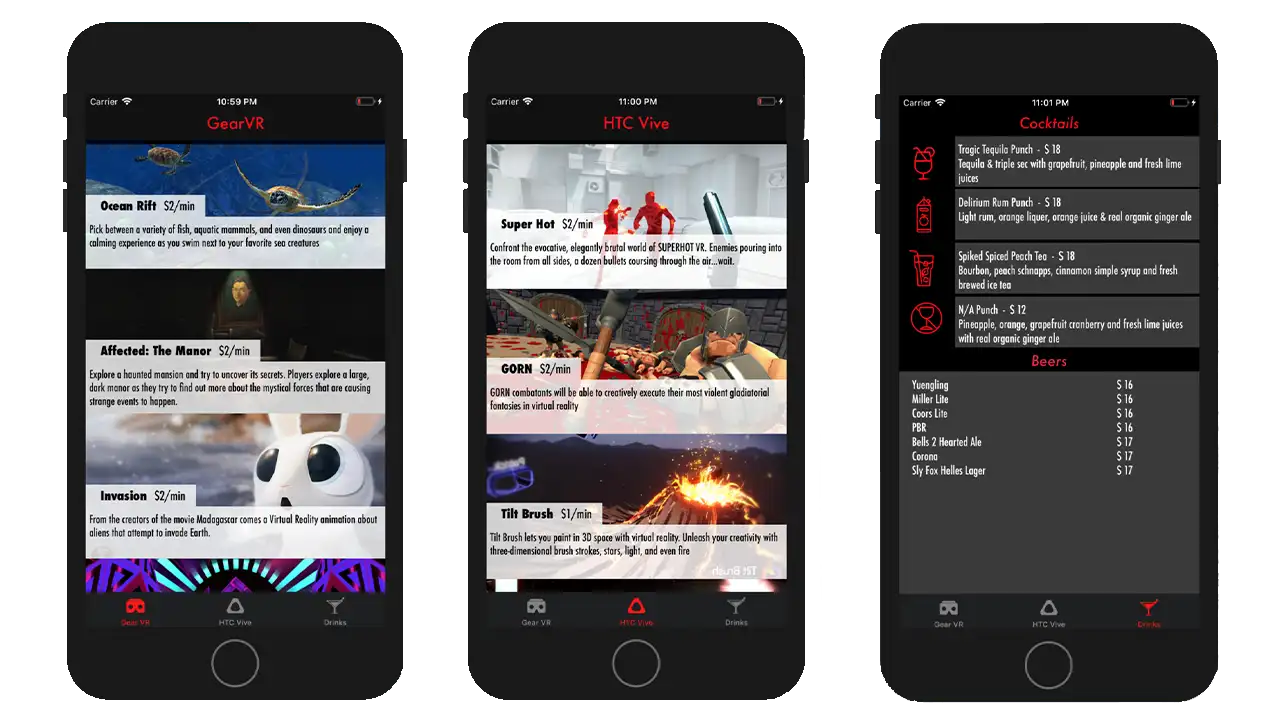
The app ended up spreading across three pages with a tab navigation at bottom. Important pieces of information are highlighted in red, with the main focus, the game entries, taking up 100% width of the device, stacked in a scrollable column. Upon clicking an element, the user is taken to an new page with all of the information one would need to know about that VR experience displayed individually.
The Results
Overall, I felt this project was successful. It was my first time developing in Xcode, so I wanted the main focus to be on functionality. I was able to learn how to create tab navigation, use table views, and dynamically transfer data across pages. Moving forward with this project, I’d like to make the design of it more detailed, though I am satisfied with the base that I have created. I’d also like to push forward with this app and create an iPad version, as that is the most likely method for us to present this menu to customers at work. I’m happy with the work I was able to accomplish in an entirely new medium in such a constrained amount of time, but I’m also looking forward to moving forward with the project.
IDM362: Interactive App Design II by Corey Hensley
The Overview
Before tackling this project, I had never touched Xcode, which is an integrated development environment for mac operating systems, and contains software development tools developed by Apple for developing application software for apple devices. After learning how to make mobile web application during a college course, it was only logical for me to take a follow up class that dealt with creating native applications using Apple’s Xcode application creation software.
For the project I wanted to create a intuitive tipping calculator that was easy to download and use without any confusion. Within this case study I’ll be explaining the execution from inception, to design, to implementation, and finally to becoming fully functional.
The Context and Challenge
Background
In the fall of 2017, while attending Drexel University, I enrolled in Interactive App Design I, a course that focused on creating a user experience that was optimized for mobile devices. In the course, students learned to build unique web applications that would take advantage of modern mobile capabilities. While discussing possible class projects for me to undertake, it was suggested that due to the frequency in which I dine out, I should create a web application tipping calculator. I thought it was great prospect.
uTip Calculator has been 20 weeks in the making. The few weeks involved developing the app icons, button icons, basic user interfaces and creating responsive functionality that would display, or not display, certain content based on if screen orientation of the mobile device is in landscape or portrait mode. at the end of the ten weeks, I had a fully functioning web application prototype that allowed for me to input a single set of numbers and then use a slider to adjust the tip percentage; combined this gives any user their grand total with tip.
The whole reason, I got into this career field was for the prospect of working with mobile apps. Interactive App Design I allowed me create a web application. It was fun and I learned a lot, but to me, it wasn’t a true application; just a website that you can save to your home screen on you phone. Interactive App Design II, however, built upon the topics covered previously by exploring how to convert web-based applications into cross-platform native applications for mobile devices using Xcode.
The Problem
The genesis of uTip Calculator was born out of my wife and I’s desire to frequently eat out and try new foods. We probably eat out two or three times a week. At the end of every meal I would pull out my iPhone and use the device’s default calculator app, input the bill amount, multiply it by whatever tip percentage I felt was warranted, then calculate that tip amount back into the bill amount to get the total amount owed. A very tedious effort and not very efficient. It never really occurred to me to download a tipping calculator application; for that matter, I didn’t even realize there were tipping calculators. This tipping calculator would seek to solve the issue of inconvenience; because let’s face it, after a good meal, when you are full and sleepy, do you really want to do math?
Goals & Objectives
Working solo, I went into this project with just one simple goal in mind: make a tip calculator that works! Over time that goal expanded outward and milestones along the way were more clearly defined. Functionality was always paramount, with any type of user interface being secondary and only serving to present that functionality in a logical way. When I developed the web app version of the calculator, knew that I wanted to only wanted to have one input field with the tip percentage adjustment functionality being carried over by a slider. I wanted the app to be simple and easy to use. This mindset carried over to the native app. But after doing a bit of research, and looking at other tipping calculator apps, I knew I also wanted to add a split check feature; and this, too, would be executed using a slider. Once I defined and refined the objectives, I set out make those goals accomplishments.
The Process and Insight
I went about creating this application for my own needs. However, I think it’s safe to say that pretty much everyone goes out to eat once in a while. So the target audience for this app, is literally anyone with a smart phone; but more specifically, since I used Xcode, anyone with an iPhone. What follows is the processes I went through to create uTip Calculator …
The App Icon: One first things I did, was to implement the app’s home screen icon into the assets folder in Xcode. I used the same icon that I used for the web version. The color scheme for the app wasn’t going to change even though I had planned on making some significant user interface changes. Because There are many different screen sizes and resolutions for a the various apple devices, Xcode encourages you upload various sizes on the same icon. In order to efficiently create all the required icon sizes I uploaded my template onto an online resource, makeappicon.com.
The App Wireframes: A lot of the initial designs are a little far removed from the finalized design; especially, the area for splitting the check. The first wireframe shows buttons instead of a slider, with an extra button that allows for additional inputting of numbers. I never fully thought through how the app would respond to the “Other” button being clicked; Would it have created a popup with an input field, or just show additional numbers. One thing I was sure on was that not only did I want the user to see the tip amount, but also what the tip percentage was. The idea I had, was to have the the label that says, “Calculated Tip (15%):” to update the default percentage of “15%” every time the user used the slider.
The second iteration of the design was a bit more refined. It was here that the vision of the app started to come together. Firstly, I got rid of the split check buttons and replaced them with a slider. I also switched the placements of the “Total Amount Owed” and “Bill Amount” text fields and input fields. This was not just an aesthetic choice, but a logical one, as it makes typing easier if the editable areas are on the bottom close to fingers and thumbs. Finally, I placed a bit of style adding more color and adjusting the font sizes based of the hierarchical importance of content. At this point in the process, the only working functionality was the ability to enter numbers into the bill amount input field.
Probably the most significant change for the third and final iteration of the wireframes for the calculator’s interface was to remove the white text boxes around all text fields that don’t allow for inputting data. Not only does make it less confusing to the user but it makes the bill amount input field standout, and in a sense directs the user to their first step. At this point, there was still only minimal functionality. But that was about to change.
Code/Dev
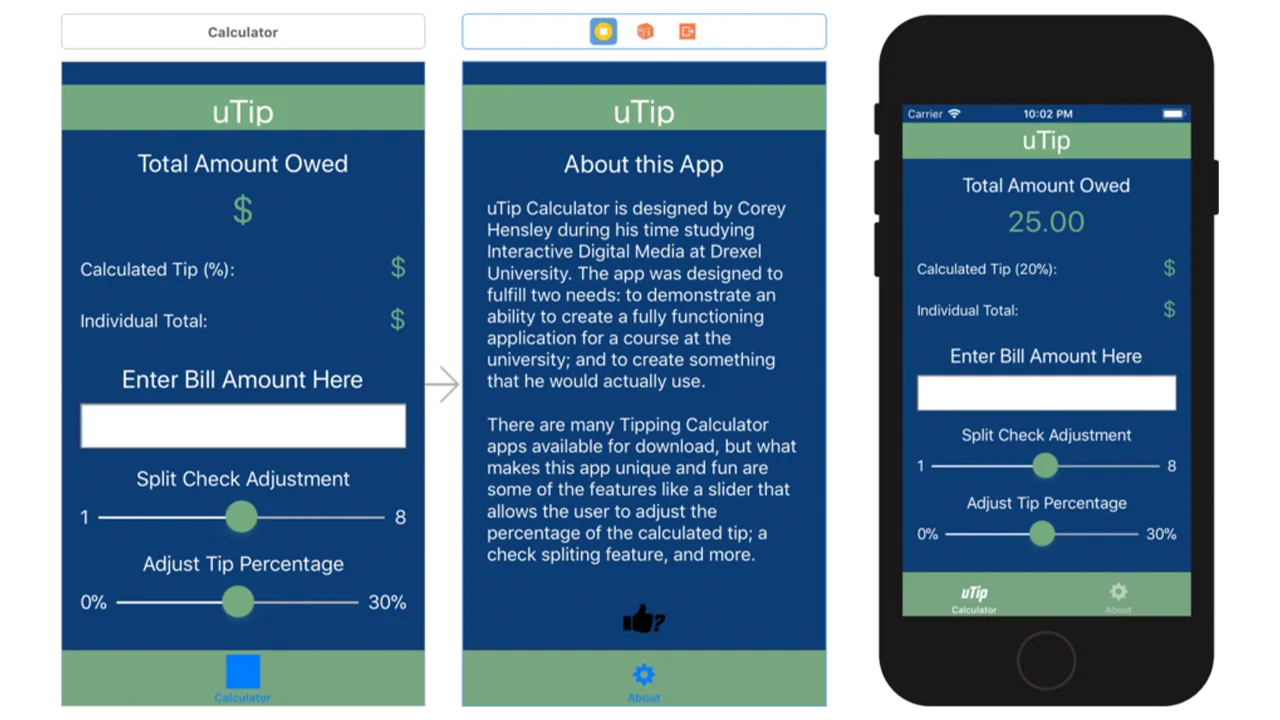
One of the first real hard coding I did for the application was create a static output value of $25.00 for the total amount owed and a value of 20% on the tip percentage label. The purpose of this was two-fold: first, outputting these static values helped me gain a better understanding of how coding in Xcode works; second, it also gave me an avenue to explore on how I would code this particular application. You’ll notice in the calculator’s Xcode hosted user interface on the left that there are only symbols in the aforementioned fields; but when this interface is played through the prototype on the right, they are given values.
Solution and Results
As you can see from the video below the app works! It was quite a process to get to this point. I would that probably the most taxing challenge I faced was getting the sliders to snap to designated whole values. At first I didn’t even contemplate that the sliders not snapping to values would be an issue, as they still worked at outputting a value. The problem was, I wasn’t getting precise tip percentages, nor was I getting precise split check numbers. The solution here was rethinking certain aspects of the code, going back to basics rethinking my approach to the code. Some key feature include: the keyboard pushing the content up so the user can see what they are typing into the input field; Both the tip percentage and split check labels, update with a value based off slider position.
On a whole I find the app a success. Given more time, I would like further develop the interface and refine the user experience. Perhaps in future updates I can create a rating system for the places, I’ve used my app in. This was a great experience, and got me excited to do more with mobile apps in the future.
As part of undergraduate degree requirements and a group of nine Interactive Digital Media students, we worked on a nine month capstone project in which we created an interactive pop-up exhibit housed in Drexel University’s Pearlstein Gallery that highlighted the work of two minority creators through experimental technology and experiences. With 4 different interactions using web technologies (NFC chips, iPad web applications, the Leap Motion and a 60 inch multi-touch screen) and a user centered design process we were able to engage visitors in learning more about the artists’ creations and their cultures.
Other requirements of this project including identifying our project goals and criteria. For our project we focused on two main criteria, innovation and challenge as well as hybrid concept. For innovation and challenge, we expanded on our user experience skills by bringing them into a physical space alongside digital spaces. We also focused on curatorial design which was a new skill for us but was essential for a successful exhibit. As for the hybrid concept, we created an exhibit that spans both the physical and digital world through the use of prints, projections, multi-touch screens and gesture controlled experiences.
Project Goals
Highlight the work of individuals from communities that are underrepresented.
Celebrate Diversity
Engage & Make an Impact
Criteria
Innovation & Challenge
Hybrid Concept
The Context and Challenge
Background
We started brainstorming for this project in Summer 2017 but officially began the process in Fall of 2017 when we started our senior project classes. After brainstorming and many meetings with various outside sources to find our content, we chose to highlight the work of two Philadelphian creators, Ange Branca, a Malaysian chef who is the owner of the restaurant Sate Kampar, and Lendeh Sherman, a Liberian fine artist currently studying at Jefferson University. This project was completed in June 2018 after being displayed in Drexel University’s Pearlstein Gallery. Additionally, we were awarded a Swift Fund scholarship to alleviate production costs.
The Problem
For our project, we decided to push the limits of what we learned in our classes that revolved around web and app design/development and move them to a new setting involving exhibit design and experimental technologies. By applying the skills we learned, doing independent research and consulting many outside sources such as Night Kitchen Interactive,a firm that specializes in interactive exhibit design, we were able to develop Coalescence: An Interactive Pop-up Gallery Highlighting the Work of Two Philadelphian Artists. The focus of this exhibit was in response to the tension within our community caused by the current political state. We decided to utilize our given platform to try and unify our community members by engaging them in an immersive art/technology experience that teaches them how culture can inspire creativity in the community.
Goals & Objectives
As we are all interested in art and experimental technologies, this led to the decision to blend the two into a museum experience. As a group, we defined early on that we wanted to create something that pushes the boundaries of what we learned in our classes, which was another reason we decided on making an immersive, interactive experience. We knew with this project that we wanted to make an impact, so we decided to showcase underrepresented immigrant communities by highlighting the work of two Philadelphian artists who use art as a way to express themselves and their cultures. By using experimental technologies to engage our visitors we hoped to encourage them to learn more about the cultures around them.
The Process and Insight
We began by choosing a topic/focus for the exhibit to follow.
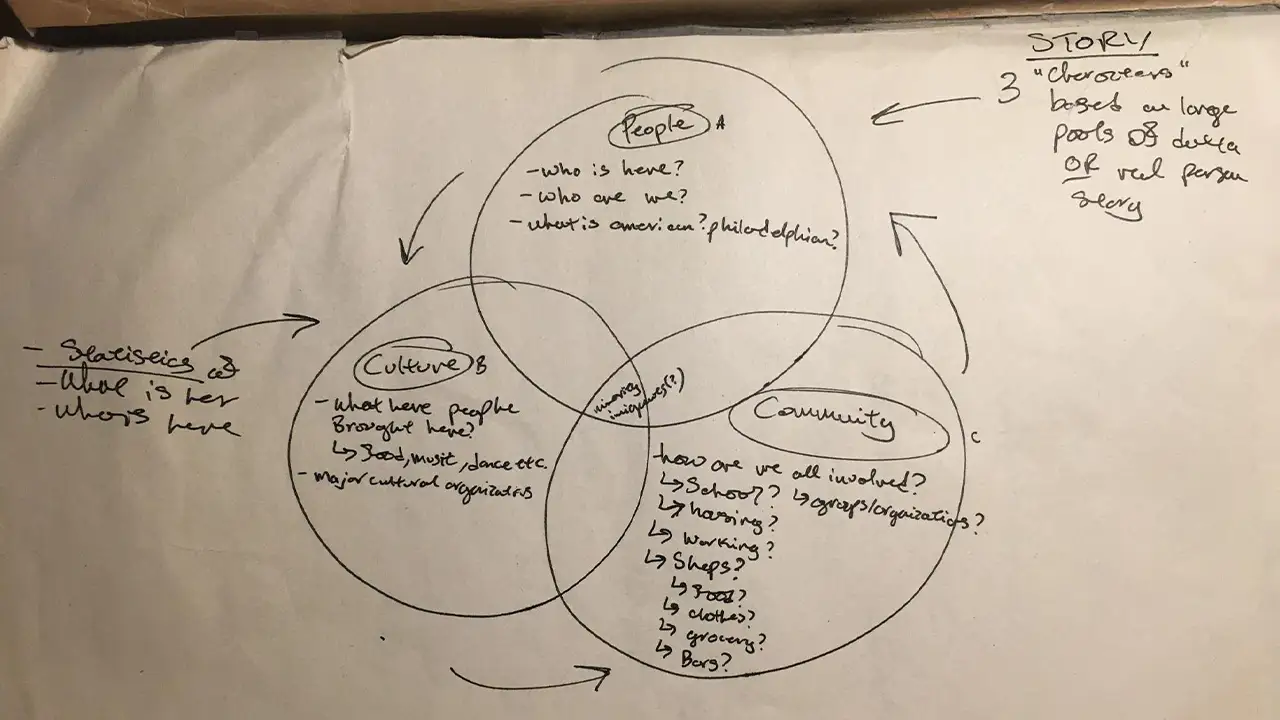
Our first step in this process was to figure out what our exhibit was going to be about. At the beginning we wanted to focus on immigration and educate our audience through data visualization. However, after independent research and reaching out to cultural and immigration networks throughout the city, we realized, the topic was too broad, even when we refined it to immigration in Philadelphia area. After meeting with Rashidah Salaam, a design professor at Drexel University, we were able to get in touch with Ange and Lendeh, and changed our direction to showcase the work of individual artists related to their cultures.
Once we met with the artists, we started to brainstorm interactions that not only fully showcased their creative work but were also engaging and interactive. We knew at first that we wanted to include iPads, touch-sensitive projection, multi-touch screen, AR, NFC chips, LEAP motion and the Kinect. Most of these technologies were available to use though our college department. After a lot of refining, we settled on 4 different interactions involving NFC chips, iPads, the Leap Motion and a multi-touch screen. We further developed these interactions through heavy research, personas, user journeys, wireframing, sketching, mockups, style guides, prototypes, development, usability testing, construction, including 3D printing and laser cutting, and final implementation.
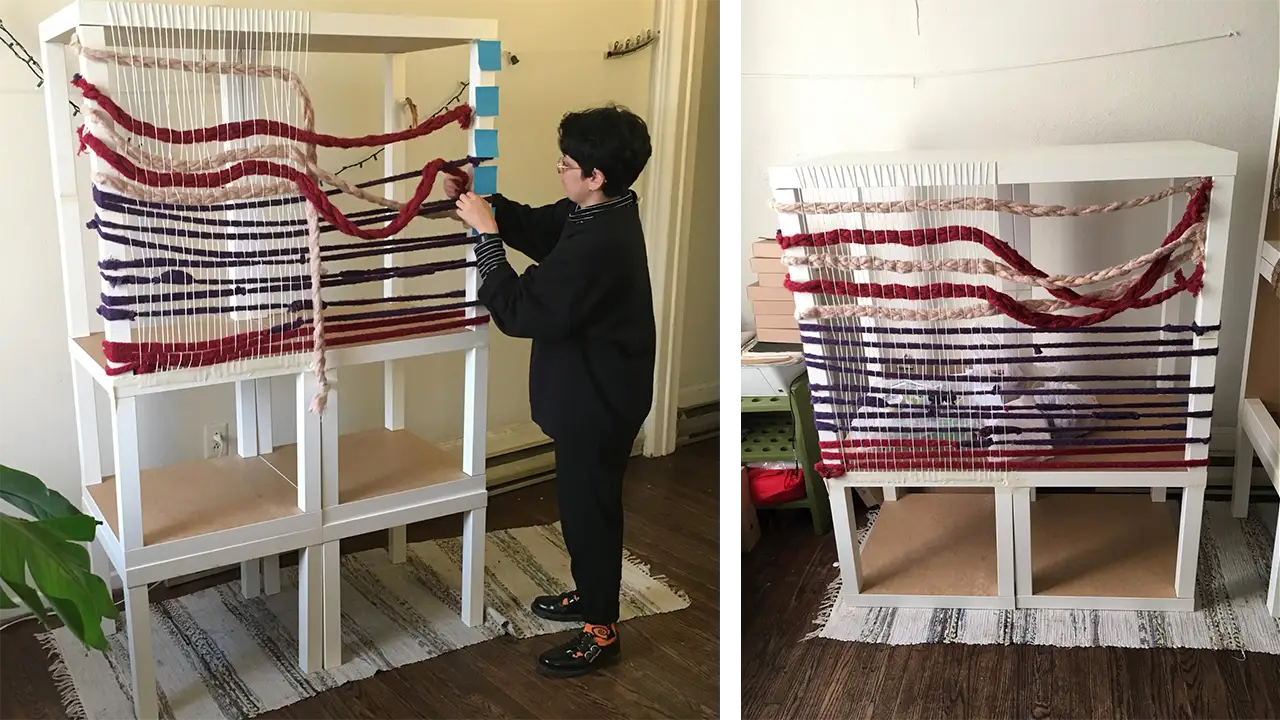
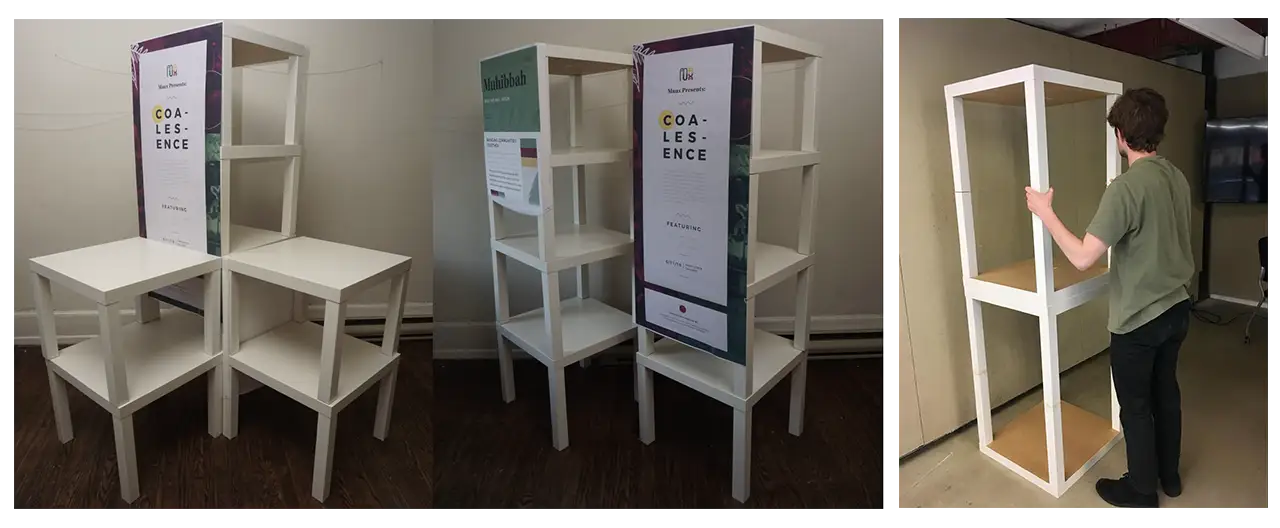
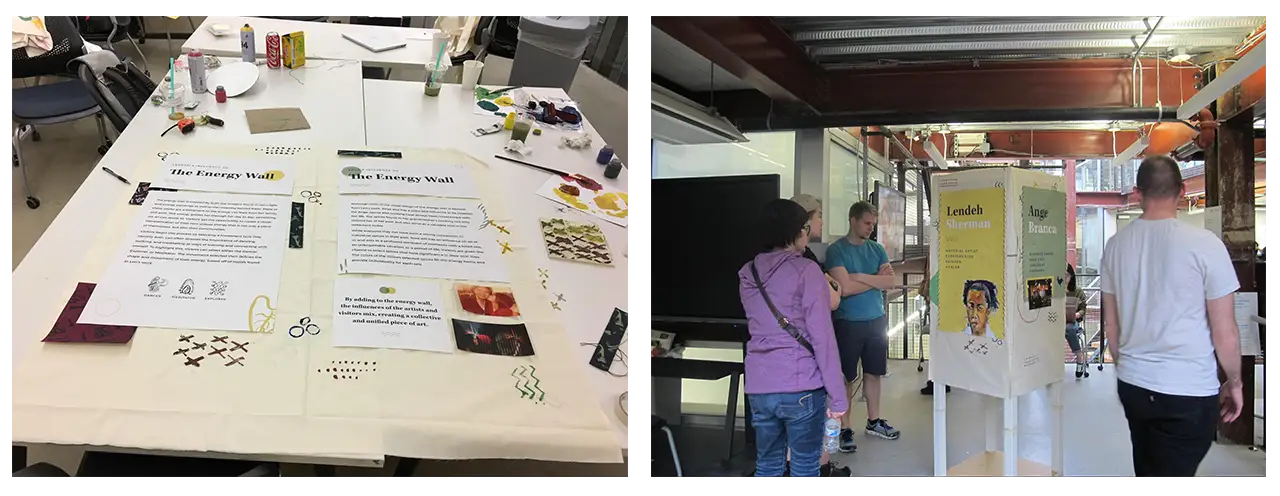
We explored various possibilities for the display structures housing our artist’s biographies and works. For example, our first idea was to buy wood and build the structure ourselves. After going through the logistics of building each structure by hand, we came to the conclusion that buying tables from IKEA would be the easiest and most cost effective way to construct these display stands. For the physical posters, we experimented with different mediums and materials and eventually decided on sewing the printed material on top of the painted fabric to mimic the designs and colors from our user interface and style guide.
Research
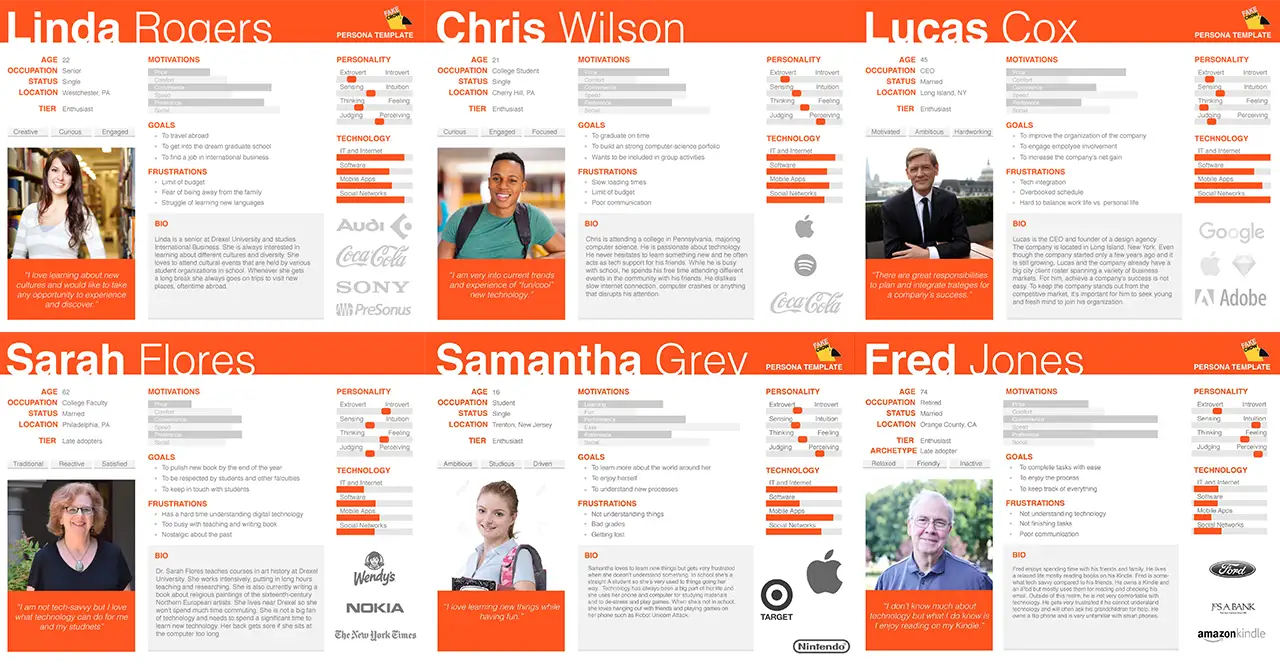
In the beginning of the UX phase, we defined our target audience type and created user personas along with user journeys.
Our six target audience types were: college students, college professors, potential employers, student parents, young siblings, and grandparents.
Below are the user personas we created:
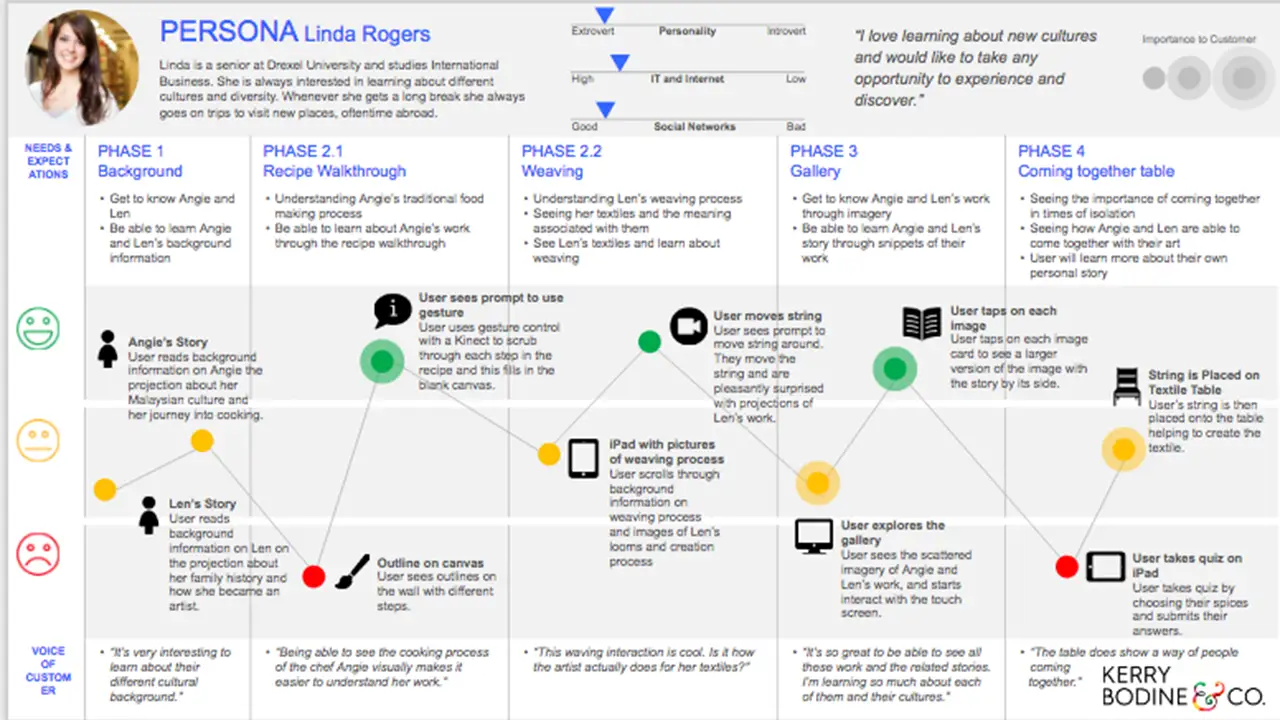
Based on the user personas we were able to develop the user journeys. Below is an example of the user journey, and more details can be seen on the google sildes.
Design
Sketches
In the beginning of the design phase, we drew sketches to help us brainstorm some possible designs for the different interactions with the chosen technologies in mind.
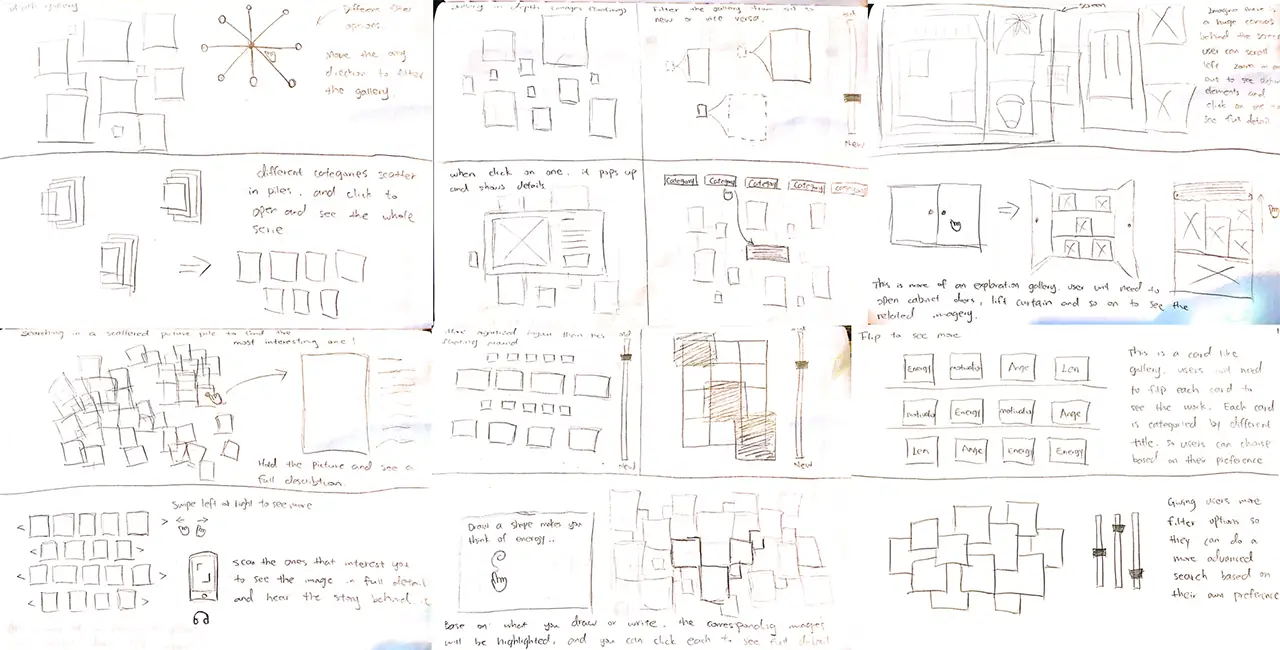
Here are some of the initial gallery sketches we drew:
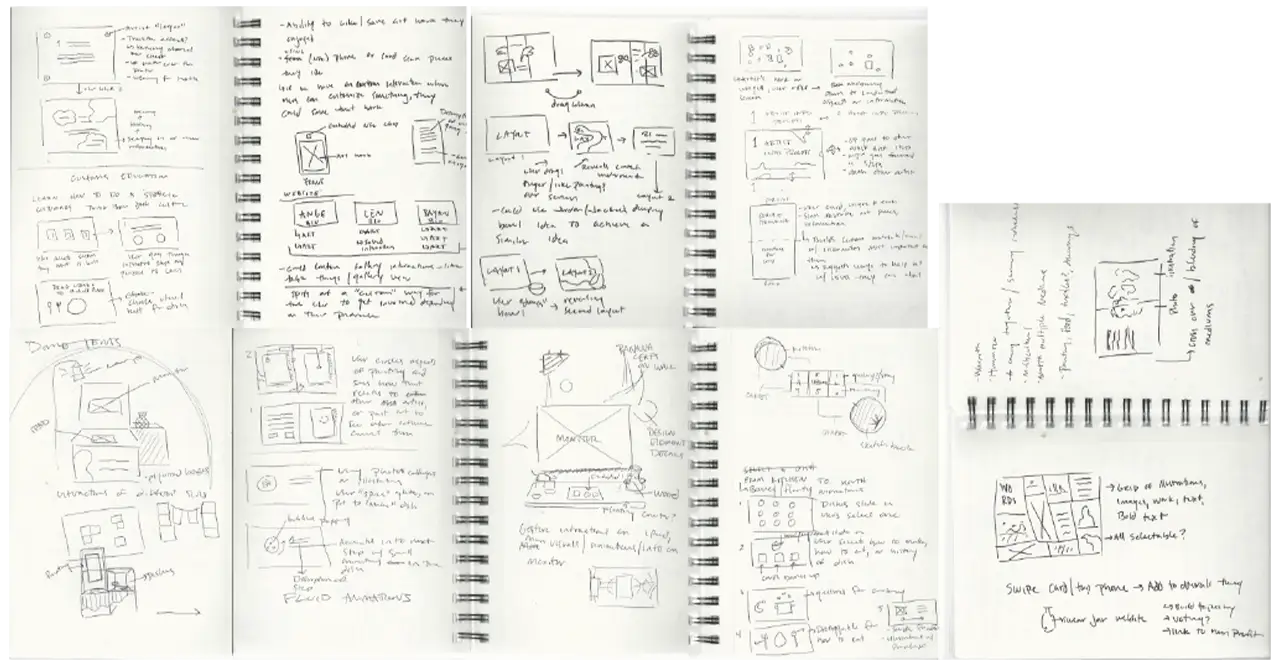
Here are some initial sketches we drew for the general interactions:
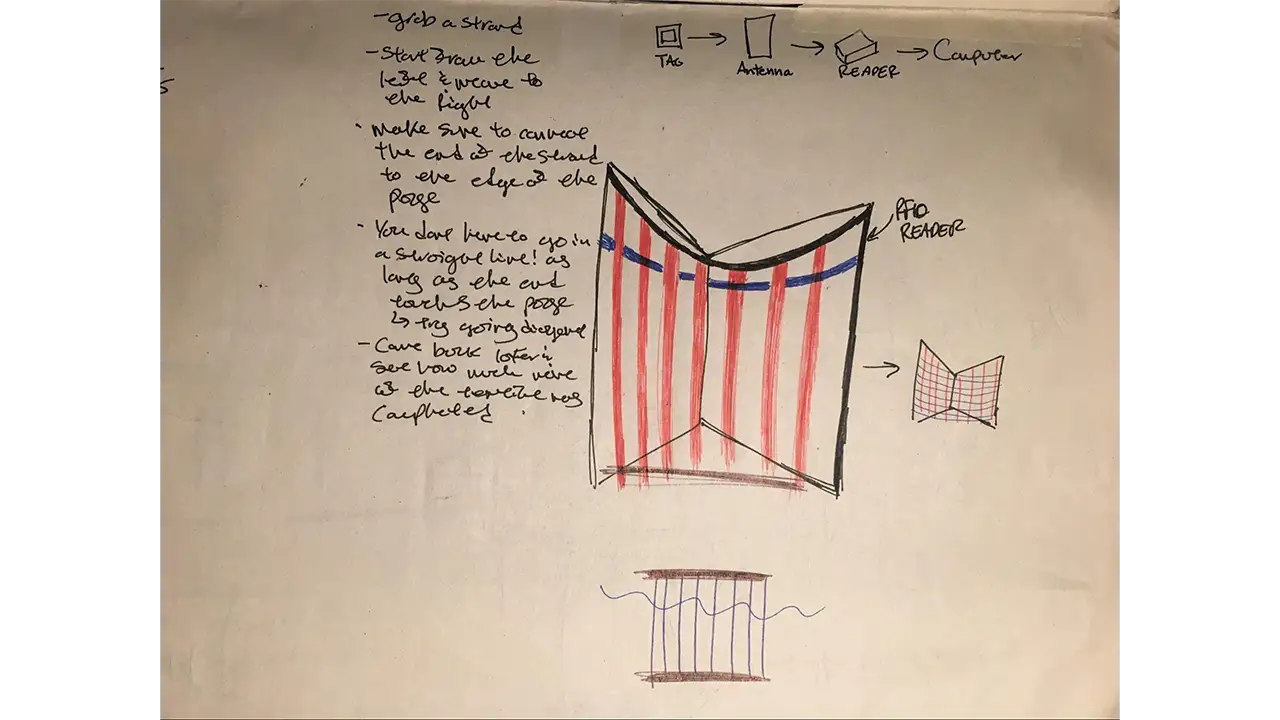
Here is an example of the initial loom sketch:
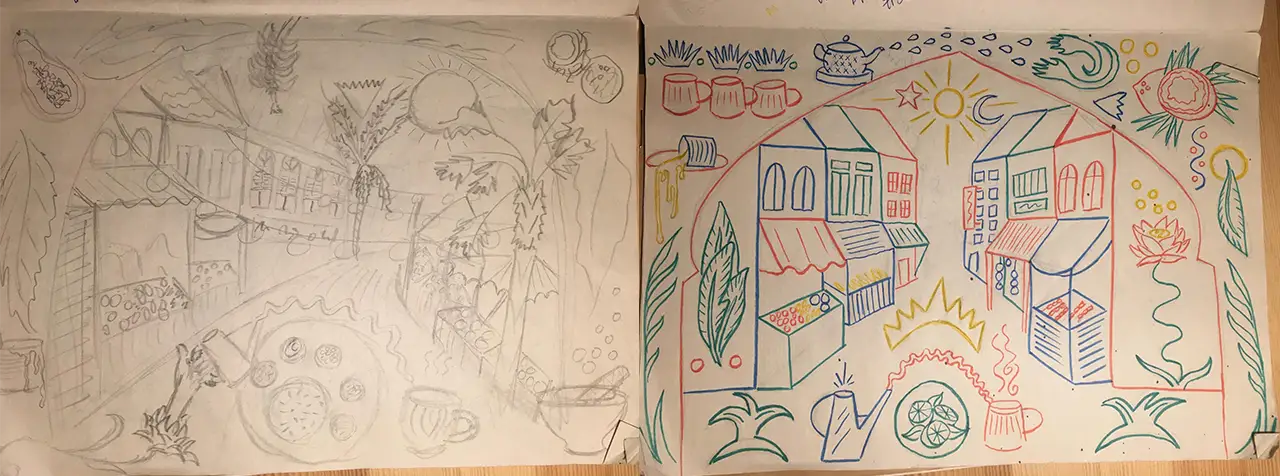
Here are examples of the initial mural sketches:
Wireframes
Moving forward beyond sketches, we created digital wireframes to better illustrate the decided designs.
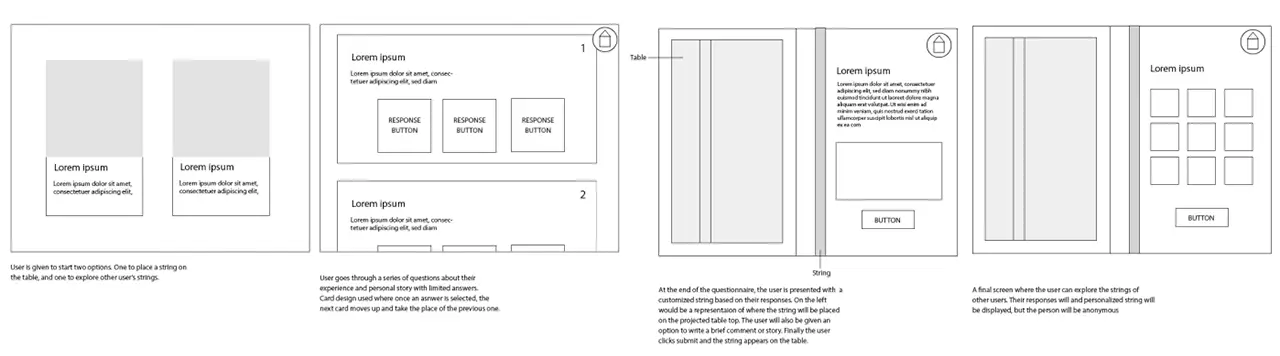
Here are the wireframes of the initial energy table interaction:
Here are the wireframes of the initial gallery interaction:
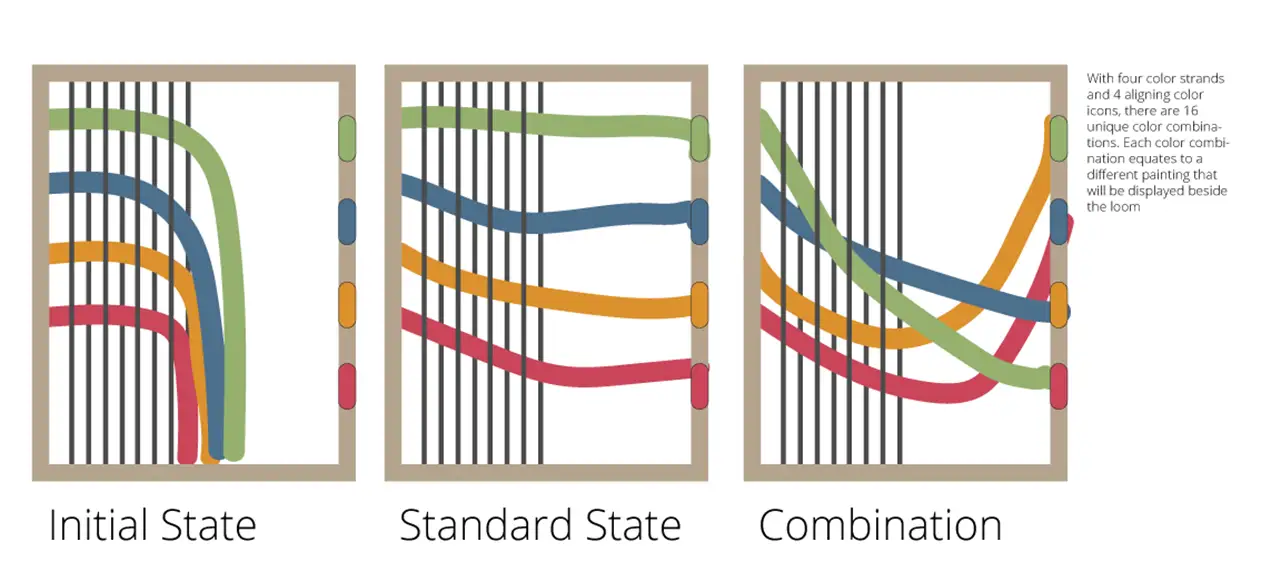
Here are the wireframes of the initial loom wireframes:
Style Guide
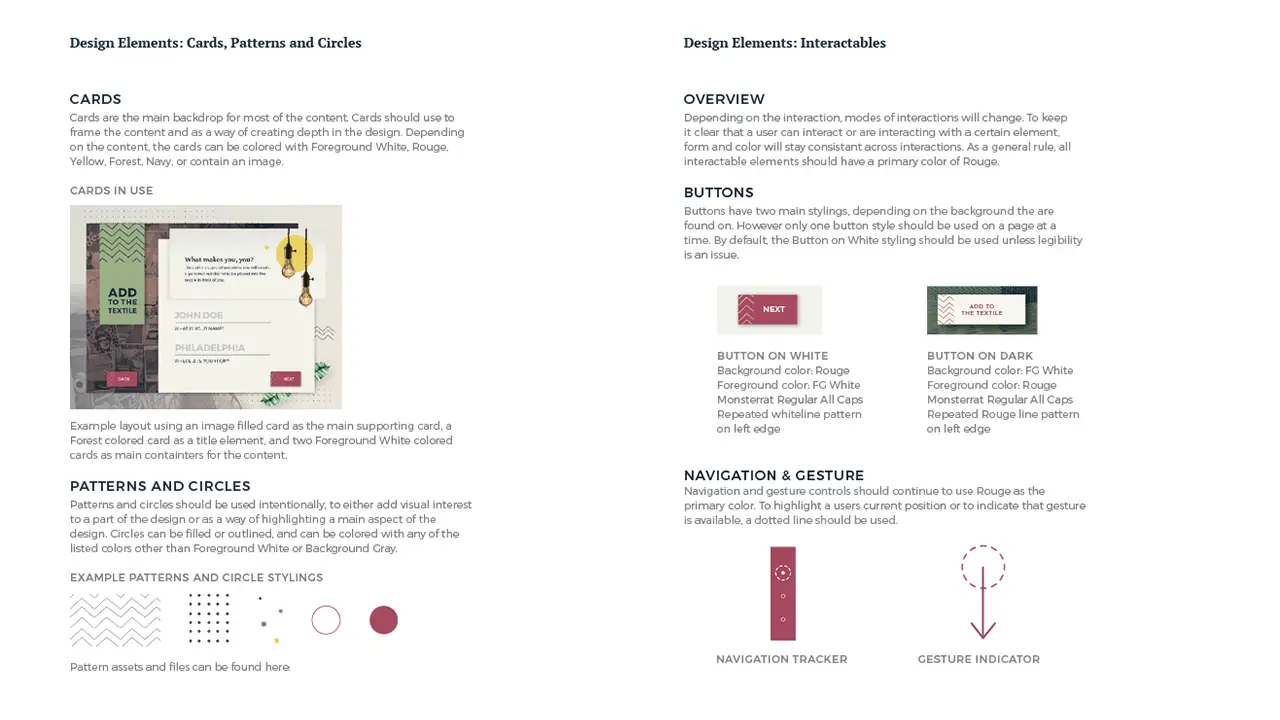
The palette for the exhibit was inspired by the backgrounds of the artists. Green, red, and yellow are significant in Malaysian culture, but most of Len’s work uses earth tone and nature based colors, so we toned down the hues of all colors for a more neutral palette. We were working with great reference material from both creators that were either hand made or artifacts from the past, so we created handmade textures, patterns, and a layered effect to create something akin to a college of the two artists.
Prototypes
Once we decided on the design styles, we moved forward by changing the wireframes to prototypes and adding the colors and patterns in from the style guide.
Gallery
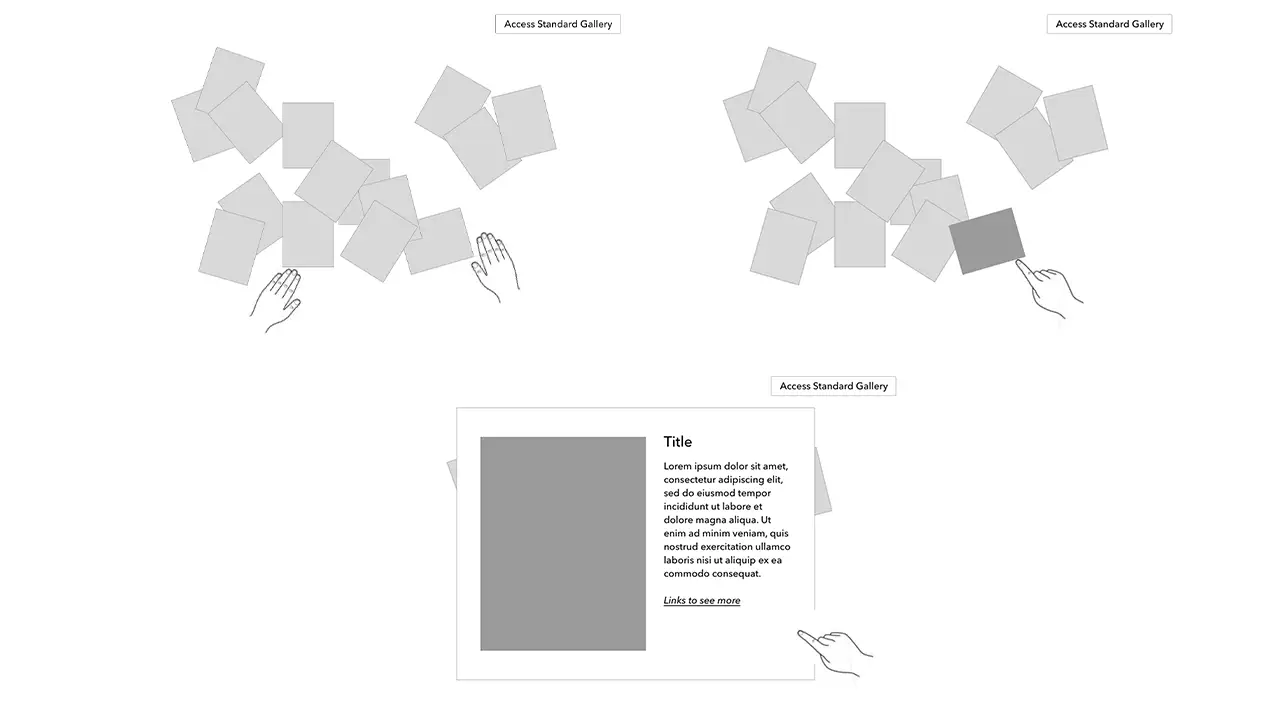
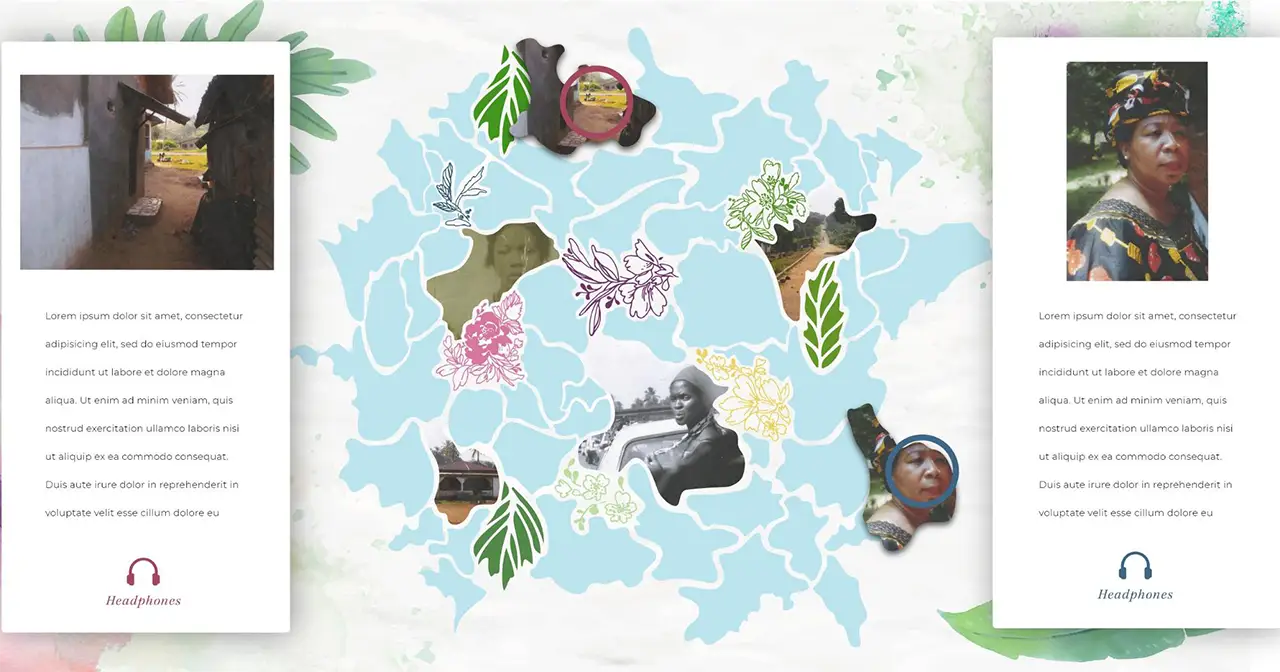
Here is the initial gallery prototype. Our initial thought behind the collage allowed users to sort through scattered photos which open in a card layout to display more information.
Due to our agile process we were able to catch the limitations of the technology early and adjust our interaction to provide the best possible experience for our visitors. Because the touch screen could not be laid flat and the initial idea we had for the gallery didn’t work well on a flat surface, we changed the gallery to a more collage like design. Our users, after doing A-B testing, also confirmed our decision.
Here is the prototype of the first version of the collage gallery:
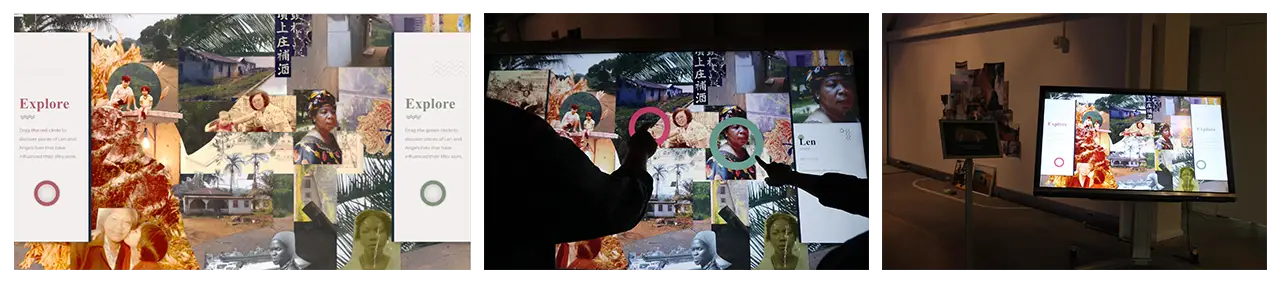
Here is the prototype of the second version of the collage gallery, and it is the final version displayed in the exhibit.
Mural
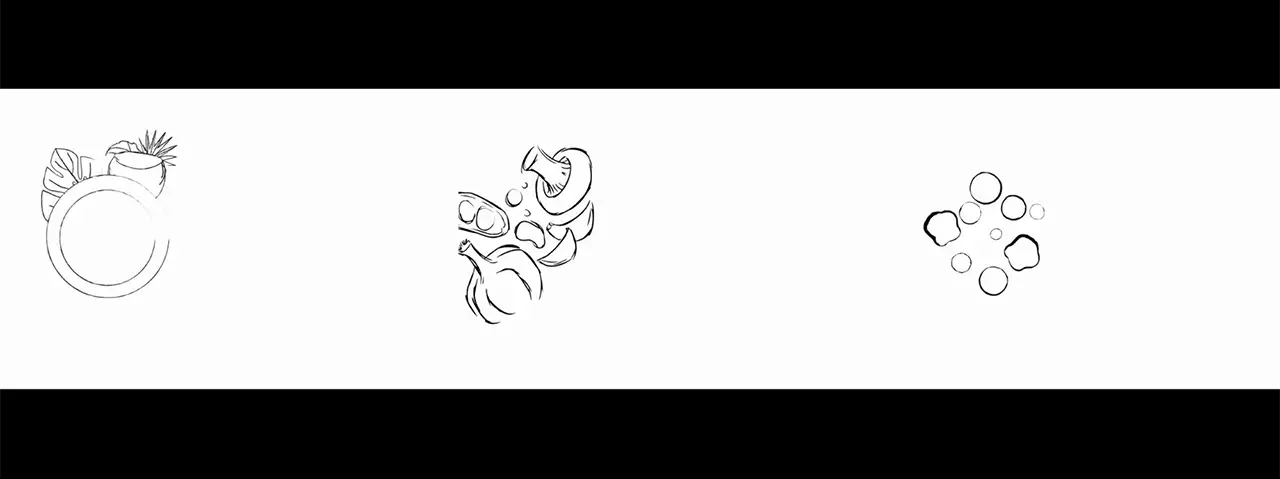
Here is the initial prototype of the mural interaction. The idea is that the outlines on the canvas only show partial information and the digital projection reveals the whole image by filling in colors, images, and texts on to the canvas.
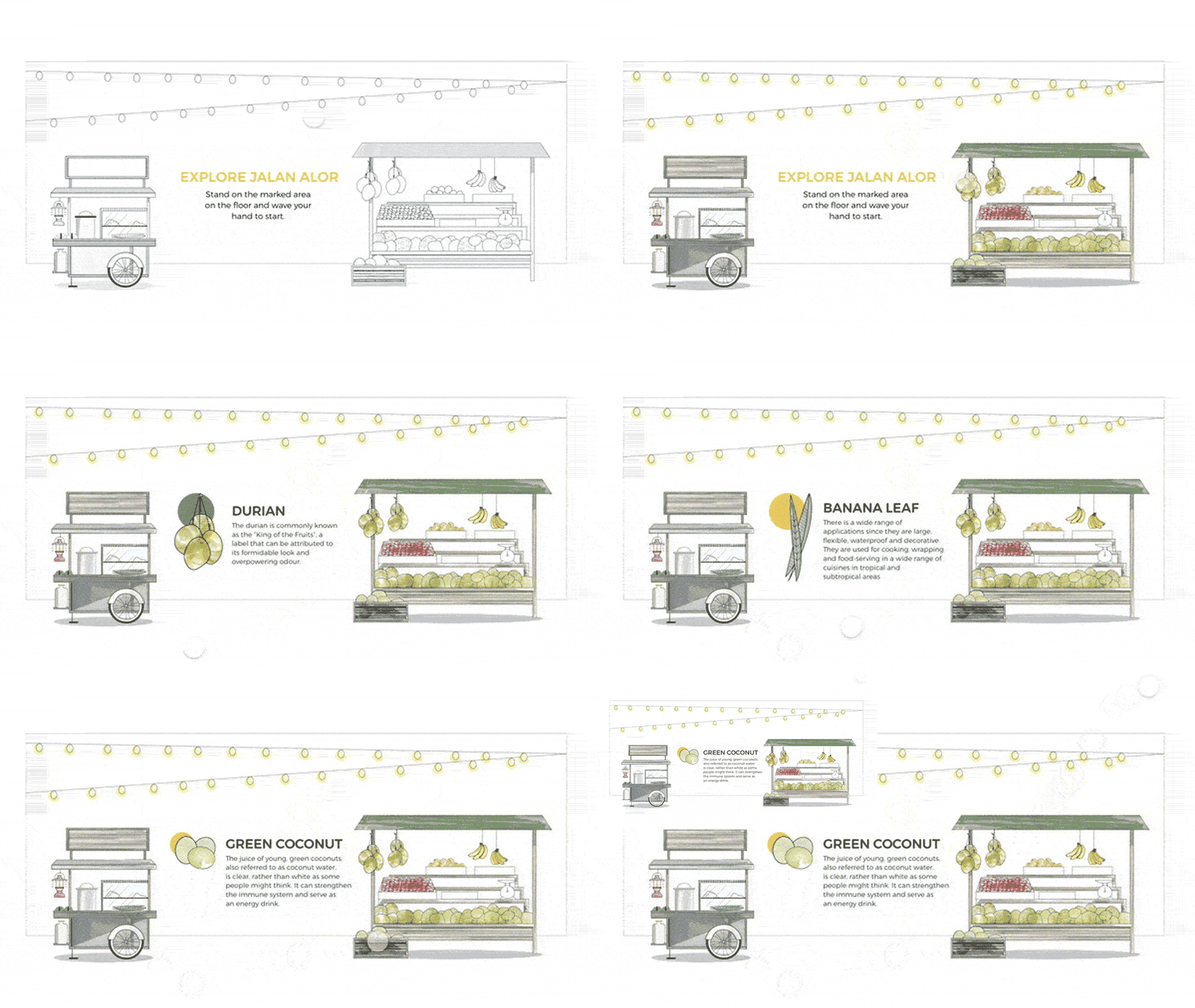
Then we altered the design of the mural to represent a Malaysian street scene. We wanted to introduce an element of discoverability where users can explore the market, and learn more about different foods that would be found there.
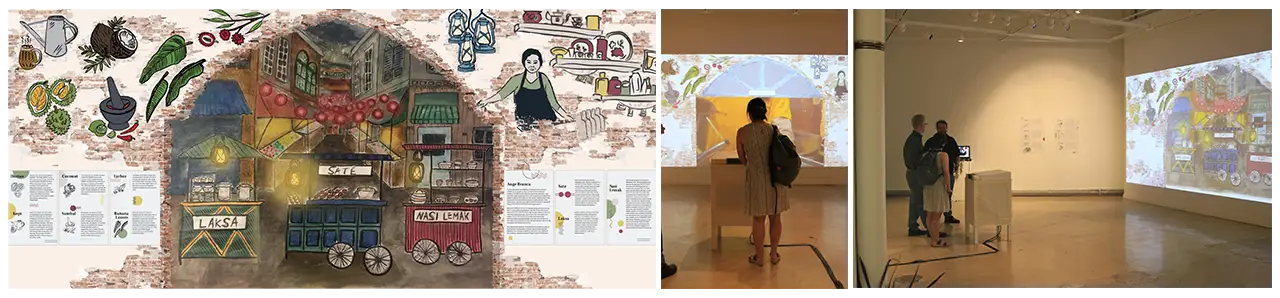
This is the final design that we ended up using for the mural. With this design, the interactive portions of the mural are within the archway shape. The parts outside of the archway are elements that show more about Ange, her restaurant, and Malaysian cuisine.
Energy Table
Here is the initial prototype of the energy table interaction.
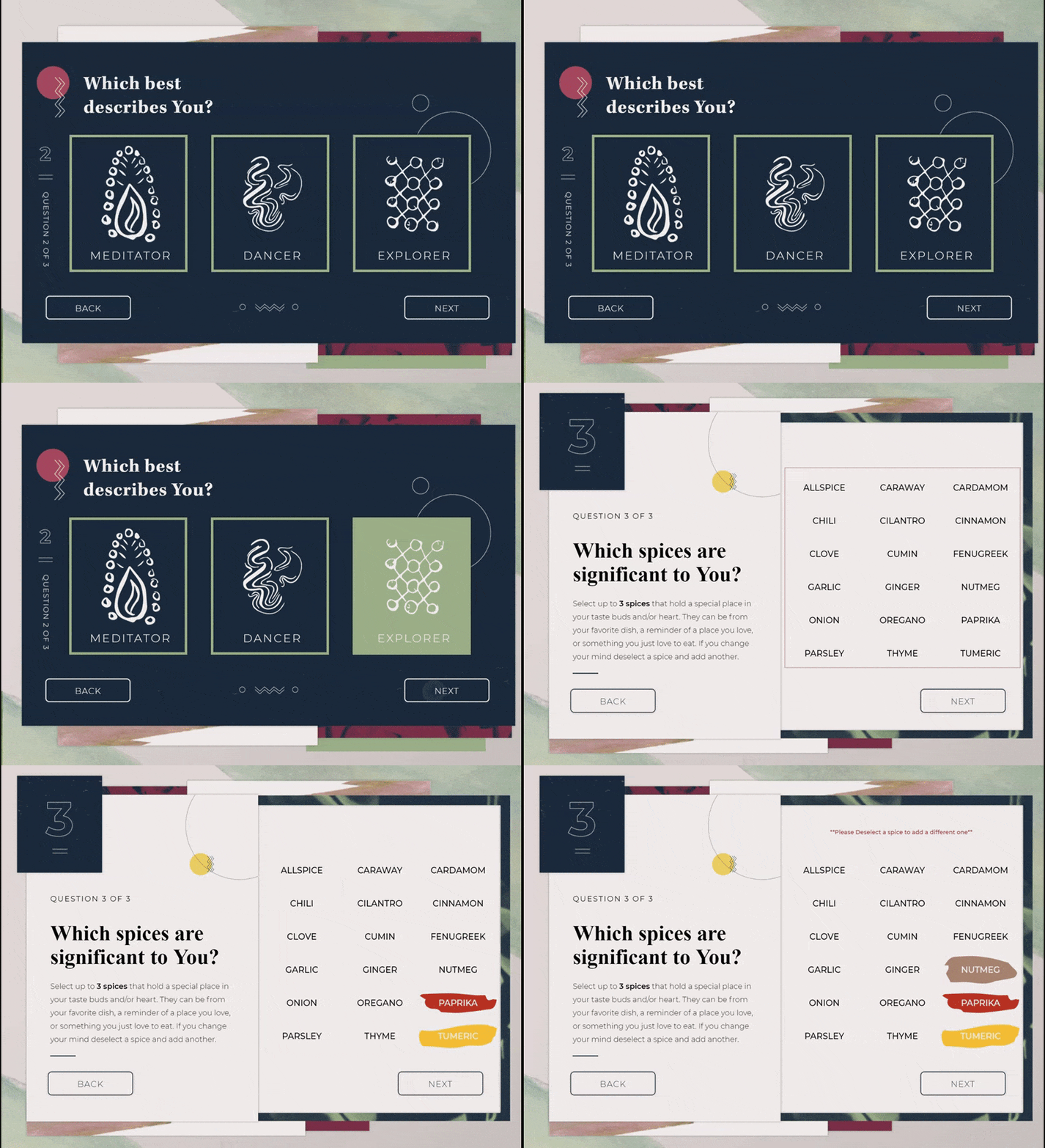
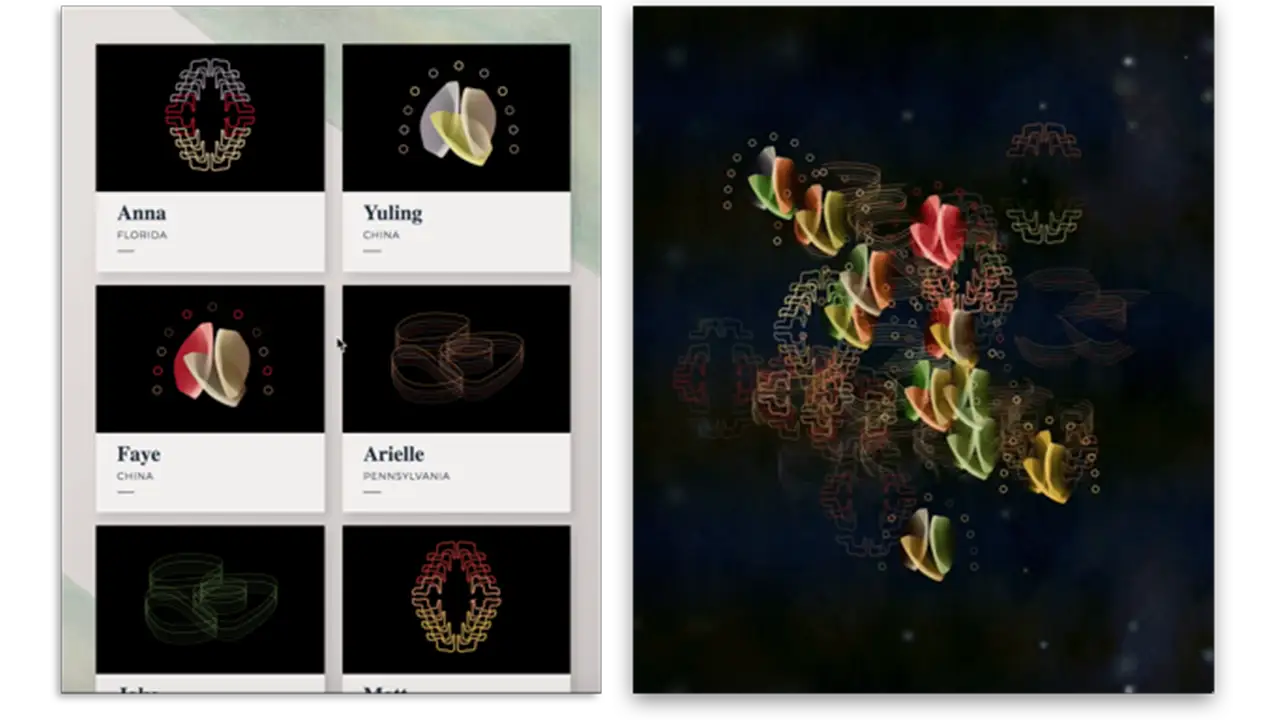
This is the prototype we ended up using for the exhibit. It allowed users to leave their own personal mark on the exhibit and demonstrates that while we are all different we can come together to create something new and beautiful. Users could enter a little bit of information about themselves in order to create their personalized energy form. The descriptive movement types were inspired by Len’s artwork she designs inspired on different energies that she feels and the spices were inspired by Ange’s cooking.
Loom
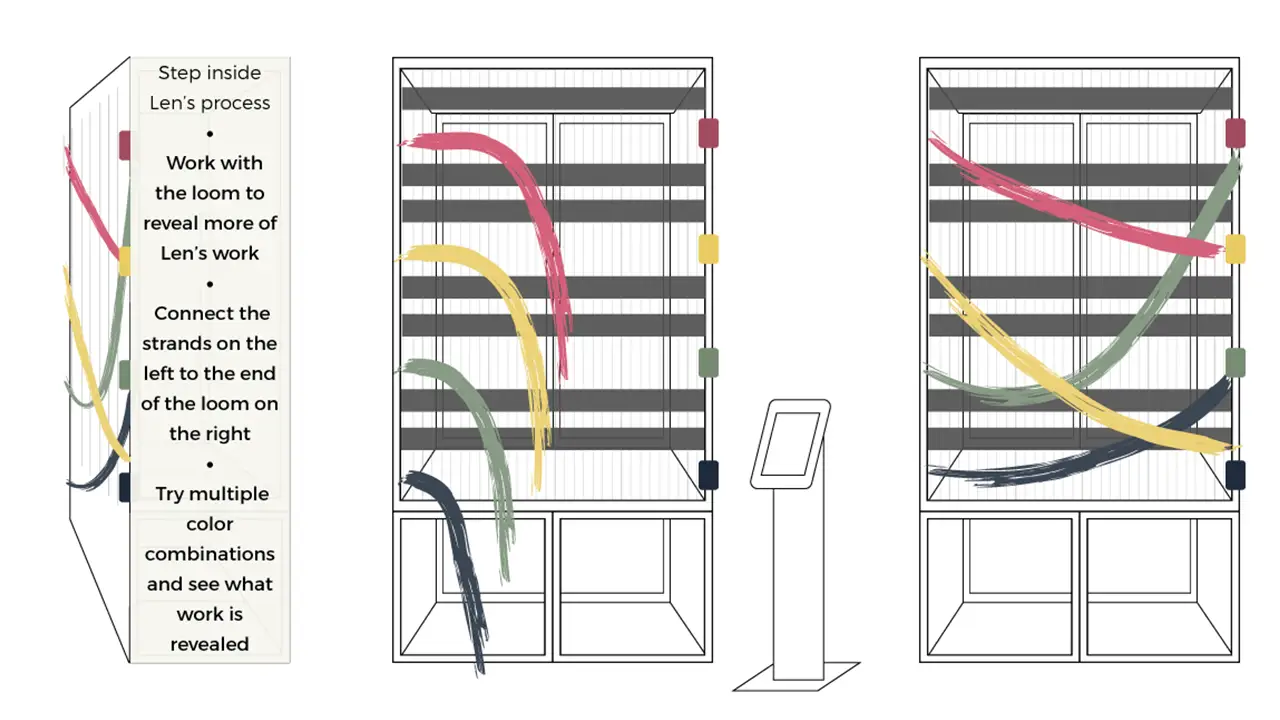
Here is the initial prototype of the loom.
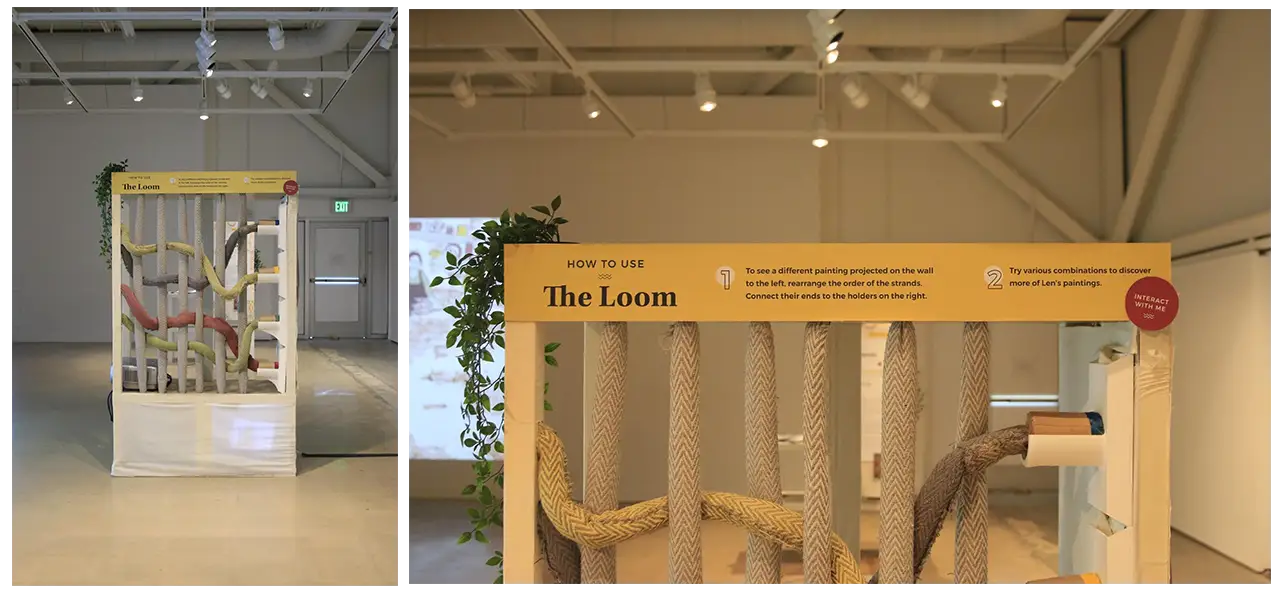
Here is the improved version of the loom prototype, and the version we ended up using. This design of the loom contained bigger strings which allowed for an easier grip for our users.
Code/Dev
Explore Stage
This is our exploration phase of using the leap motion and touch sensitive technologies. We also experimented with augmented reality.
Energy Table
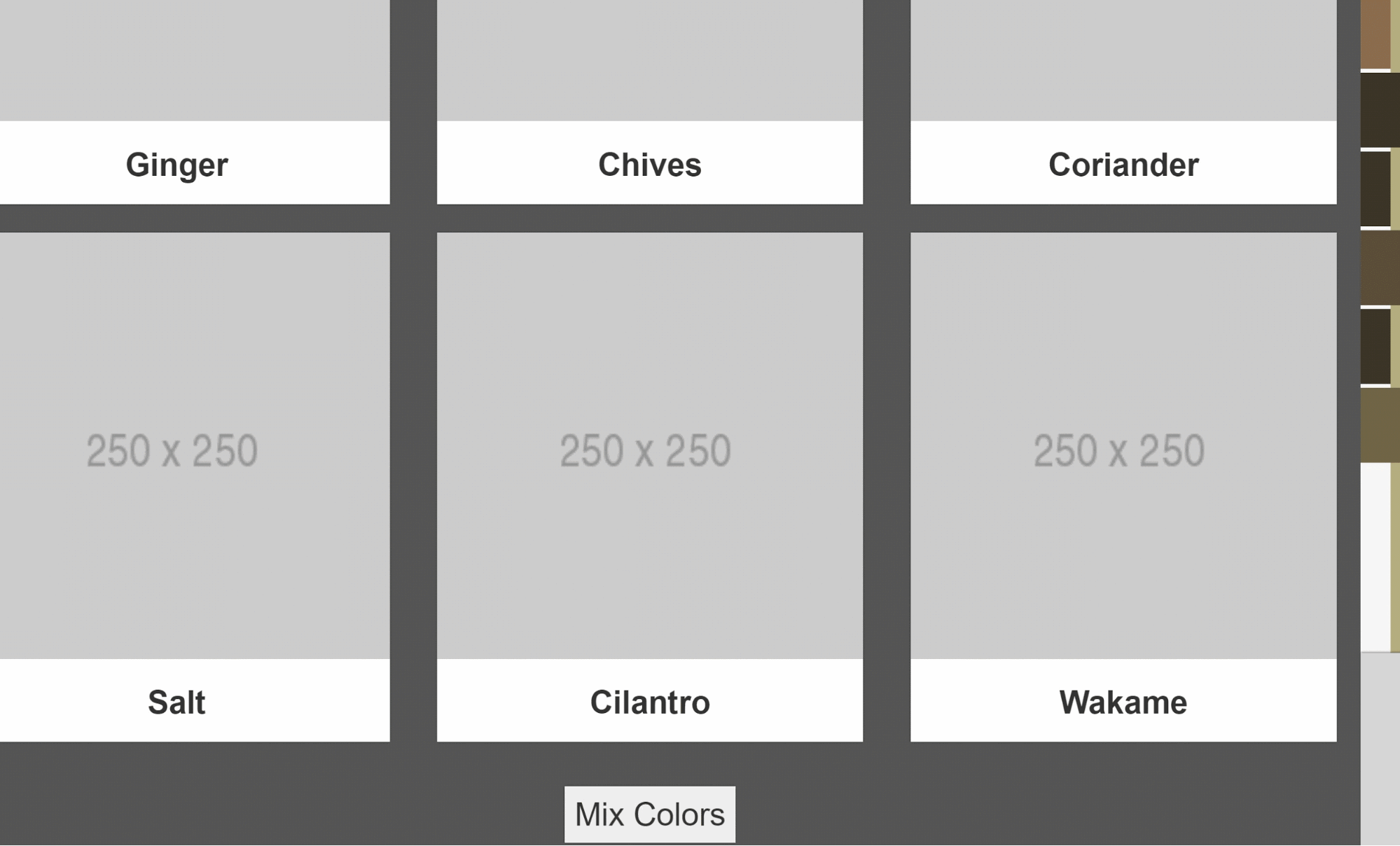
This shows how code can be used to create colored strands using user input in our initial prototype.
Mural
This was an experimentation using the Kinect and LEAP motion as different options for controlling the mural.
Gallery
These are initial proofs of the multi-touch functionality used in the gallery.
Here is our first attempt at a collage type design using the multi-touch screen.
Physical Prints/Structures
Here are examples of our initial structure builds in which we used IKEA tables and printed materials.
These are the design of the physical structures with copy placed on to them. We hand painted and sewed on all the design assets on to the canvas.
Usability Testing
Throughout this process we were able to conduct over 100 usability tests which resulted in many changes leading to more intuitive and user friendly designs. Here are brief summaries of what we learned from our testing sessions.
Gallery
Based on user feedback, we changed from the previous design to the current design but still kept the explorative yet informative experience. After identifying and solving the challenges, users thought the collage design is visually more interesting and the interaction is more cohesive.
The Loom
The loom was very difficult to make user-friendly because we were creating something that we had never done before. By giving our users more guidance through instructions and onscreen feedback we were able to make the process much more intuitive.
The Mural
In the beginning of our testing users found the gesture controls hard to use but by changing the controls to be much simpler by eliminating a clicking function and creating less cognitive load, users found the mural much easier to use.
The Energy Table
At first users were not clear on the connection or meanings behind the energy movements or the spices. After refining, we added in more context explaining the energy movements and usage of the spices, so our users felt more connected to their selections and the artists.
To see our notes and analyses for these tests, click here.
The Solution
Here are the final results that were shown in the exhibit held on June 11, 2018 from 6-9 p.m. All of the images/screen grabs seen below were taken/used in the exhibit.
Gallery
The collage introduces visitors to the backgrounds of Ange and Len. Using a multi touch screen, 2 visitors can simultaneously hover over and interact with photographs using their respective cursors. Each photograph is a significant person, place, or object to the creators which visitors can learn more about on the side cards. The collage format of these photos allows for an element of discoverability, where users must explore the whole piece to learn more, but it also represents the blending of individuals in cultures. By having 2 visitors be able to interact with this at once, we hoped to create a shared learning experience while also reducing wait times to use it.
Mural
With this digital mural design, the interactive portions of the mural are within the archway shape. Users were able to select food carts representing different traditional Malaysian dishes/drinks, such as Nasi Lemak, Sate and Kopi, and once selected, watch videos of these dishes being made. The parts outside of the archway are elements that show more about Ange, her restaurant, and Malaysian culture.
We wanted users to feel like they were looking into the scene and were able to interact with the things they see. So, we decided to use gesture control technology. We used the Leap Motion, which allowed users to use their hand motions to interact with the mural elements.
Energy Table
The energy table allowed users to leave their own personal mark on the exhibit and demonstrated that while we are all different we can come together to create something new and beautiful. Through use of Socket.io and Javascript, the visitors could enter a little bit of information about themselves to create a personalized energy form. Visitors chose a descriptive movement type inspired by Len’s artwork and up to 3 spices inspired by Ange’s restaurant.
Once their energy was created the visitors added it to the collective energy energy projection where they could view their energy interacting with everyone else’s and the explore interaction where other visitors could see the stories told by others.
The Loom
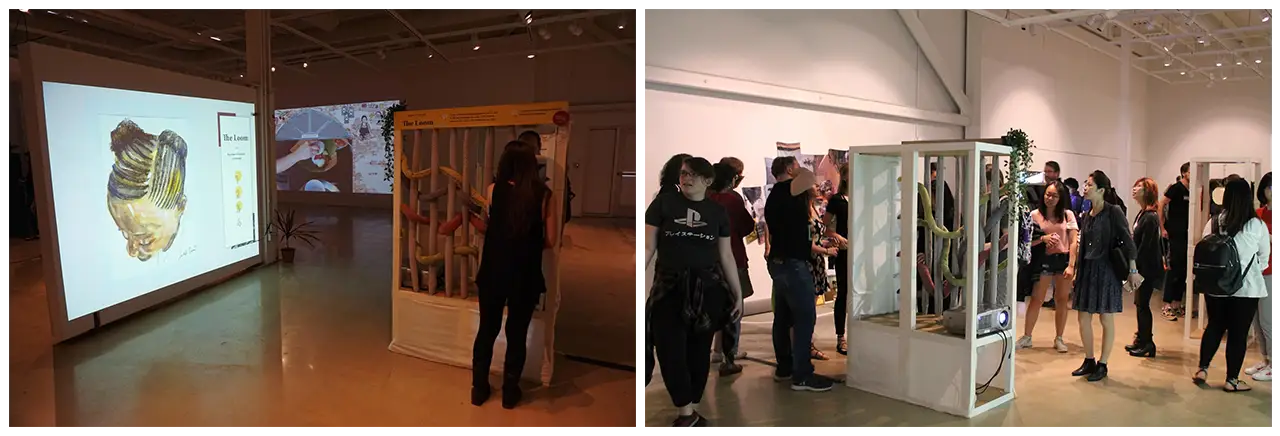
The Loom was built specifically for the tactility and connection to Len’s work it provided. Allowing users to participate in the textile creation process while also exploring Len’s paintings created an enjoyable and personal experience. The Loom uses NFC technology to create a digital change on a projection through the connection of physical strands to NFC readers. Connecting the four threads displays one of 24 paintings created by Len.
Developing the Loom was challenging because it not only included new technologies we had no experience with, but also relied heavily on the seamless connection between the physical and digital interaction. To ensure we had as little room for error as possible in the design, we worked with Adept Inc. to create and 3D print holders for the threads and NFC readers.
Physical Exhibit Setup
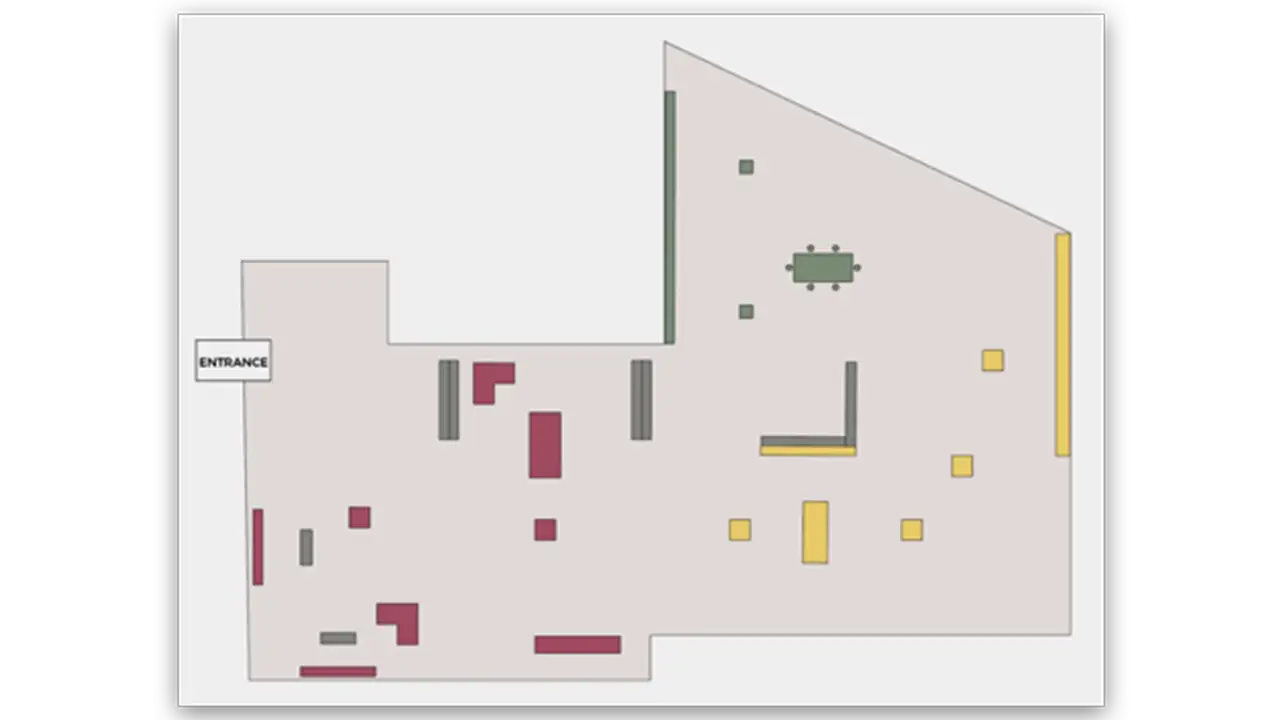
This is the layout of the exhibit we went through many iterations creating as we adapted the space in the Pearlstein Gallery to fit our needs.
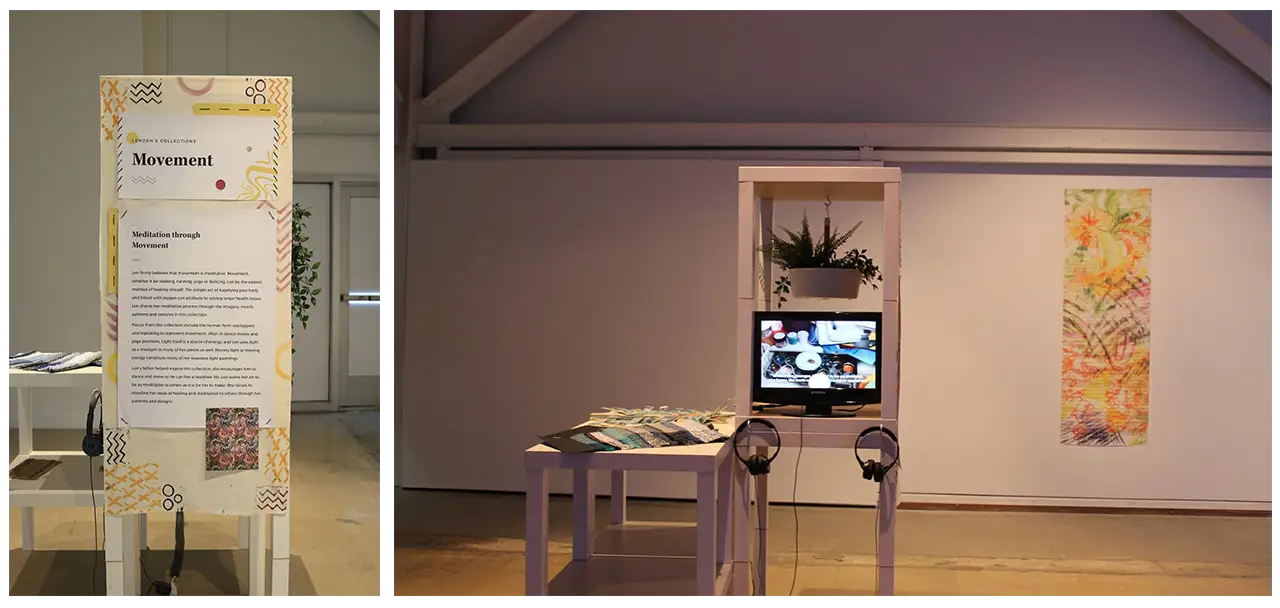
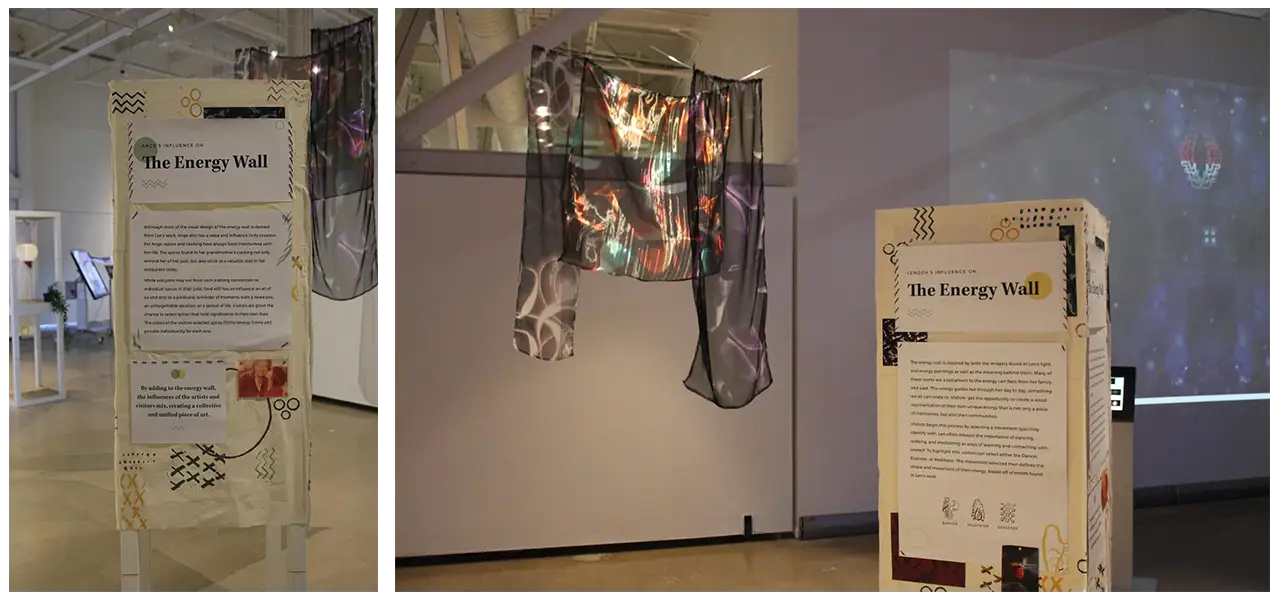
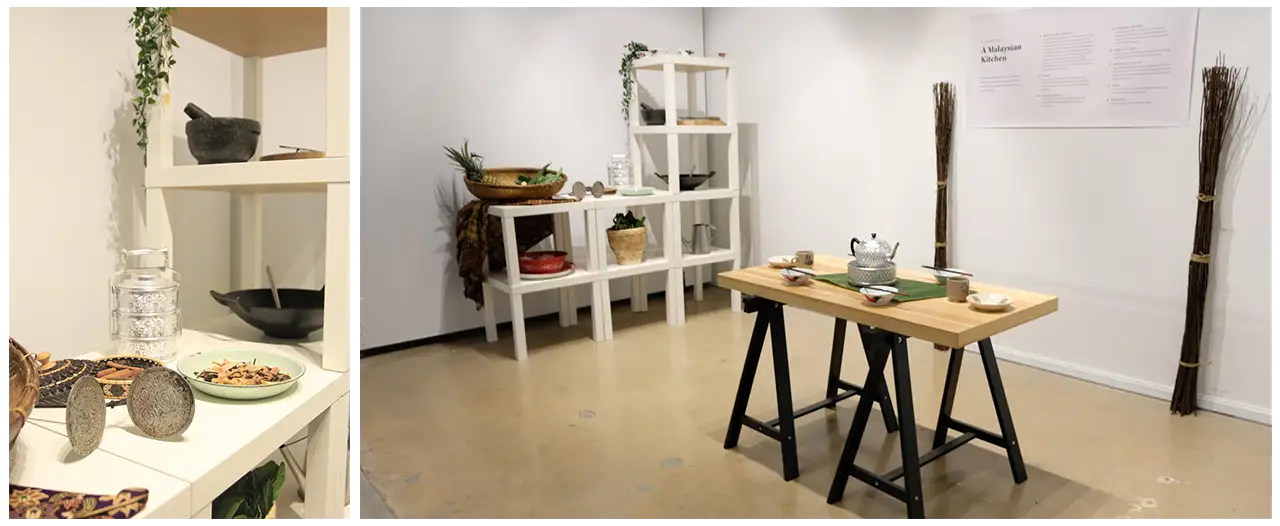
These are the final structures and physical setup in our exhibit. Len’s artwork can be seen hanging throughout the exhibit and it complimented the interactions and information displayed. We also filmed, edited and created short interview films starring our two artists that were featured throughout the exhibit which can be seen on the smaller televisions within the structures.
One of the most important aspects of this exhibit was the physical set up. We featured a traditional Malaysian kitchen set up, along with many items found in Ang’s restaurant and hometown. Ang provided us with spices, fruits and vegetables used in her kitchen for users to touch and smell. This was to connect users to her cooking and cultural connections that were shown within the mural, collage and energy table.
Len’s artwork highlighted her creative influences and culture, as it featured her family in Liberia and her different mediums, such as textiles and printed material. The textiles were displayed around the loom to help compliment each other, the Liberian family printed collage was shown next to our digital collage and the energy pieces were featured next to our energy table to help immerse users in our artists’ worlds.
The Results
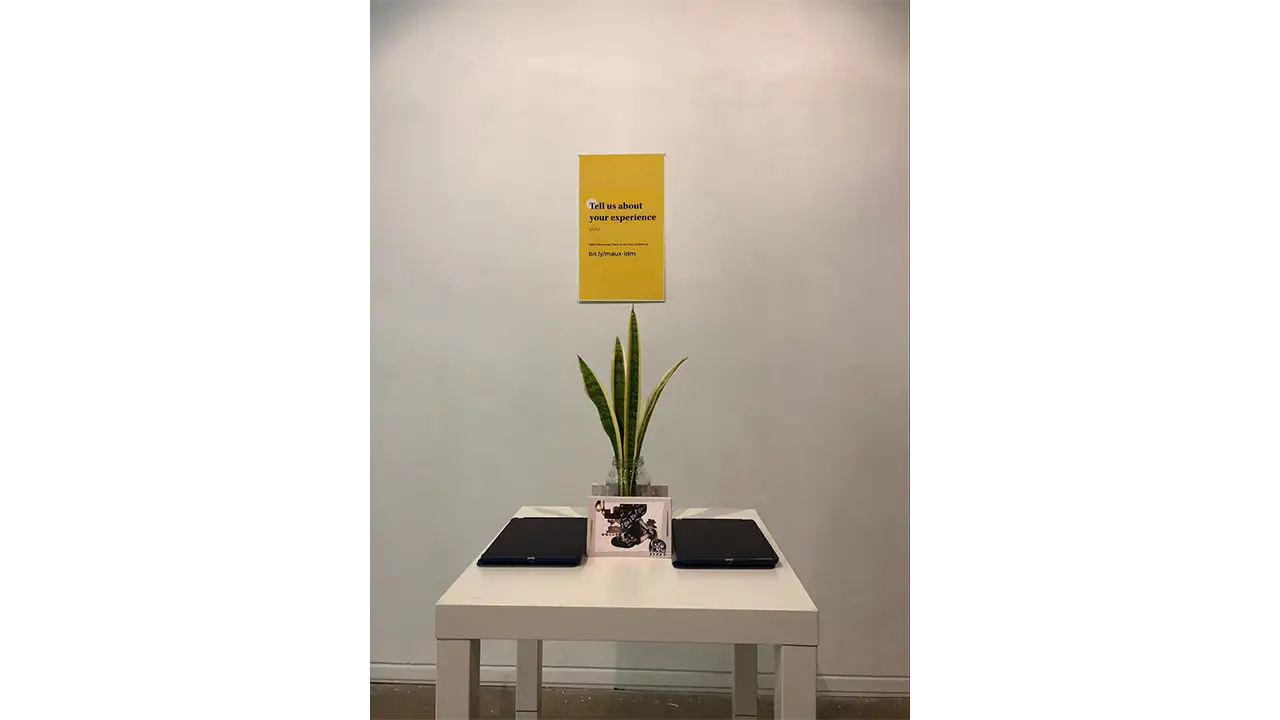
Overall, our exhibit was a huge success, as we had over 200 visitors come to see our show. At the exit, we set up a survey table where visitors could leave their final thoughts on the exhibit. We asked visitors to rate how easy the interactions and exhibit were to navigate. The survey results showed that most users found the exhibit easy to navigate and the interactions intuitive to use. A majority of users rated the energy table as their favorite interaction in the exhibit, which was rewarding to hear because this was the interaction in which users shared that they felt most connected to our artists. Many visitors shared that they would like to return to our exhibit in the future. Coalescence was an inspiring experience not only for our visitors but also us, the creators, as we were able to immerse ourselves in the creativity and culture within Philadelphia as well as push ourselves to build an inspiring experience through our research, testing and desire to make an impact. Below are some of the final remarks from our visitors, that show the impact this exhibit made on them.
“I really enjoyed the exhibit. I would love to see exhibits like this become a common experience at all museums. Amazing!”
“The graphic design was astounding and interior design was comforting. It really matched the vibe of your two featured artists”
“I also really appreciate how much every aspect of the exhibit, down to the backdrop of the descriptions and the plants on the wall, was stylized and designed. This exhibit was unlike anything I’ve experienced before, and I hope to be able to see it again somewhere.”
“It’s incredibly well executed and unified. The amount of thought put into this shows. It beautifully tells the stories of the women this exhibit centered on.”
“It was a beautiful experience and an amazing exhibit. It was so unique and you can tell a lot of time and effort was put forth”
“I loved the look into the lives and culture of these two beautiful creatives and feel very blessed about my chance to see it”
“Fun, well integrated design and technology, thought provoking while simple enough to engage”
Over the past 10 weeks our group has been working closely with Schmear It and their customers to create a brand new mobile ordering experience. We conducted primary research, went through multiple rounds of ideation and user testing, and ultimately created a final interactive mockup in Sketch and Flinto. Through this process we learned the importance of collaboration, user testing, team meetings, and understanding business requirements. We are extremely pleased with the final application and hope Schmear It’s users love it as well.
Team
Alex Aslid
Alex Huffaker
Yuan Li
Miles Waldron
Jordan Zagerman
Context and Challenge
Schmear It is a local Philadelphia bagel food truck established in 2013 and recently expanded into a physical location in October 2016. Our team was tasked with developing a mobile application for Schmear It that provided mobile ordering, rewards, and business information for their customers. This application would substitute their existing order ahead solution on their website. We worked closely with Schmear It and their customers to test and develop this mobile application over the past 10 weeks.
While Schmear It already had a mobile ordering function built into their website. It wasn’t advertised or communicated to users very clearly on their website (especially the mobile site) or at their physical locations. The goal of this application was to bring mobile ordering to Schmear It in an accessible and discoverable way for users, while preserving the unique personality and branding Schmear It has developed. The application should also promote their build-your-own option as this is their preferred way for people to order and their collaboration with charities.
Process and Insight
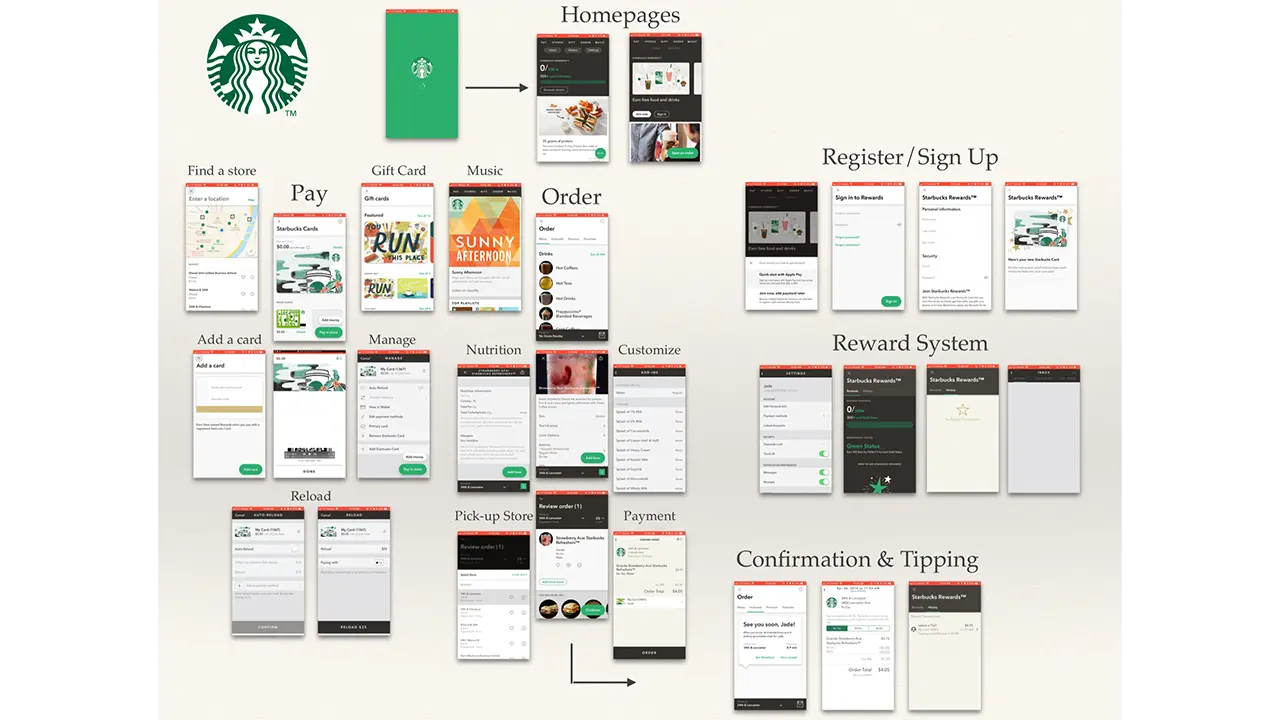
We began the design process by establishing a relationship with Schmear It. We created a business model canvas and project model canvas for the company. After that we began visiting the truck and store to observe the ordering process and the customer experience Schmear It provides.
From there we began conducting competitive research on competing mobile ordering applications to determine what ideas, flows, and features were already on the market. We determined our target audience based on the surrounding area and the customers we saw from visiting Schmear It. We determined our primary customer types were students, commuters, medical professionals, and to a lesser degree tourists.
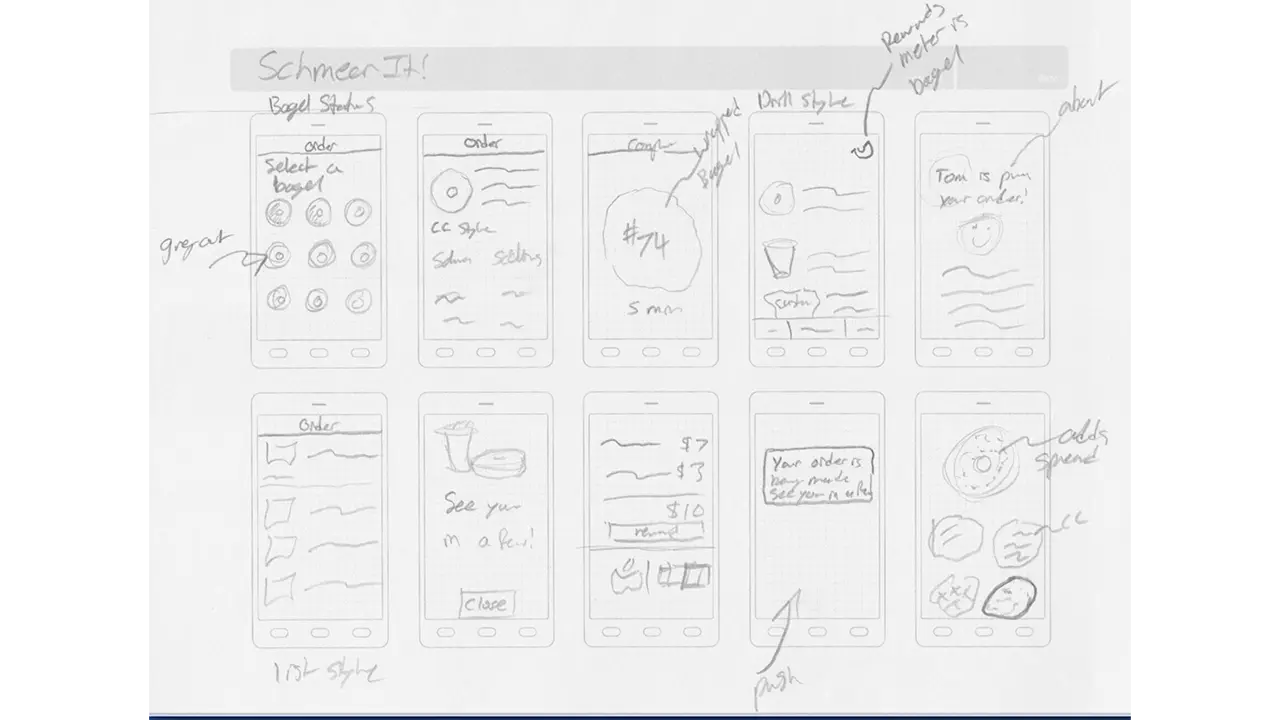
After our initial research and planning, we began to sketch wireframes for potential designs and user flows. This process, like every process was collaborative and we went through 2 rounds of wireframes before moving to digital mockups.
From there we made individual mood boards that we combined into a unified team mood board with our color palette, potential iconography, fonts, etc.
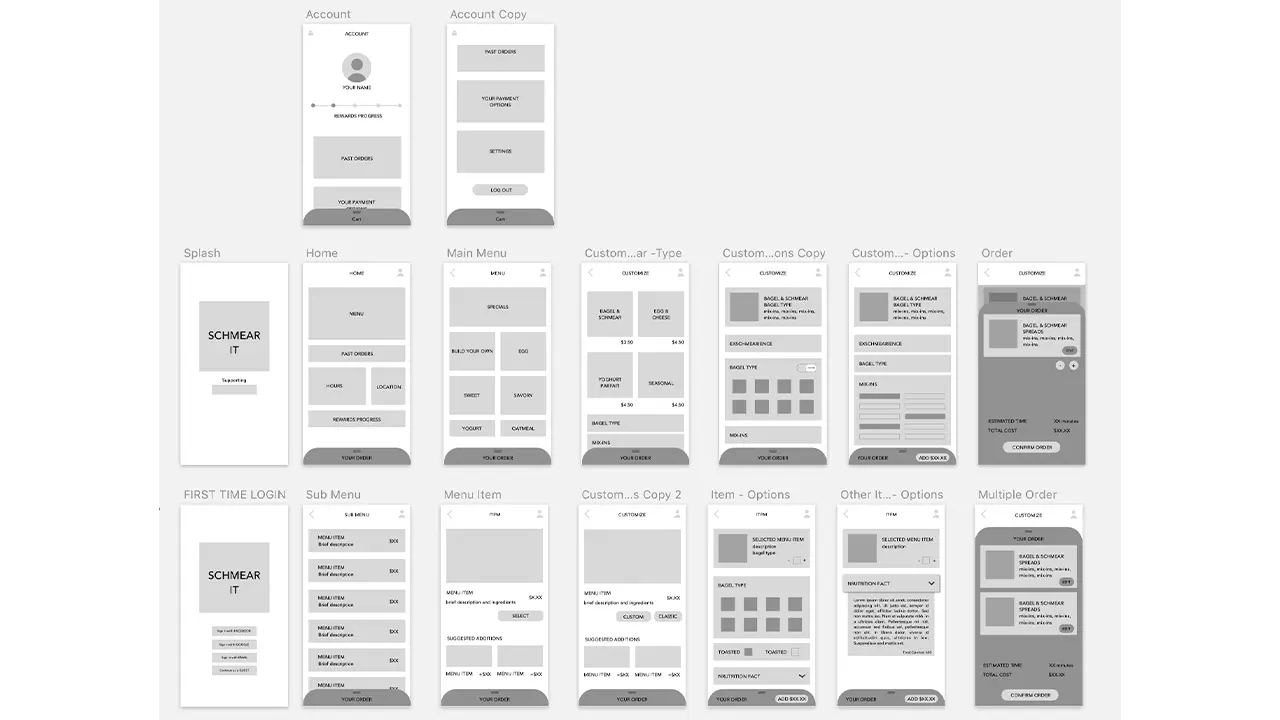
We then began creating wireframes in Sketch and tested paper prototypes with users.
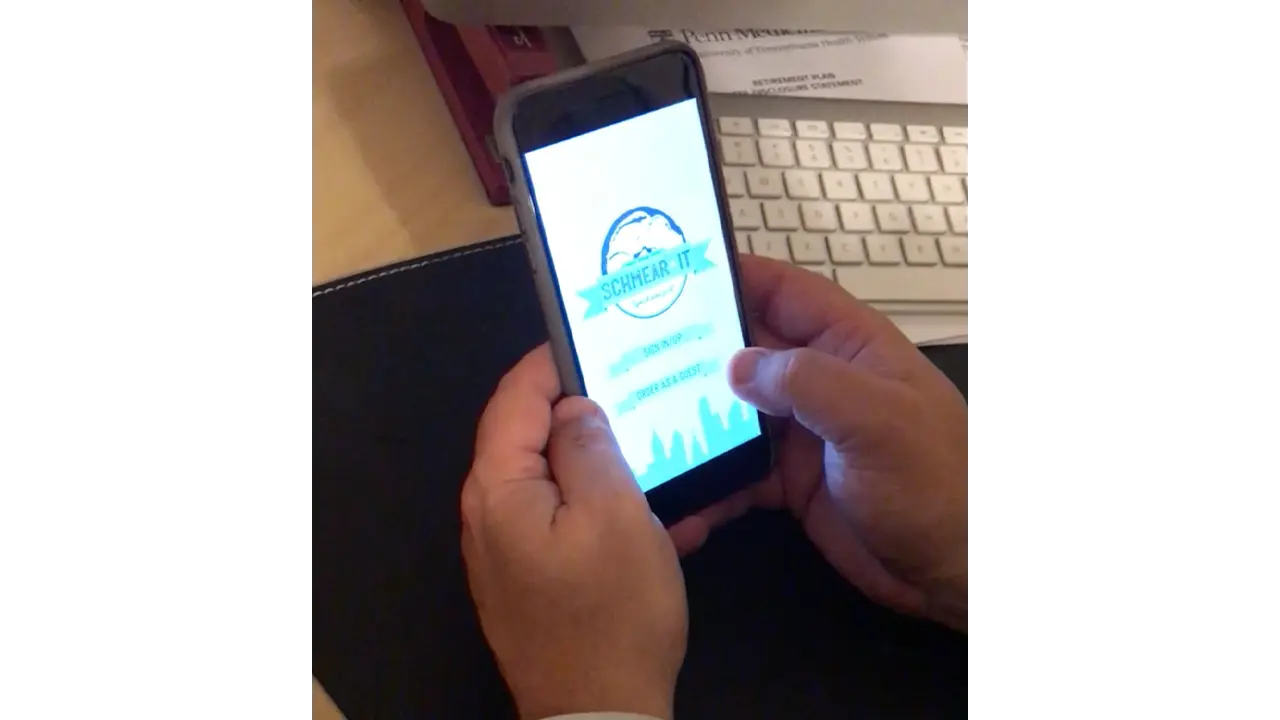
After testing with paper prototypes we moved into testing digital mockups with scripted user interviews. We repeated this testing every week from weeks 6-10. After each round of testing we regrouped as a team, discussed our user feedback, and determined what changes needed to be made for the following week. Collectively we tested with approximately 50 users over weeks 6-10. In week 7, we began using Flinto to add animation and navigation to our prototypes. The navigation went through several revisions as the first few prototypes were difficult to navigate. By week 10 we had a final prototype that went through one final round of testing and validation.
Overall we split the initial wireframe sketches and user testing between each team member. Alex Aslid created mockups in sketch and the final presentation. Alex Huffaker helped create standardized UI elements in Sketch and the final case study.
Yuan Li created the initial wireframes in Sketch for testing and assisted Jordan with animations in Flinto. Jordan Zagerman focused on talking with the business, users, and later animations in Flinto. Miles was responsible for creating graphics and did the final work in Sketch before it was passed off to the Flinto team.
Solution
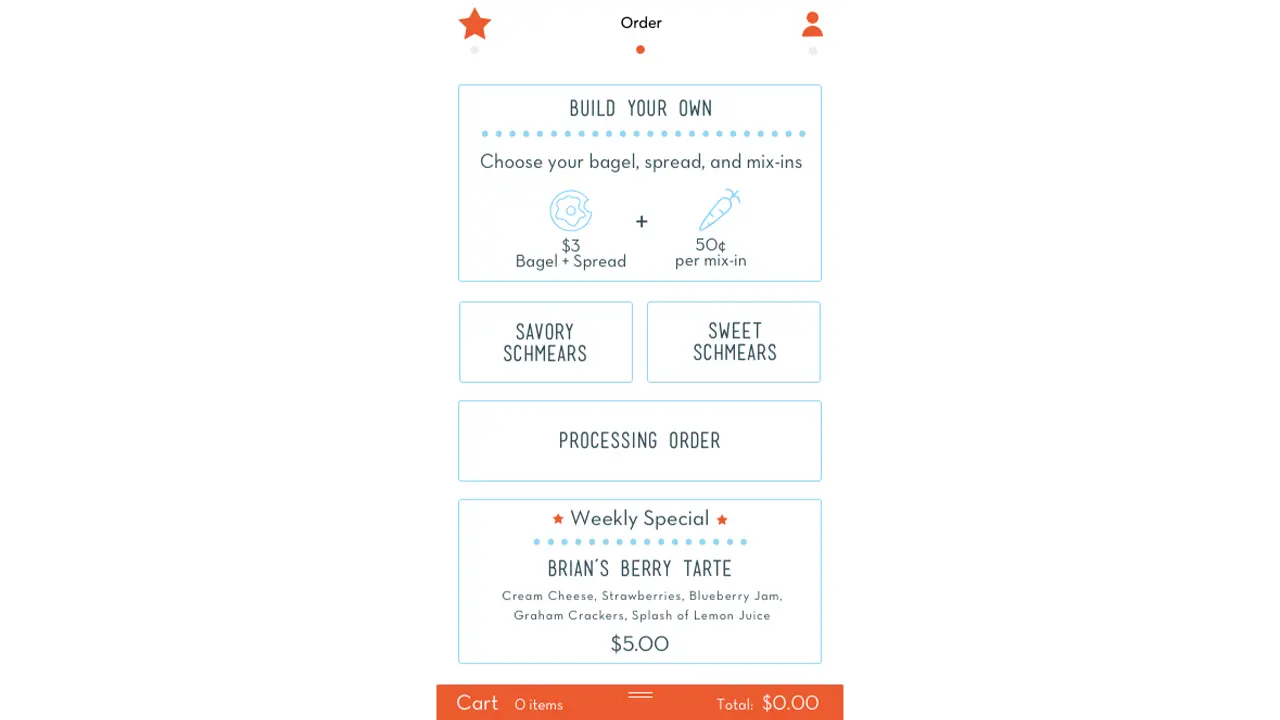
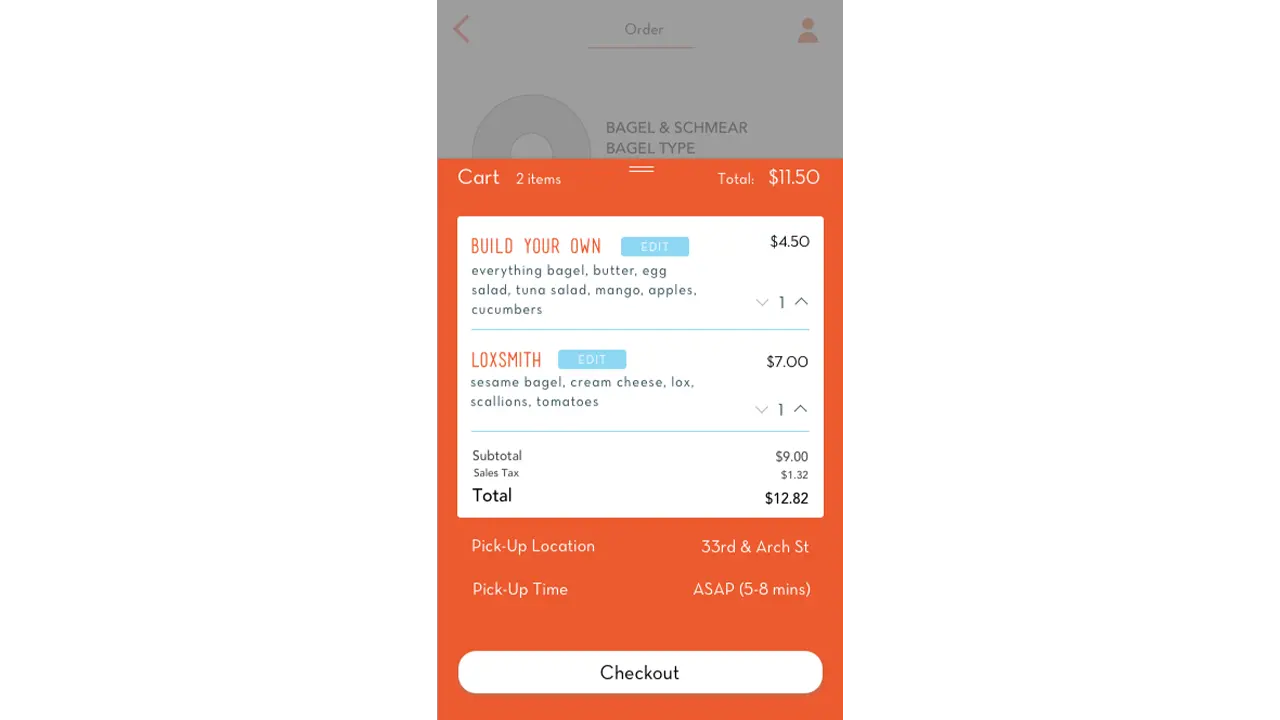
From the start we wanted ordering to be as easy and fast as possible. This was a defining trait that drove our design decisions. This led to the removal of an initial sign up screen and was a driving factor for the adoption of an ever-present card style cart.
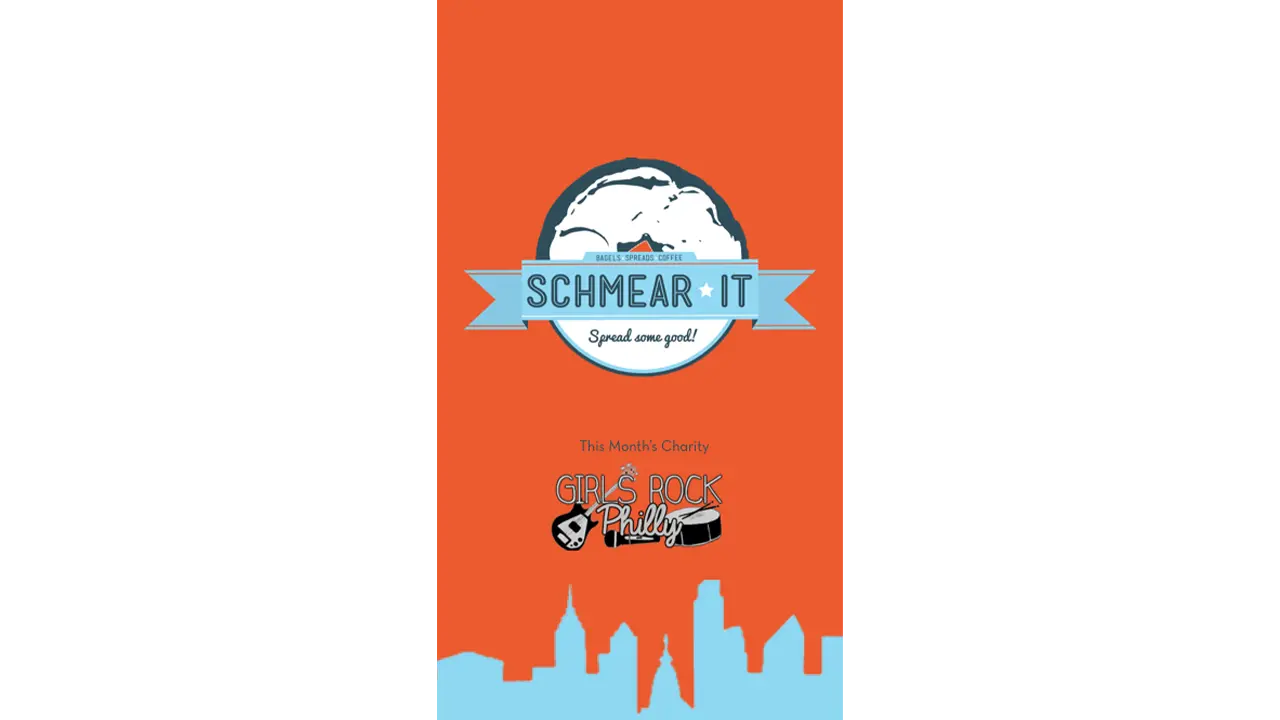
You can see the application clearly promotes the charity Schmear It is working with that month as well as displaying their logo and branding.
The home screen allows the users to dive immediately into the menu and ordering process. A card-style cart is persistent at the bottom of the ordering section of the application. The location and account pages are positioned to the left and right respectively and can be navigated with a swipe left or right or by tapping the respective icon from the navigation bar.
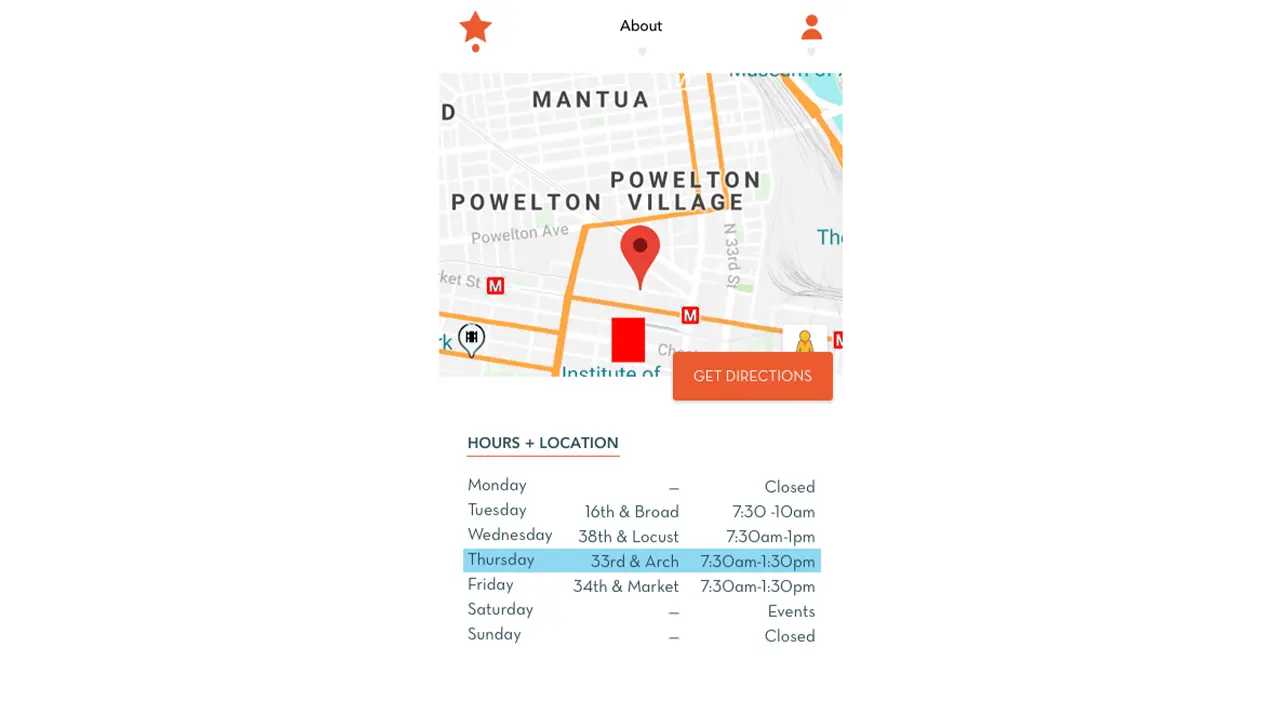
The location and times of the truck are clearly displayed under the about section so users are aware it closes early and the location changes.
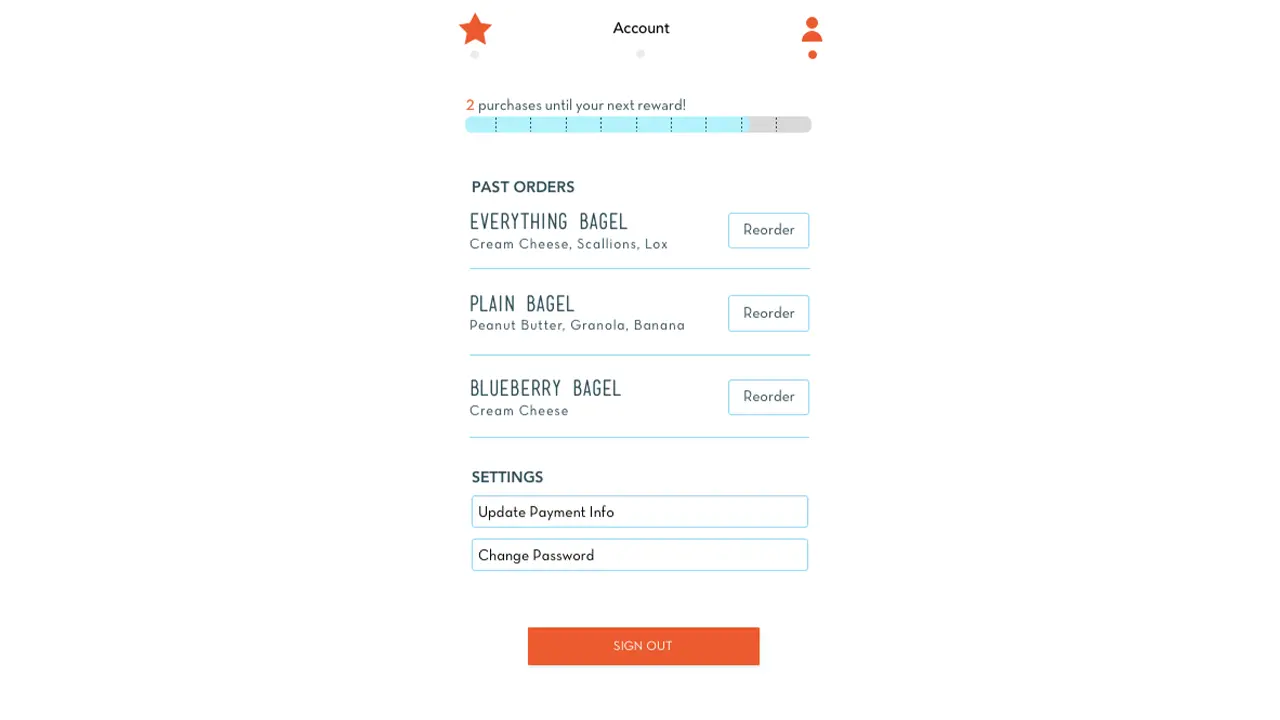
Rewards status, past orders, and account settings are all under one screen thanks to user feedback and provide a general account overview.
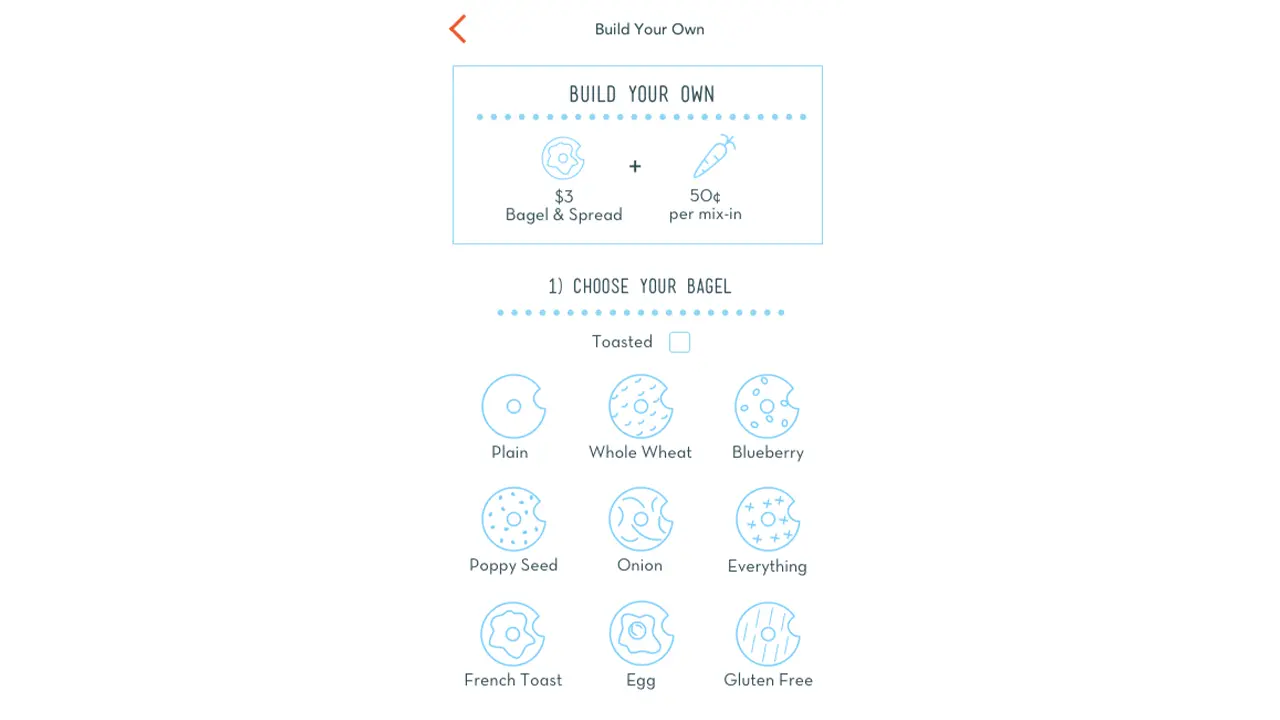
Custom orders guide users through a step by step flow where they can select their bagel type, toasted option, base spread, and mix-ins. Each of the bagel icons were recreated in Schmear It’s graphic style.
The checkout process allows for setting a custom pickup time and location when ordering ahead.
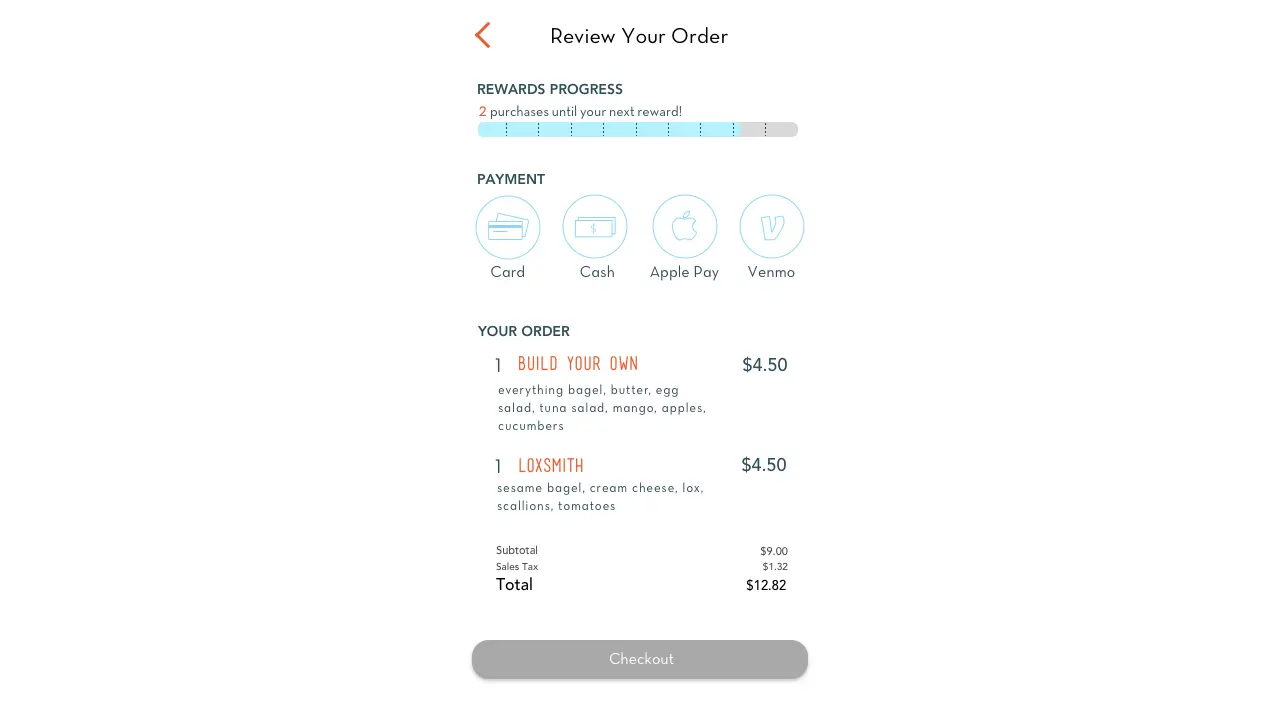
The payment info screen displays the user’s rewards status and alerts them if a reward is available before they complete the checkout. We also accept multiple forms of payment including Apple Pay for faster checkouts.
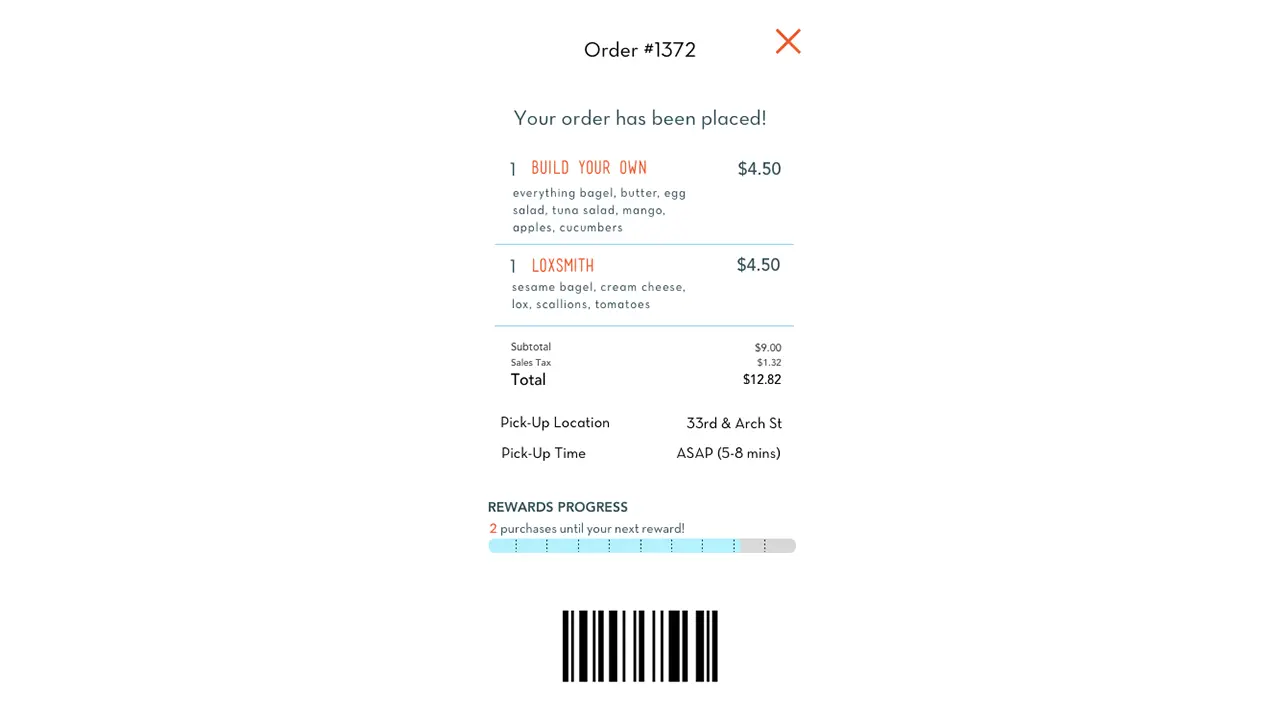
The order confirmation screen clearly shows the location and estimated pickup time. It also has a barcode for the store to scan upon pickup.
Once an order is placed, a new order status button appears on the home screen.
Results
Overall we feel this project has been very successful due to the branding, ease of use, and feedback from users. We met all of the business’ criteria to promote custom orders. User feedback was tracked through quantitative user studies with users reporting increasing satisfaction week to week. The application itself is very straight forward with its ordering process and the lack of an initial sign up screen greatly decreases first time setup for new users.
Creating a consistent meeting time really helped us stay on track even if one or two members weren’t able to make it that week. These meetings became less consistent as the project began wrapping up due to external conflicts from group members and affected the final product. In the future we would be stricter about these team meetings and at least one occurred a week outside of class. Sharing Sketch and Flinto files between the team also proved an obstacle as the team multiple versions for testing and the roles changed weekly.
For the spring 2018 User Experience (UX) course, our team was asked to build a mobile application prototype for a local food truck over a timeline of 10 weeks. We selected a truck called “PaperMill”, which sells Vietnamese-Mexican fusion food on Market street, at the heart of Drexel University’s campus.
Project Brief
Why:
Bring more customers to the business
Provide business an additional channel option to gain more customers
Increase customer convenience and satisfaction
What:
View menu options and order food remotely
Collect data on participating customers to build the best customer experience
Allow customer to create a profile that saves their past and favorite orders
Provide many options for mobile payment
Show the truck location and hours, as they are inconsistent throughout the week
How:
Minimize in-person wait time in front of the truck
Simple and effective design to display menu, pricing, promotions, etc.
Display accurate information on the truck and keep it up to date
Prevent customer turn-over by catering to the customers across multiple platforms
The Team:
Hannah Juraifani
Alyssa Klein
Meet Palan
Sanika Rann
Woo Young Song
Introduction
Using a mobile device to order food has increasingly become common-place. Food trucks are generally individual businesses and operate locally, so the majority do not have their own individual digital application. Many of these trucks utilize third party services like GrubHub to take advantage of digital customers without having to build or maintain an application. While PaperMill does not have a digital application, the food truck itself is rather new and has become popular on Drexel’s campus. The truck itself alternates location between University City and Rittenhouse Square during the week, and on the weekends, it is commonly found at catering events throughout the tri-state area. Due to their local success, their business was a perfect client for our mobile application design. By having an app for PaperMill, the wait time spent at the truck is minimized, while providing customers with a convenient way to order and pay for food. It also provides up-to-date information on the trucks current location for those who are not familiar with the trucks whereabouts.
Background
PaperMill was started in Sydney, Australia in 2016. It was initially a 10ft by 10ft tent at the Bondi Beach Farmers Market. As it grew in popularity, there was an opportunity to bring the fusion of South-East Asian and Australian style foods and favors to the United States, starting in Philadelphia. PaperMill throws a spin on the classic burrito by offering “spurritos” (a rice paper spring roll wrap around fresh ingredients), bowls for those not interested in the spurrito style, and Banh Mis (Vietnamese hoagies). Customers who prefer their food on the spicy side can add jalapenos or sriracha to their order, and the ever-popular option to add sliced avocado. The truck offers water bottles and LaCroix as their two beverage options.
Objective
The goal for this project is to increase the use of mobile ordering in order to reduce wait time spent in front of the truck. Our front-end development team consisted of 5 members: Hannah Juraifani, Alyssa Klein, Meet Palan, Sanika Rann, and Woo Young Song. We had similar responsibilities each week. Based on the results of several prototype testing sessions, we went through multiple refinement stages until we built a prototype that catered to our target audience best. Throughout the ten weeks, we were able to problem solve by using our increasing knowledge of user experience design.
Process
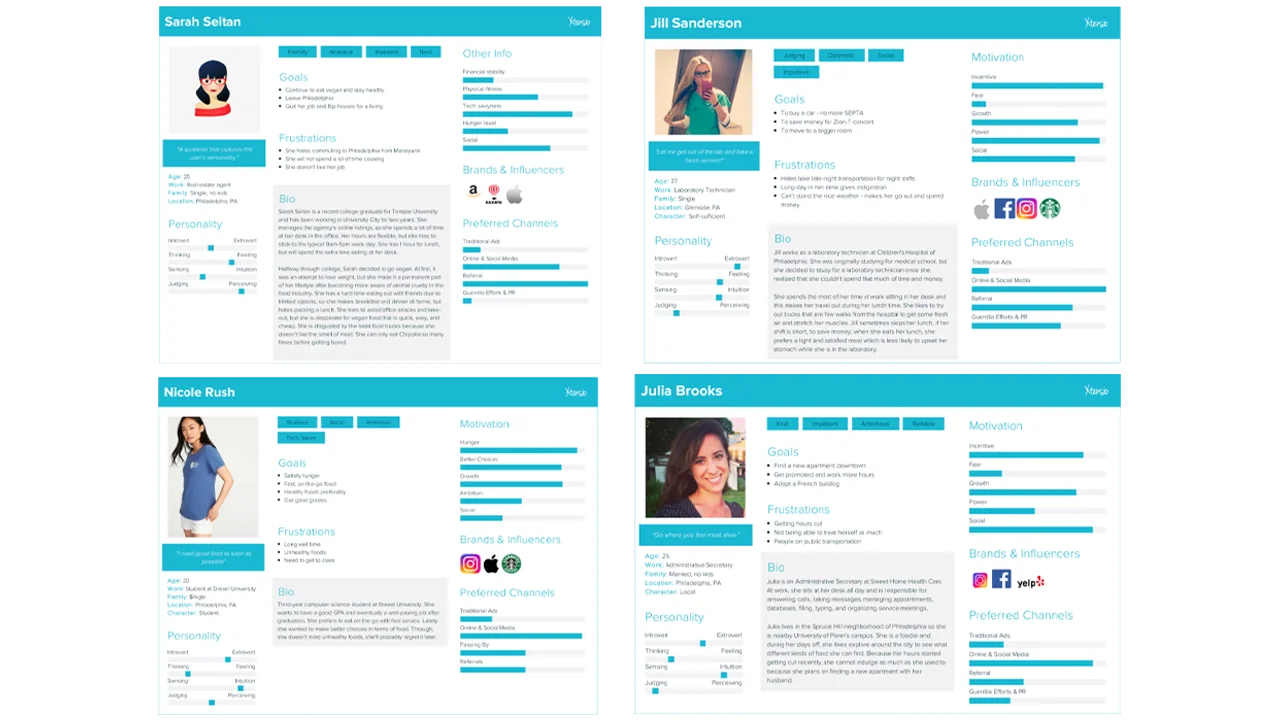
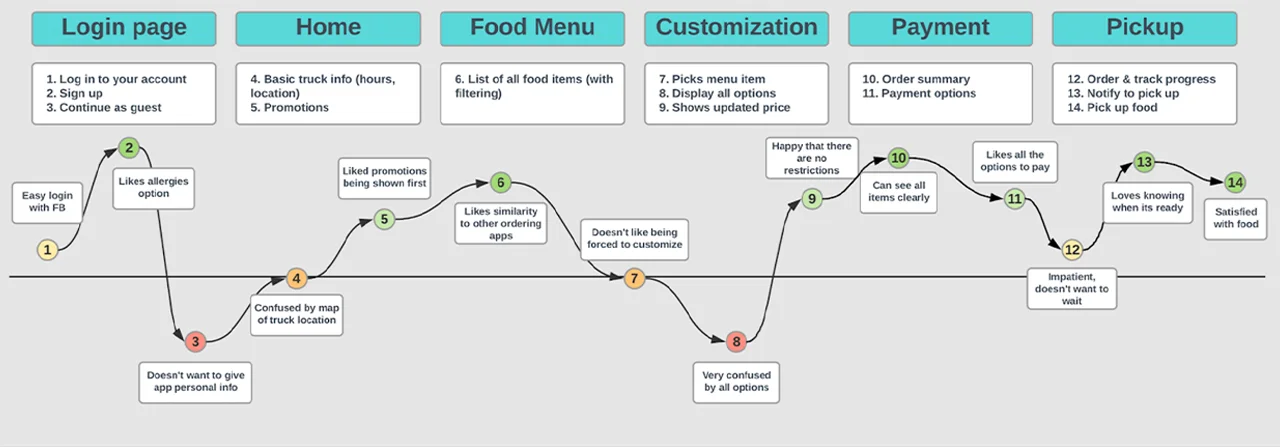
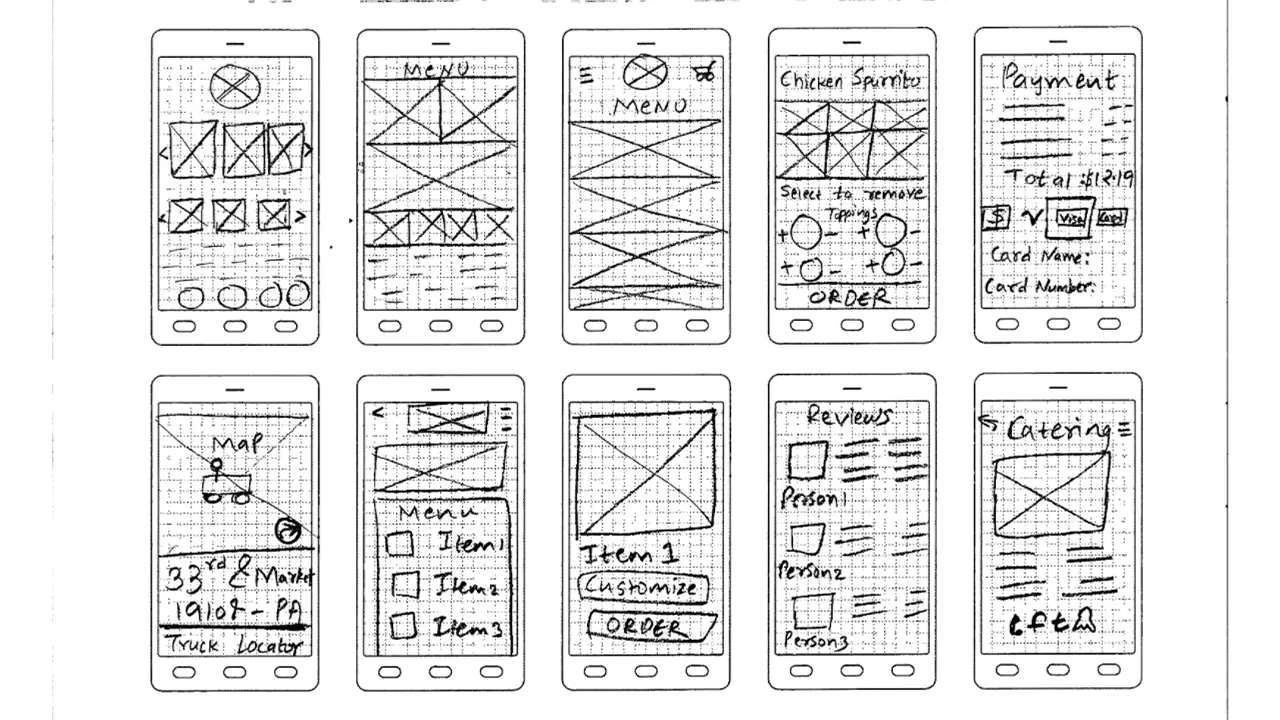
The process began listing our project’s strengths and weaknesses for analysis. As a team, we spend time each week on basic analyses via sticky notes. This allowed us to ideate on what features are most important to the app, the target audience, user pain points, and potential benefits. We began to compile wireframe sketches for possible iterations of the future application. We conducted primary research by doing observation sessions on-site. As a team, we took notes on the food truck’s interactions with customers, as well as constructing a journey map of the process of ordering food at the truck. This was recorded in the project canvas and business model documents. We also identified the components, characteristics, challenges, and characters of the necessary design. A project brief was created for our research on PaperMill’s competition, such as Chipotle, iPho, and Hawker, which are all within the same block on Drexel’s campus. The competitor analysis also included research on existing mobile food ordering applications, which we critiqued as a group to determine what should and should not be included in our design.
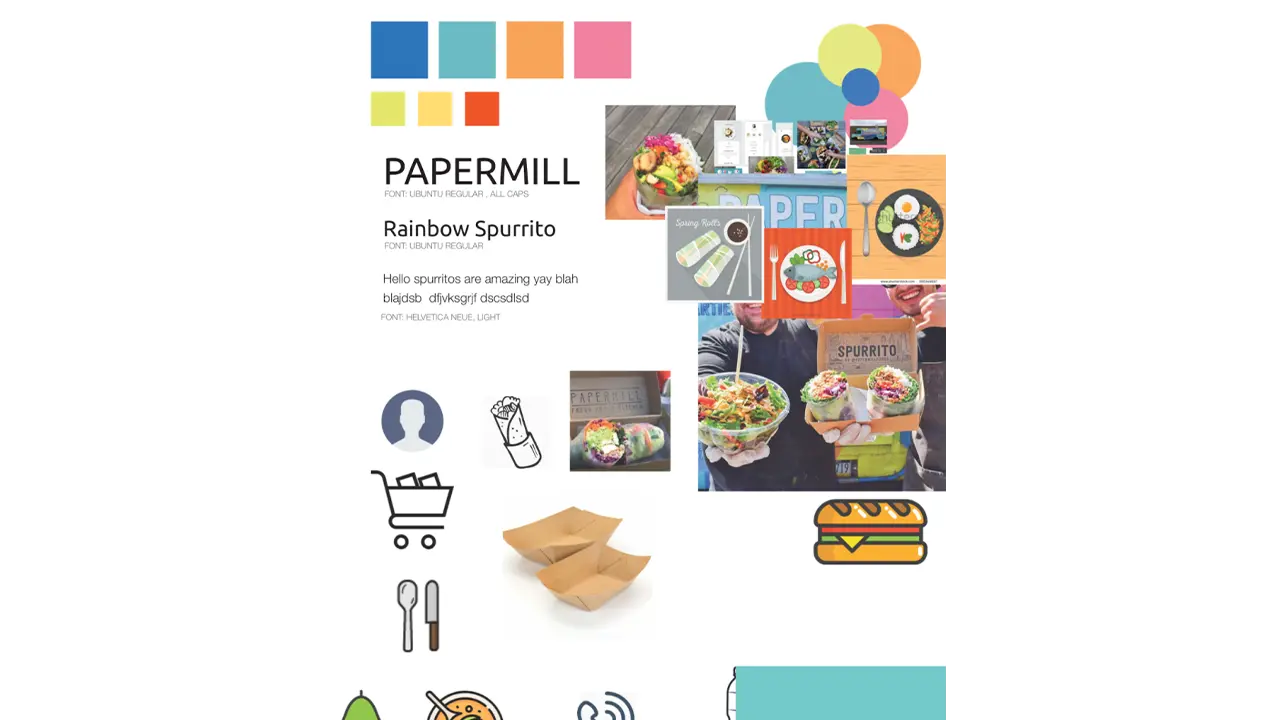
Each team member created an individual mood board, and a team mood board was derived from the individual ones to define a general aesthetic and color palette. We created an affinity map, and each team member sketched 50 possible designs for the future prototype. We crafted user personas of the potential target audiences: Drexel students/staff, locals, Drexel gym goers, and vegans/vegetarians. This gave a better understanding of who the users are and how to empathize with them to inform an appropriate design. We created a journey map and task flow for the application as well. As we got closer to implementing the actual design of the app, we continued to sketch ideas out as wireframes and we selected the best sketches for the prototype. From there, we created paper prototypes and asked potential users what they thought about the prototype’s usability.
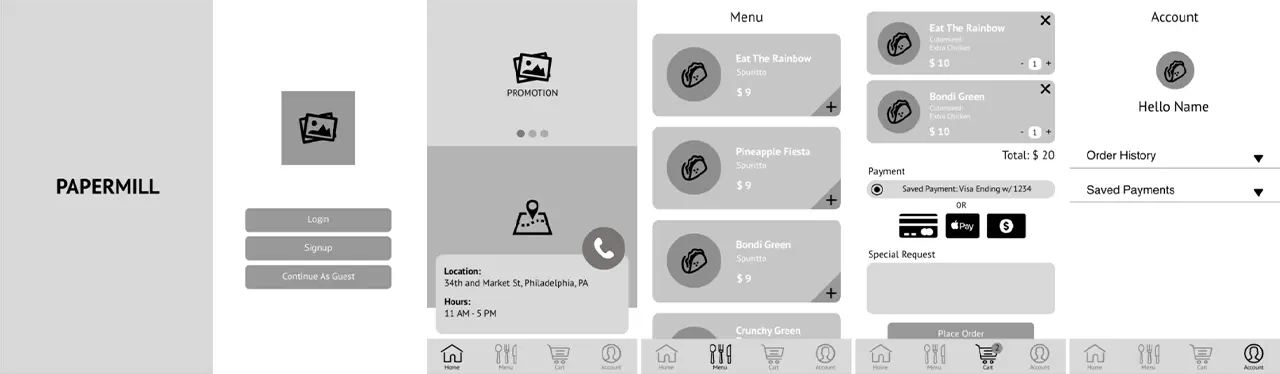
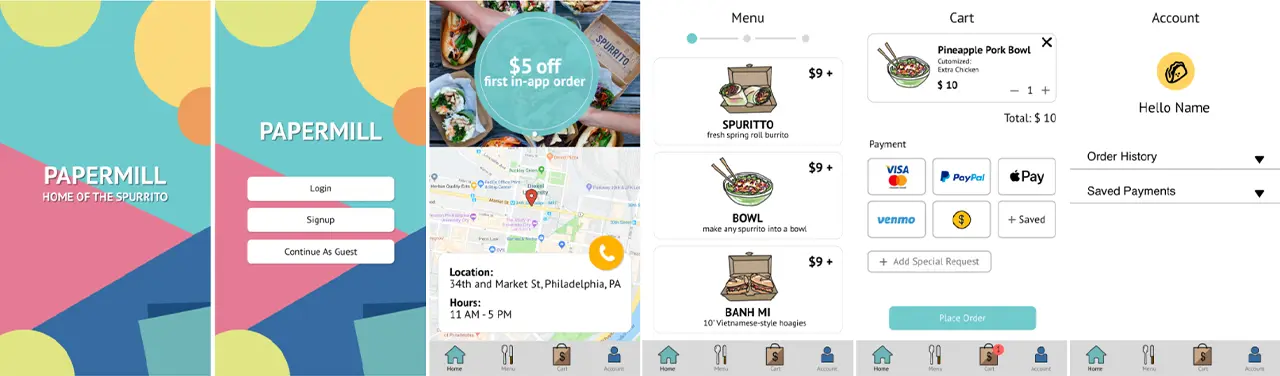
After gathering feedback from the tests with potential users, we came up with ideas as to what features will be included in the actual prototype as well as the basic layout and how it should work. The low-fidelity prototype had no colors, images, or style, everything was still greyed out. Our mid-fidelity prototype included colors, graphics, and style.
Research
User Personas:
User Journey Map:
Wireframe Sketches:
Style Guide:
Low + Mid-Fidelity Prototypes:
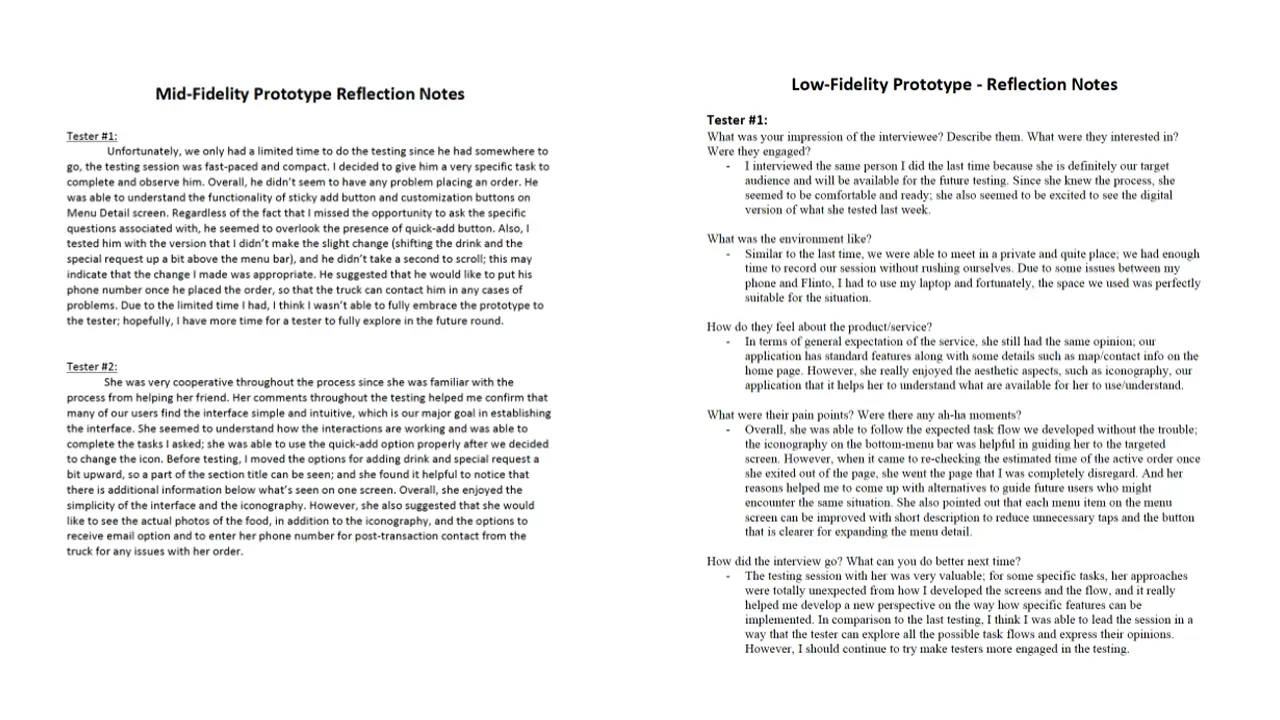
Reflection Notes:
Solution
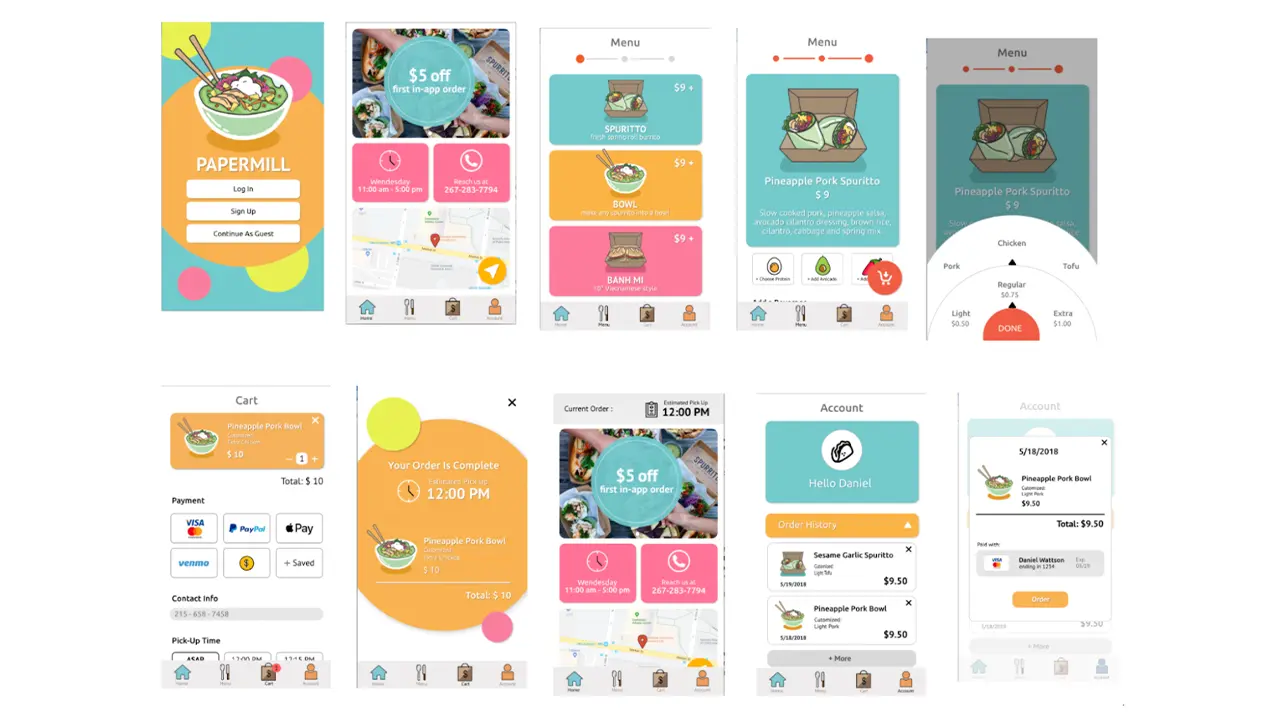
We added a splash page so that the user can get a feel for the app on its first time. The vibe we were aiming for is fun. We allow the log in and sign up to have connections with Facebook and Google because the user may prefer to have a different way to log in. For the home screen, there is a promotion so that users can know the promotions that the truck is having. There is also a map because the truck changes locations depending on the day of the week. We also showed the hours of the truck on the home page so that users can know the hours for that day. Lastly on the home screen, there is a way to call the truck in case the user needs to contact the truck directly. In the menu, there are only three different food items the user can choose so we created icons for the food and added a splash of color to continue the vibe we have in the splash page. In the individual food item menu, we kept the color scheme from the main menu to show consistency. Since the item is customizable, the user have the options to choose protein, add avocado, or add spices to their order along with a beverage item if they choose so. When you click on the customization options, you will get a wheel where you can choose the amount or protein you want on the order in a fun way. For the payment page, we added multiple different ways to pay for the order because each user is different in how they want to pay for their order. Carrying over from the splash page, the confirmation page keeps the vibe of the app while giving important information such as the total price and when the order will be ready. The user will then be taken to the home screen again, but this time, there is a tab on the top of the screen that shows the time that the order will be ready at. The profile page shows the user their order history and saved payments to show the user their history with the app and how they are paying. Within the order history, the user can reorder their previous order. We decided this was a good idea because users who order the same thing all the time can just order without going through the customization part again.
Results
In the end, we do think that we delivered a solid final product and it is definitely a success. After conducting usability testings as we progressed, we learned that designers mental models’ not always match users’ conceptual models. At times, users had problems understanding some of the things that we thought (as designers) would be great for users. This is where multiple usability testings helped us a lot as we kept on making changes as per the users’ needs. We divided our whole UX process into three main categories namely strategy, research and design (paired with testing). In the future, we would definitely follow this process in order to deliver a final product that is easier for the users to use.