Author: Ashley Nguyen

  • PaperMill Ordering App

    Overview

    For the spring 2018 User Experience (UX) course, our team was asked to build a mobile application prototype for a local food truck over a timeline of 10 weeks. We selected a truck called “PaperMill”, which sells Vietnamese-Mexican fusion food on Market street, at the heart of Drexel University’s campus.

    Project Brief

    Why:

    • Bring more customers to the business
    • Provide business an additional channel option to gain more customers
    • Increase customer convenience and satisfaction

    What:

    • View menu options and order food remotely
    • Collect data on participating customers to build the best customer experience
    • Allow customer to create a profile that saves their past and favorite orders
    • Provide many options for mobile payment
    • Show the truck location and hours, as they are inconsistent throughout the week

    How:

    • Minimize in-person wait time in front of the truck
    • Simple and effective design to display menu, pricing, promotions, etc.
    • Display accurate information on the truck and keep it up to date
    • Prevent customer turn-over by catering to the customers across multiple platforms

    The Team:

    • Hannah Juraifani
    • Alyssa Klein
    • Meet Palan
    • Sanika Rann
    • Woo Young Song

    Introduction

    Using a mobile device to order food has increasingly become common-place. Food trucks are generally individual businesses and operate locally, so the majority do not have their own individual digital application. Many of these trucks utilize third party services like GrubHub to take advantage of digital customers without having to build or maintain an application. While PaperMill does not have a digital application, the food truck itself is rather new and has become popular on Drexel’s campus. The truck itself alternates location between University City and Rittenhouse Square during the week, and on the weekends, it is commonly found at catering events throughout the tri-state area. Due to their local success, their business was a perfect client for our mobile application design. By having an app for PaperMill, the wait time spent at the truck is minimized, while providing customers with a convenient way to order and pay for food. It also provides up-to-date information on the trucks current location for those who are not familiar with the trucks whereabouts.

    Background

    PaperMill was started in Sydney, Australia in 2016. It was initially a 10ft by 10ft tent at the Bondi Beach Farmers Market. As it grew in popularity, there was an opportunity to bring the fusion of South-East Asian and Australian style foods and favors to the United States, starting in Philadelphia. PaperMill throws a spin on the classic burrito by offering “spurritos” (a rice paper spring roll wrap around fresh ingredients), bowls for those not interested in the spurrito style, and Banh Mis (Vietnamese hoagies). Customers who prefer their food on the spicy side can add jalapenos or sriracha to their order, and the ever-popular option to add sliced avocado. The truck offers water bottles and LaCroix as their two beverage options.

    Objective

    The goal for this project is to increase the use of mobile ordering in order to reduce wait time spent in front of the truck. Our front-end development team consisted of 5 members: Hannah Juraifani, Alyssa Klein, Meet Palan, Sanika Rann, and Woo Young Song. We had similar responsibilities each week. Based on the results of several prototype testing sessions, we went through multiple refinement stages until we built a prototype that catered to our target audience best. Throughout the ten weeks, we were able to problem solve by using our increasing knowledge of user experience design.

    Process

    The process began listing our project’s strengths and weaknesses for analysis. As a team, we spend time each week on basic analyses via sticky notes. This allowed us to ideate on what features are most important to the app, the target audience, user pain points, and potential benefits. We began to compile wireframe sketches for possible iterations of the future application. We conducted primary research by doing observation sessions on-site. As a team, we took notes on the food truck’s interactions with customers, as well as constructing a journey map of the process of ordering food at the truck. This was recorded in the project canvas and business model documents. We also identified the components, characteristics, challenges, and characters of the necessary design. A project brief was created for our research on PaperMill’s competition, such as Chipotle, iPho, and Hawker, which are all within the same block on Drexel’s campus. The competitor analysis also included research on existing mobile food ordering applications, which we critiqued as a group to determine what should and should not be included in our design.

    Each team member created an individual mood board, and a team mood board was derived from the individual ones to define a general aesthetic and color palette. We created an affinity map, and each team member sketched 50 possible designs for the future prototype. We crafted user personas of the potential target audiences: Drexel students/staff, locals, Drexel gym goers, and vegans/vegetarians. This gave a better understanding of who the users are and how to empathize with them to inform an appropriate design. We created a journey map and task flow for the application as well. As we got closer to implementing the actual design of the app, we continued to sketch ideas out as wireframes and we selected the best sketches for the prototype. From there, we created paper prototypes and asked potential users what they thought about the prototype’s usability.

    After gathering feedback from the tests with potential users, we came up with ideas as to what features will be included in the actual prototype as well as the basic layout and how it should work. The low-fidelity prototype had no colors, images, or style, everything was still greyed out. Our mid-fidelity prototype included colors, graphics, and style.

    Research

    User Personas:
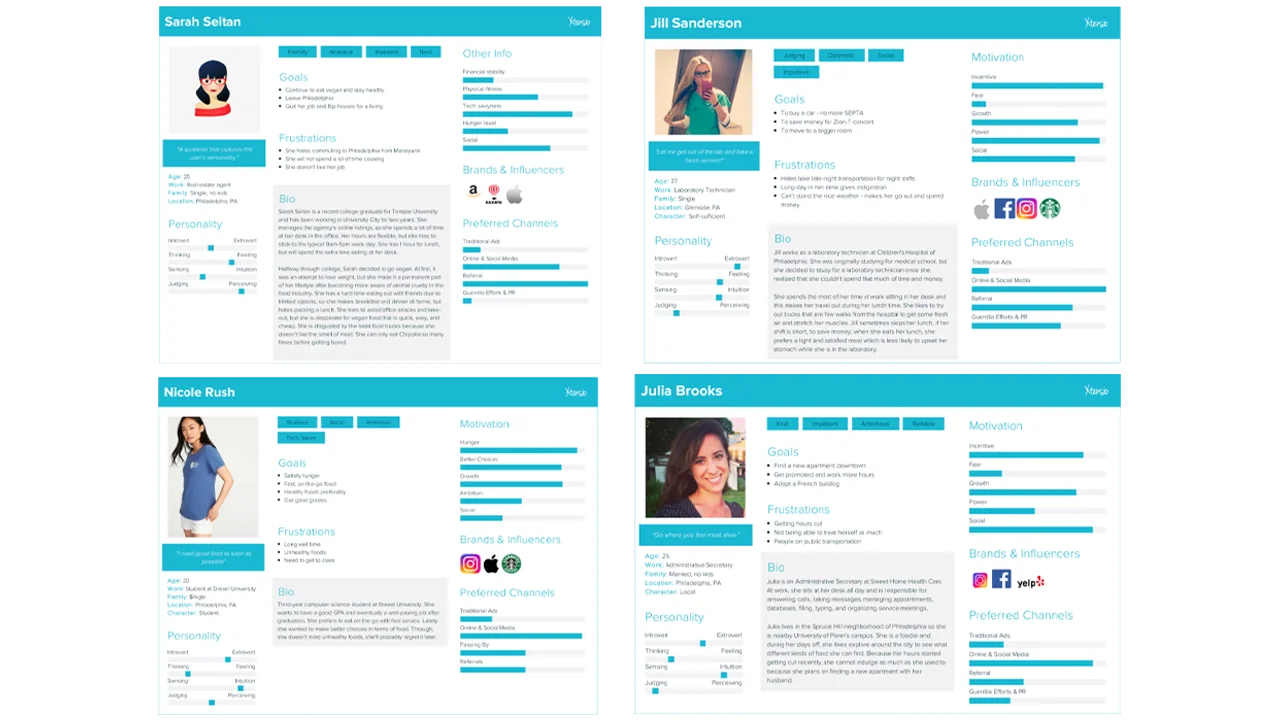
    Four user personas that represent the type of customers who would buy from PaperMill.

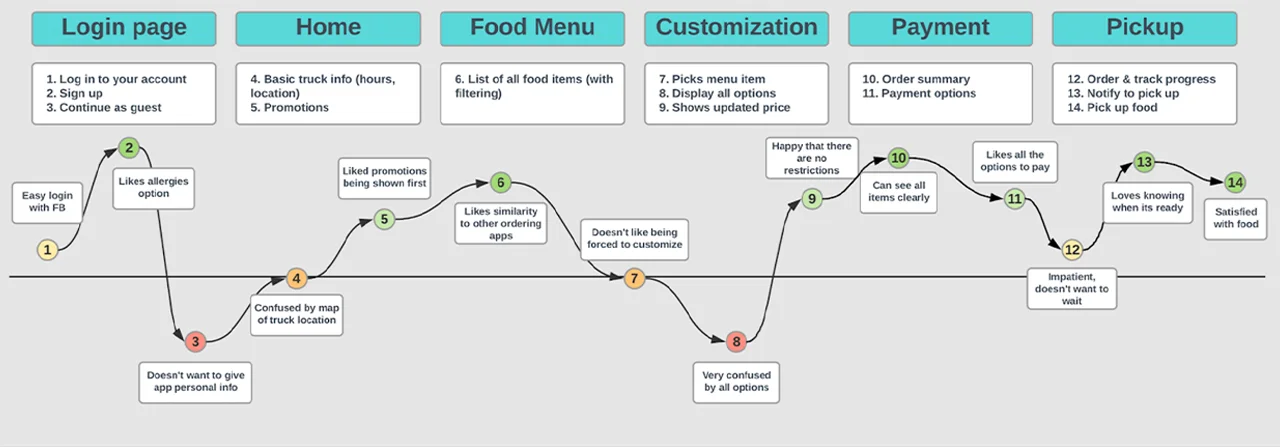
    User Journey Map:

    Feelings a customer who uses the app might go through at each step.

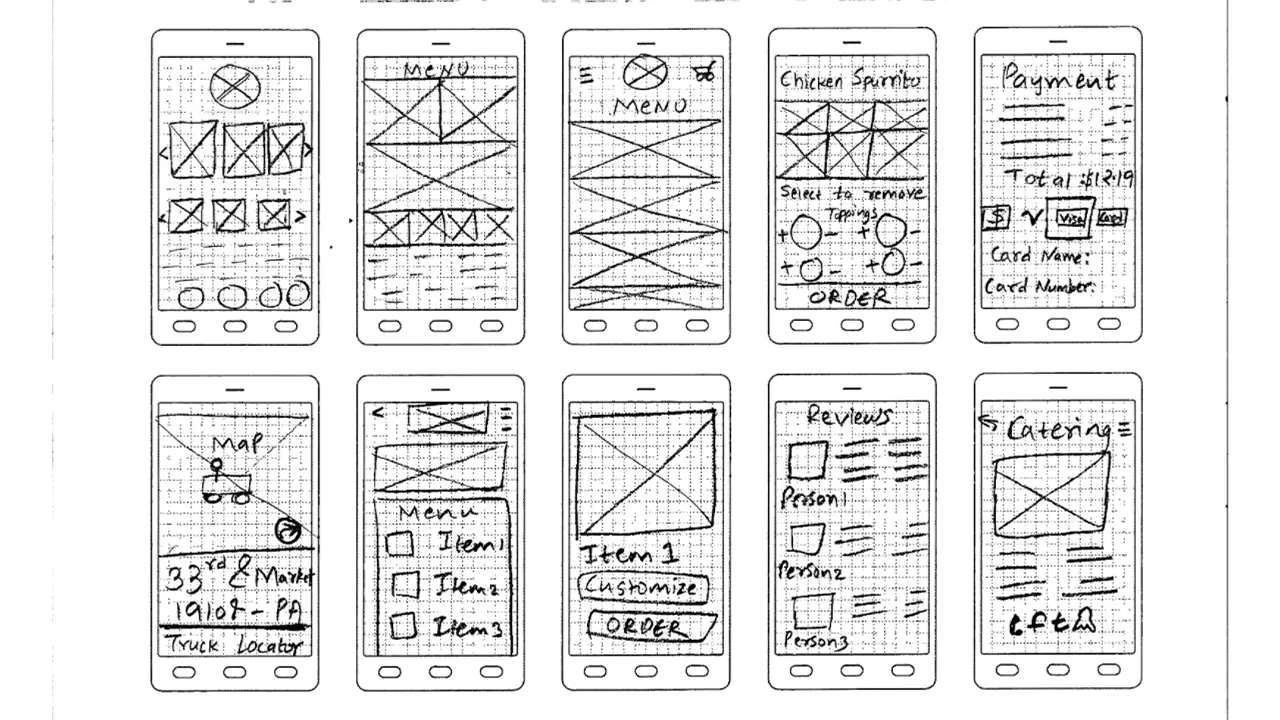
    Wireframe Sketches:

    Sketches for the layout of the PaperMill ordering app.

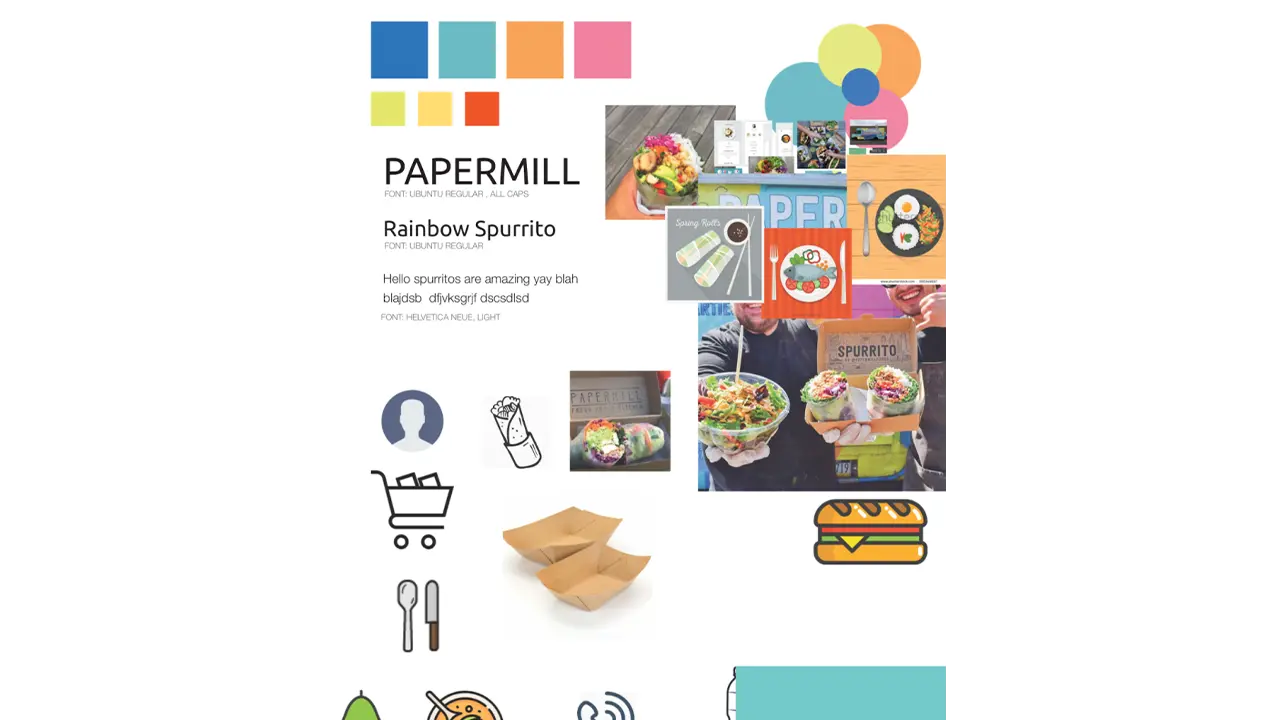
    Style Guide:

    Colors, fonts, images, and icons that represent how the PaperMill ordering app will be stylized.

    Low + Mid-Fidelity Prototypes:

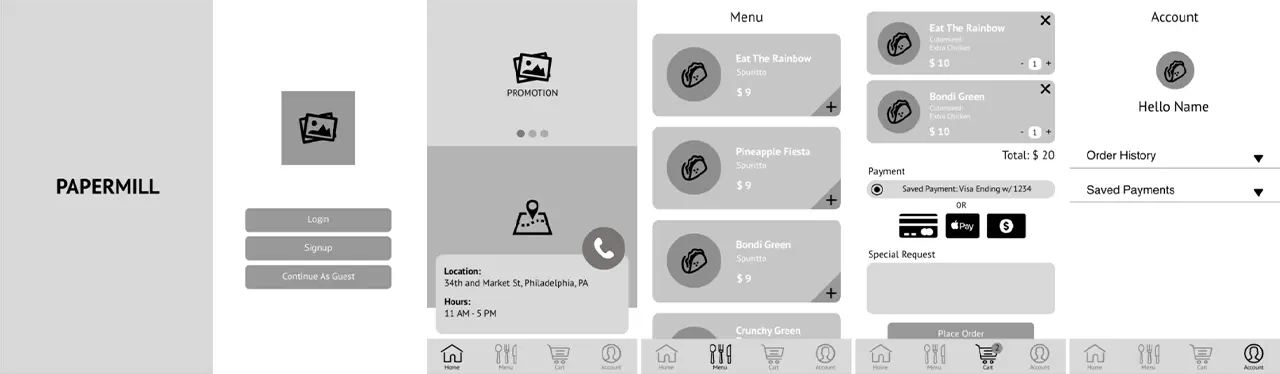
    Low-fidelity prototype of the PaperMill ordering app, focusing on placement of each element.

    Mid-fidelity prototype of the PaperMill ordering app, adding color to the previous prototype.

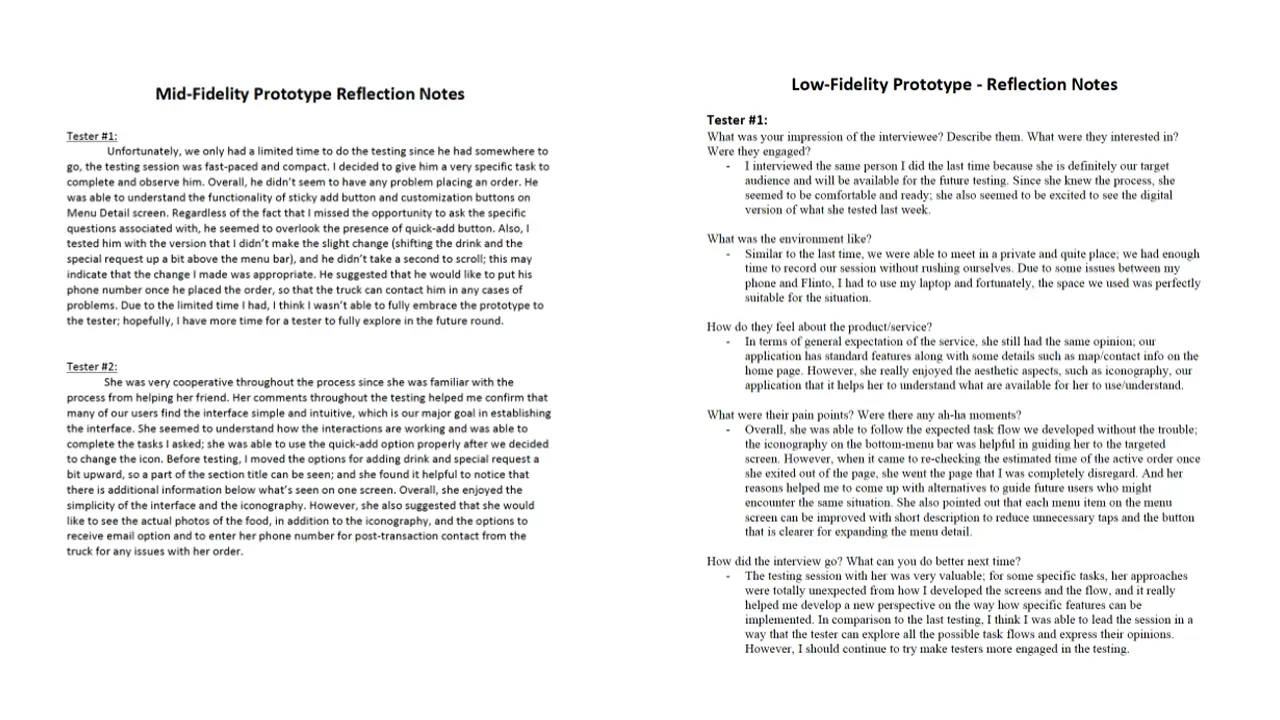
    Reflection Notes:

    Notes from user testing of the low-fidelity and mid-fidelity prototypes.

    Solution

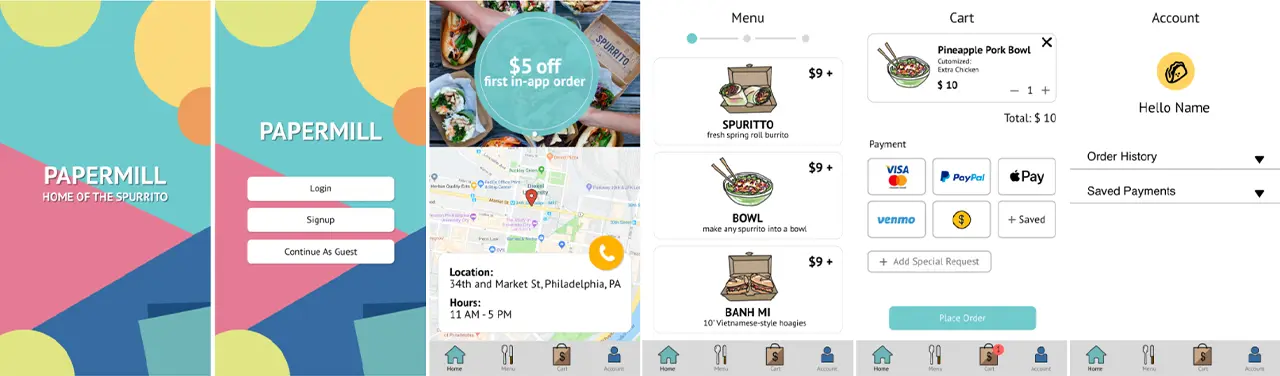
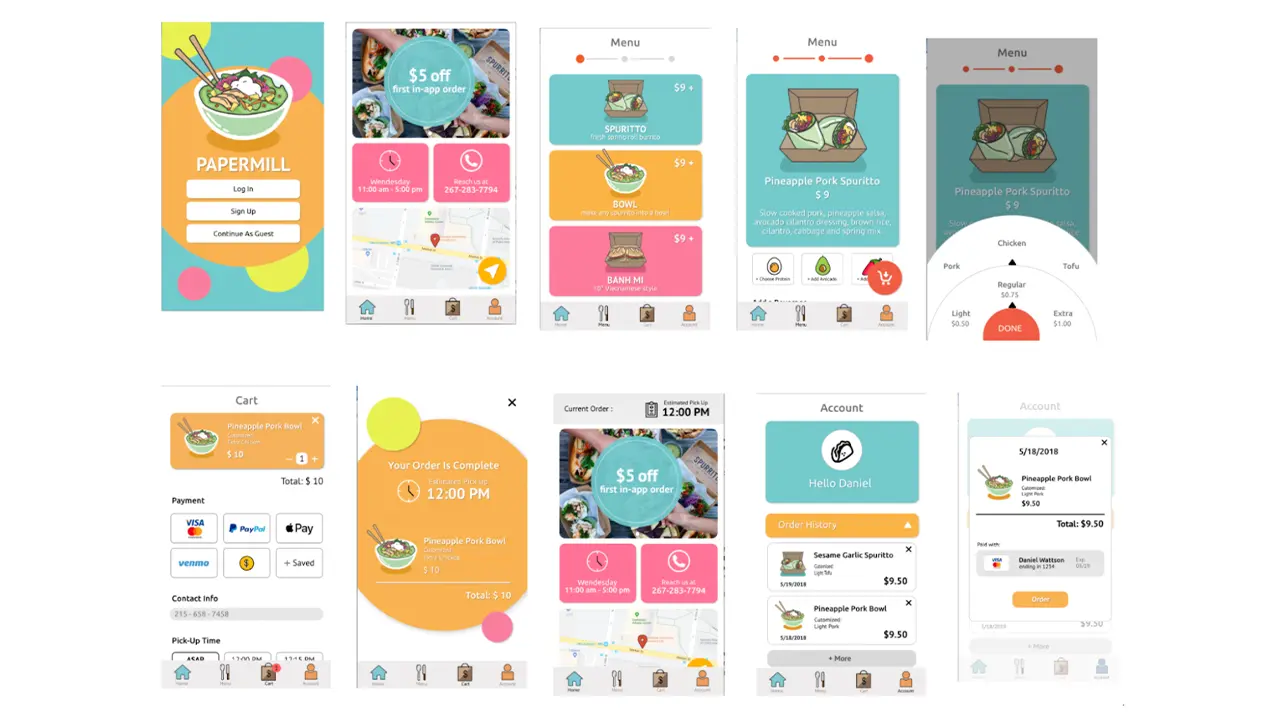
    Final screens of the PaperMill ordering app, featuring a login screen, menu, cart, and account.

    We added a splash page so that the user can get a feel for the app on its first time. The vibe we were aiming for is fun. We allow the log in and sign up to have connections with Facebook and Google because the user may prefer to have a different way to log in. For the home screen, there is a promotion so that users can know the promotions that the truck is having. There is also a map because the truck changes locations depending on the day of the week. We also showed the hours of the truck on the home page so that users can know the hours for that day. Lastly on the home screen, there is a way to call the truck in case the user needs to contact the truck directly. In the menu, there are only three different food items the user can choose so we created icons for the food and added a splash of color to continue the vibe we have in the splash page. In the individual food item menu, we kept the color scheme from the main menu to show consistency. Since the item is customizable, the user have the options to choose protein, add avocado, or add spices to their order along with a beverage item if they choose so. When you click on the customization options, you will get a wheel where you can choose the amount or protein you want on the order in a fun way. For the payment page, we added multiple different ways to pay for the order because each user is different in how they want to pay for their order. Carrying over from the splash page, the confirmation page keeps the vibe of the app while giving important information such as the total price and when the order will be ready. The user will then be taken to the home screen again, but this time, there is a tab on the top of the screen that shows the time that the order will be ready at. The profile page shows the user their order history and saved payments to show the user their history with the app and how they are paying. Within the order history, the user can reorder their previous order. We decided this was a good idea because users who order the same thing all the time can just order without going through the customization part again.

    Results

    In the end, we do think that we delivered a solid final product and it is definitely a success. After conducting usability testings as we progressed, we learned that designers mental models’ not always match users’ conceptual models. At times, users had problems understanding some of the things that we thought (as designers) would be great for users. This is where multiple usability testings helped us a lot as we kept on making changes as per the users’ needs. We divided our whole UX process into three main categories namely strategy, research and design (paired with testing). In the future, we would definitely follow this process in order to deliver a final product that is easier for the users to use.
  • Side of the Road Jerk Chicken Ordering App

    The Overview

    When assigned the project of creating a mobile food-ordering application, our team knew exactly who we wanted to ask. Side of the Road Jerk Chicken is an authentic Jamaican kitchen and food truck based in North Philadelphia. The owner, James Legget, is a passionate and inspiring man who connects with each and every one of his customers. We strived to create an app that speaks to the familiarity of his brand while streamlining the ordering process.

    The Team

    • Claudia Bonitatibus
    • Sarah Bray
    • Hannah Sayer
    • Caroline Scheinfeld

    The Context & Challenge

    Side of the Road Jerk Chicken takes pride in their strong sense of community and because of this, has a very dedicated consumer-base. The goal of our mobile app is to bring this warm, friendly, community feel to a digital format — just because the customer may not be able to wait extended periods of time for food from their favorite Jerk Chicken Food Truck doesn’t mean they shouldn’t get #TheExperience, a phrase Mr. James coined to describe its magic.
    Our main challenge was making the app as personalized as possible while maintaining an efficient and intuitive ordering process.

    The Process and Insight

    Before beginning the process of designing or even structuring our app, it was important to get an authentic sense of what Side of the Road Jerk Chicken’s business model is and the needs of their clients. Mr. James is very dedicated to the quality and the authenticity of his product. Because of his business model and investment in both the quality of his product and the overall experience of his customers, Side of the Road Jerk Chicken’s fan-base is very loyal. The app was designed to target both new and returning customers.

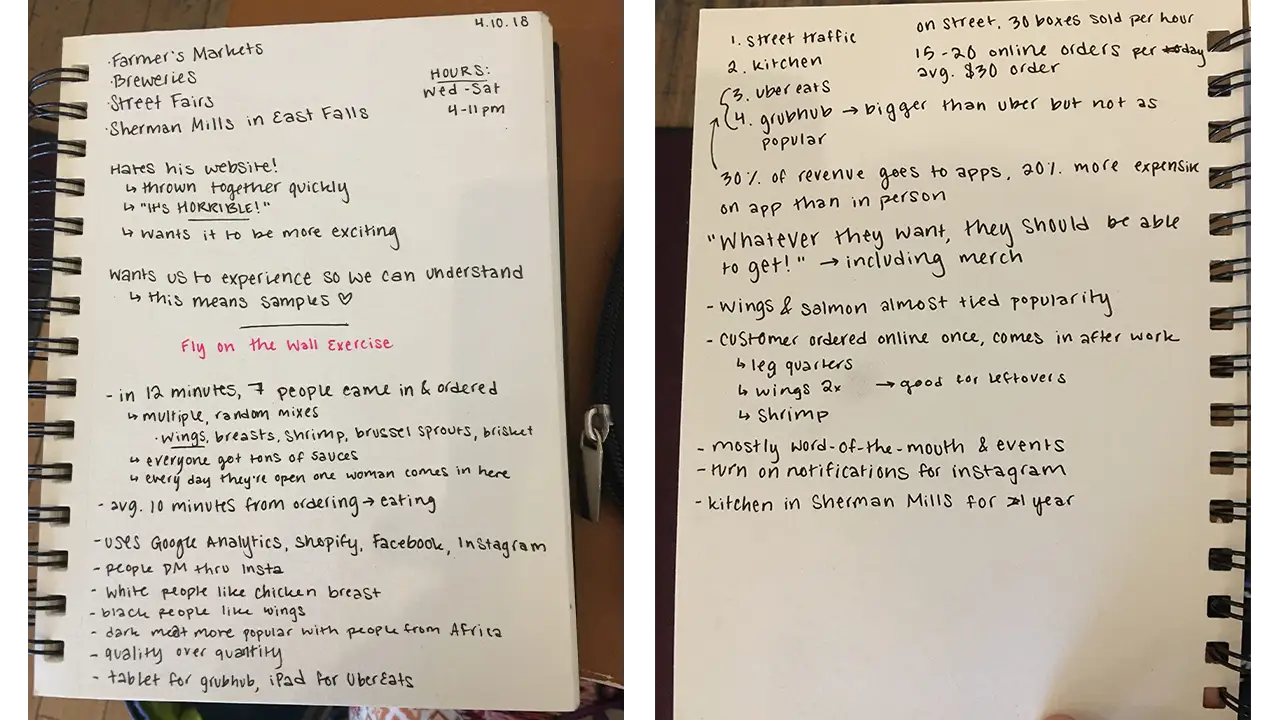
    After seeing the onsite location of Side of the Road Jerk Chicken in Sherman Mills, we were able to fully immerse ourselves in analyzing both the business and the consumer-side of the product we’ve designed. This analytical stage included a SWOT analysis, the Four Cs and creating different proto-personas.

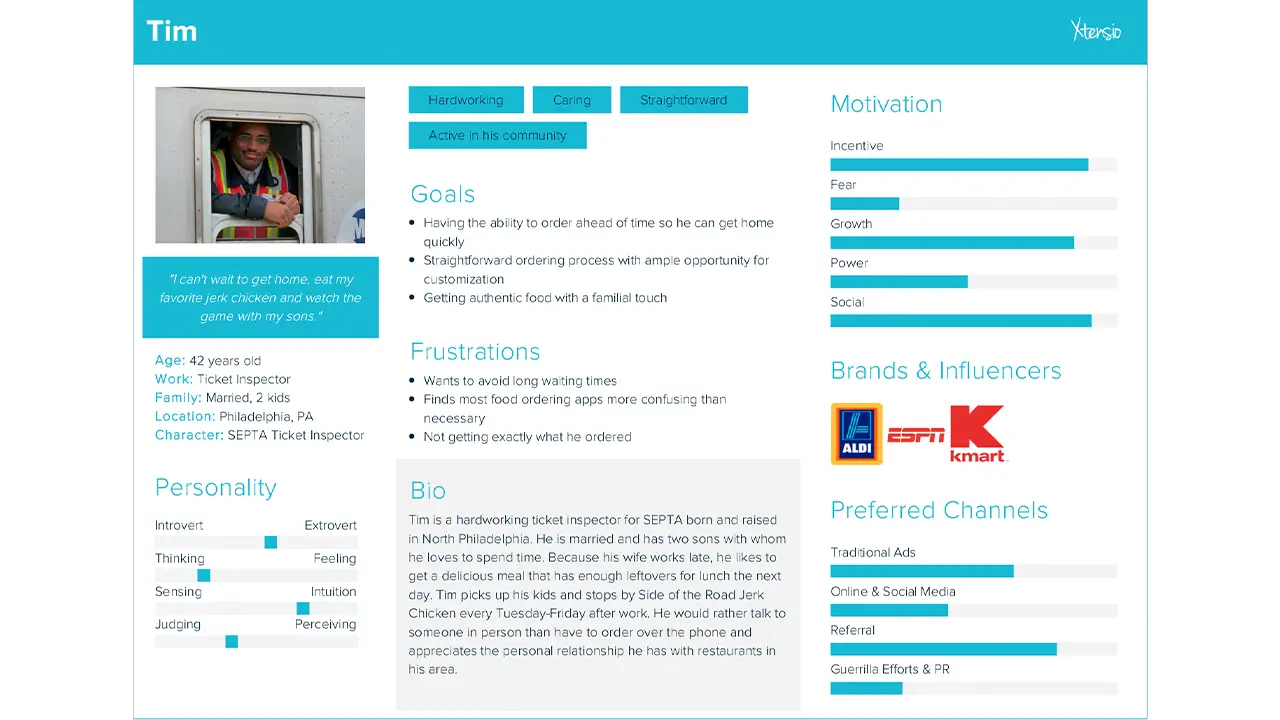
    User persona, listing the qualities of the type of people who would use the app.

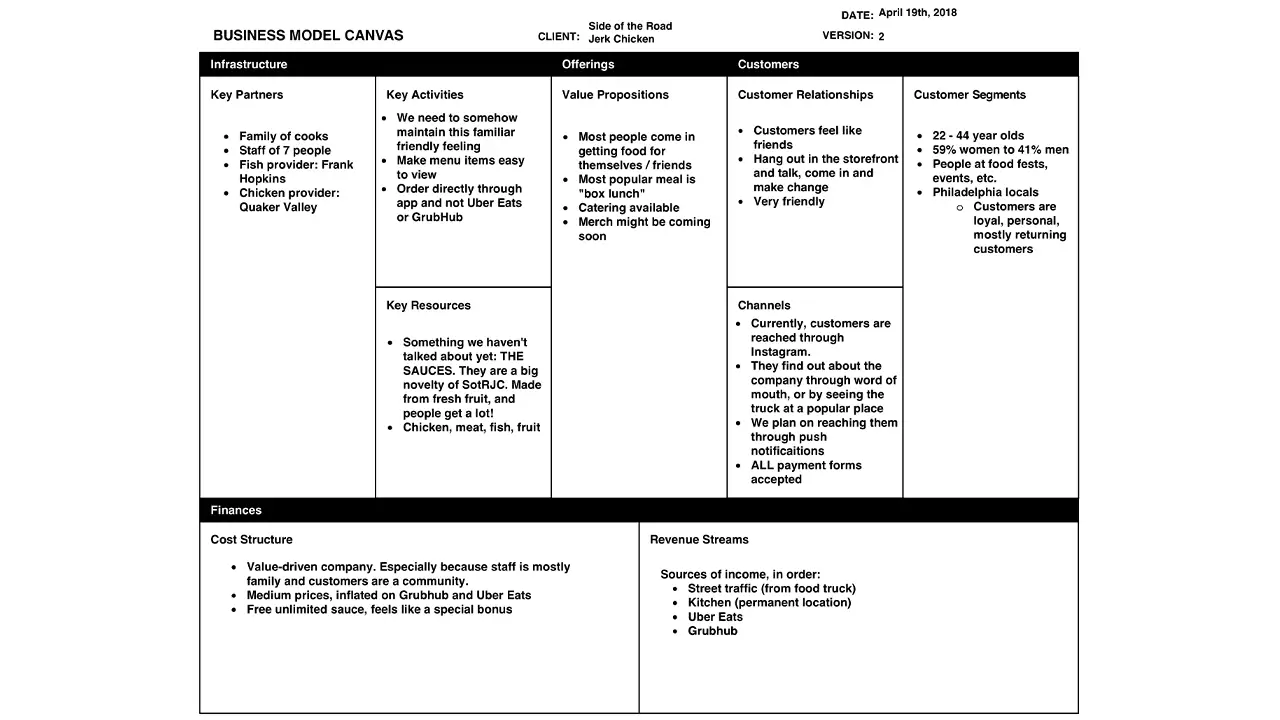
    Business model explaining the food truck's infrastructure.
    Notes taken from talking with owner and observation exercises.

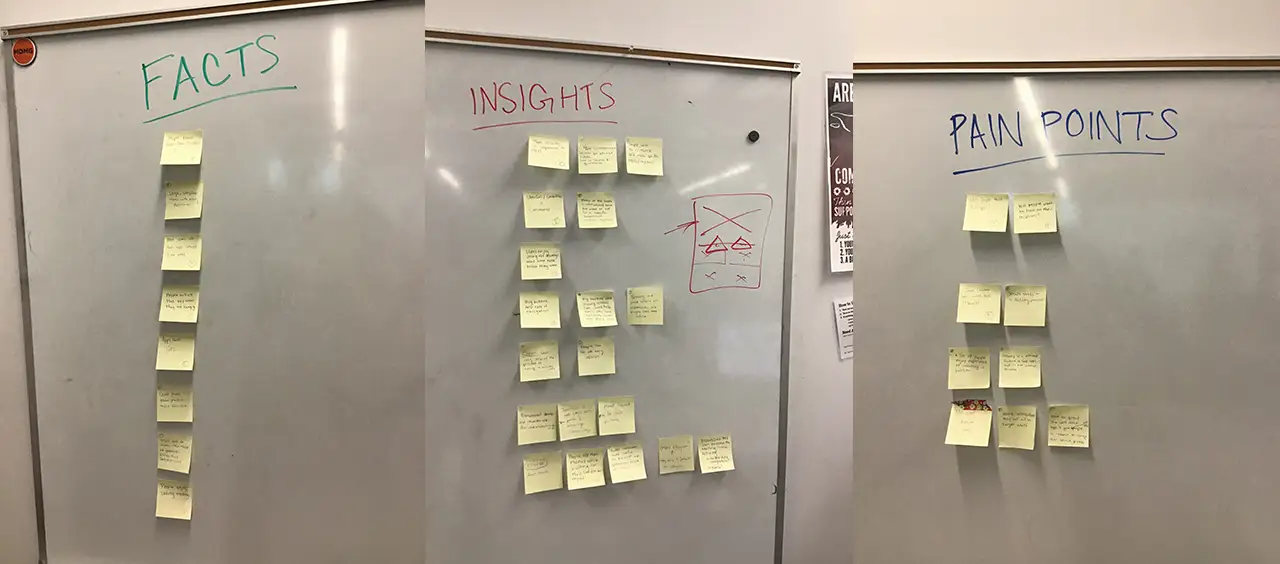
    After these exercises, we each conducted user interviews on which we shared detailed notes. This gave us a better sense of who our target users were and what real users would be looking for in a mobile food ordering app. Using the feedback and information we took away from these activities, we made a list of facts, pain points and insights to keep in mind while solving our main problem: how do we make our app meet the needs of the consumer and our client in a seamless, intuitive way while fully capturing the spirit of James’ business?

    Notes organized under three categories: facts, pain points, and insights.

    Information Architecture & User Experience Approach

    The information on the app was organized in a way that reflects the needs of the users as well as our client. The main things that the user needs to know is the location of the truck, what’s on the menu and past payment information. Our product goes beyond simply clicking on a menu item and ordering it; we allow them to stay in touch with the truck by showing them how to easily located the truck and keep updated on its whereabouts. Other information such as a rewards-based loyalty system, meal combos, the option to customize  your meal with sauces and a previous orders section were added to embrace what helped drive the company’s identity.

    Before building the wireframes digitally, we sketched out what we envisioned the main task flow of ordering a food item would look like and received input from users on how effective our method was.

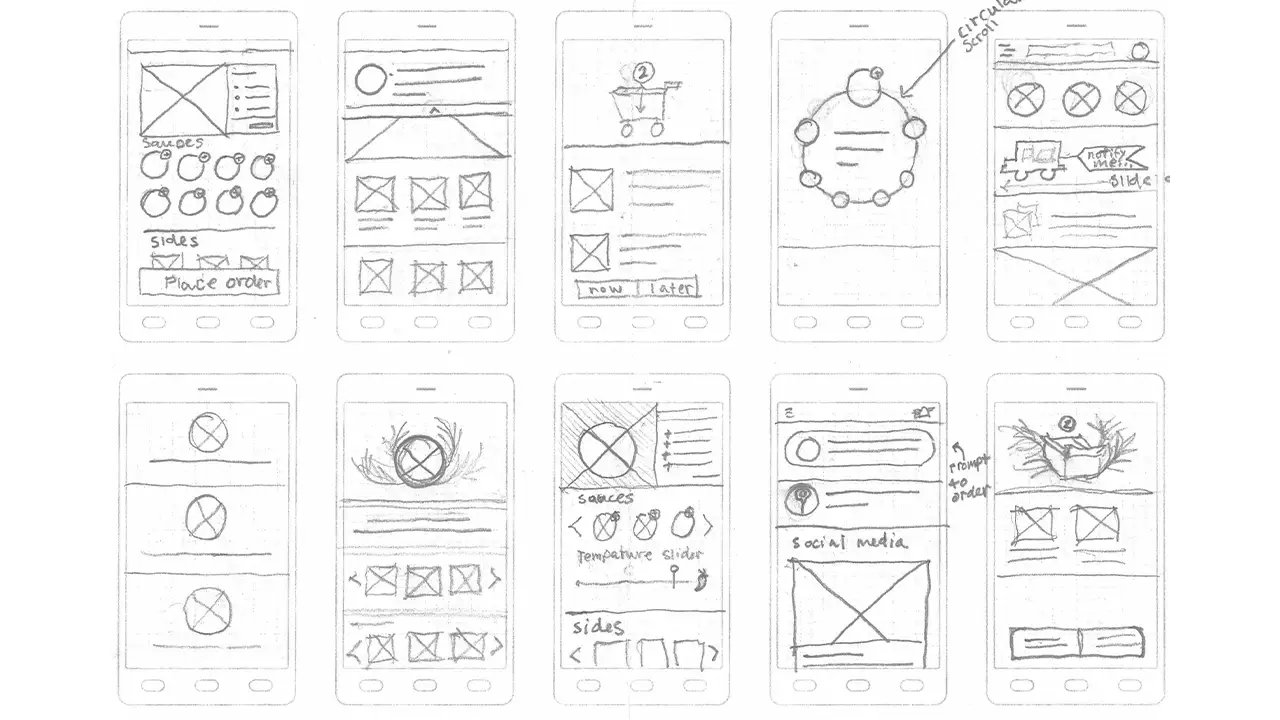
    Sketches of wireframes and flow of the app.

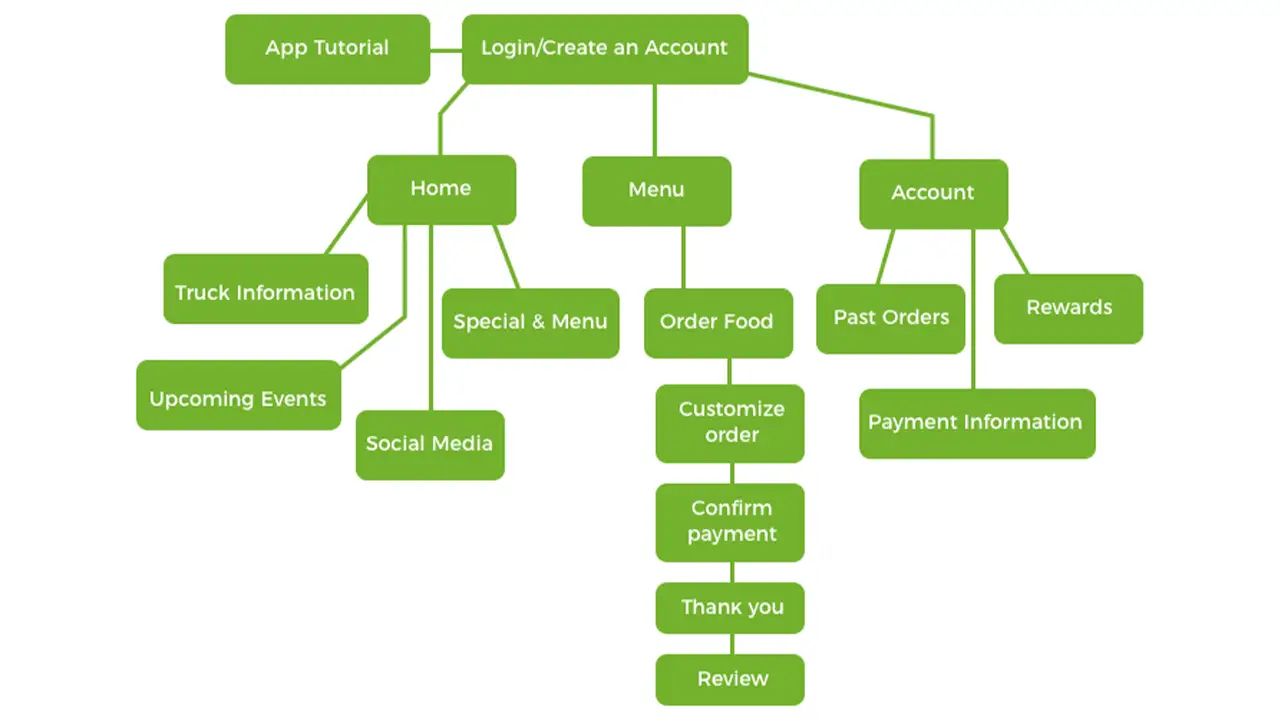
    Clean and updated flowchart, depicting the steps users will go through when using the app.

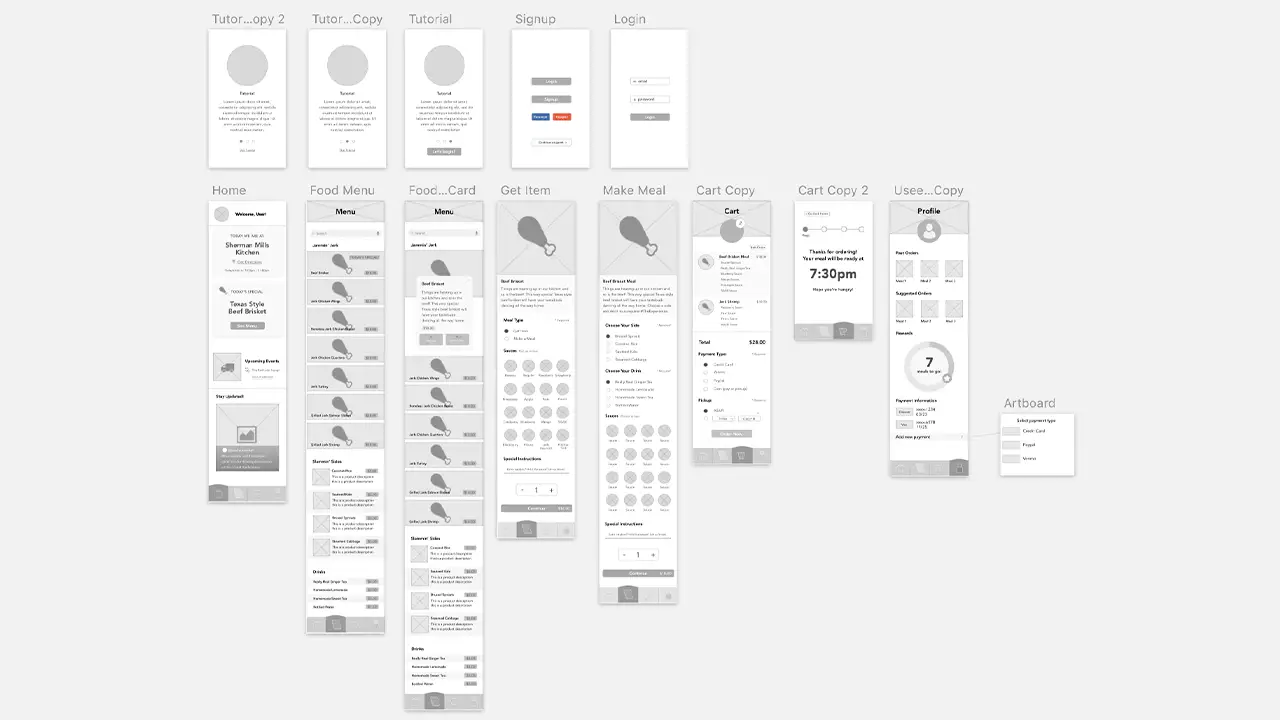
    From there, we were able to build a rough draft of the wireframes which we used to conduct two rounds of usability testing and made adjustment to the layout accordingly.

    Low-fidelity wireframes of the app made for testing.

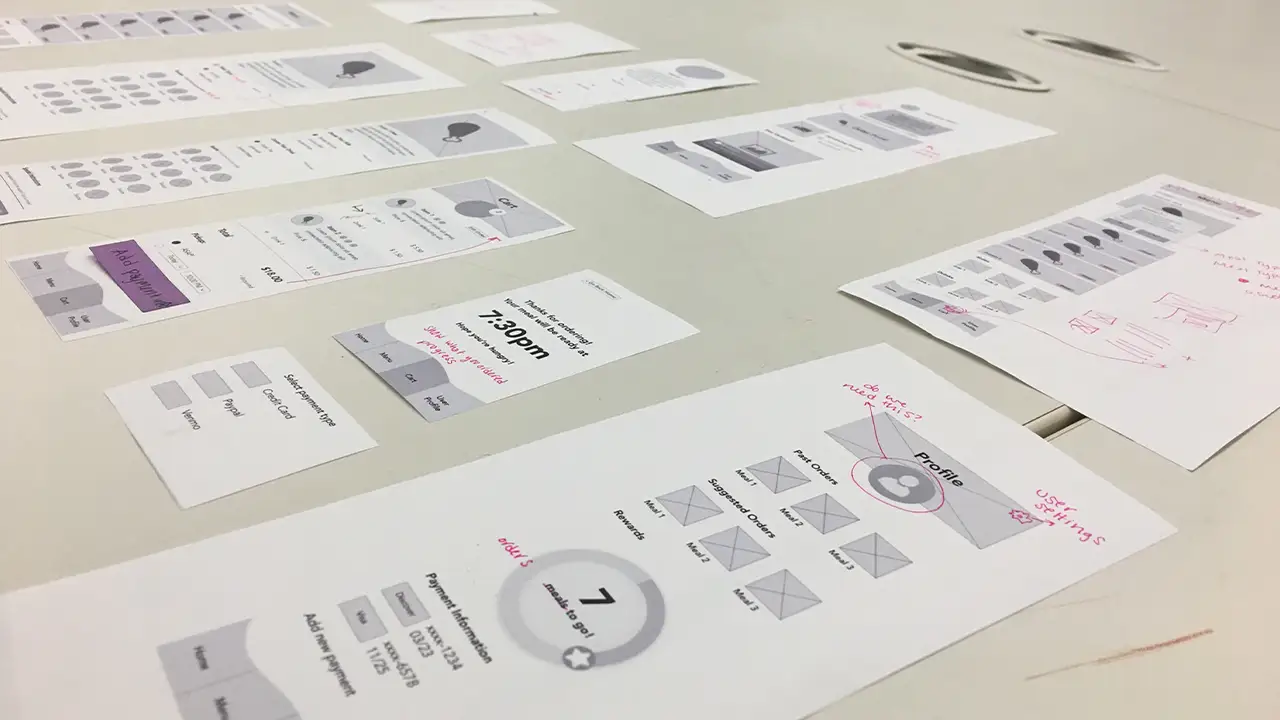
    After more testing, we revised and built a paper prototype. This allowed are users to actually “click” through the app and see how the ordering flow would work.

    Printed versions of the wireframes, tested by users to see how intuitive the layout and if the user flow matched the drafted version.

    Design and Branding

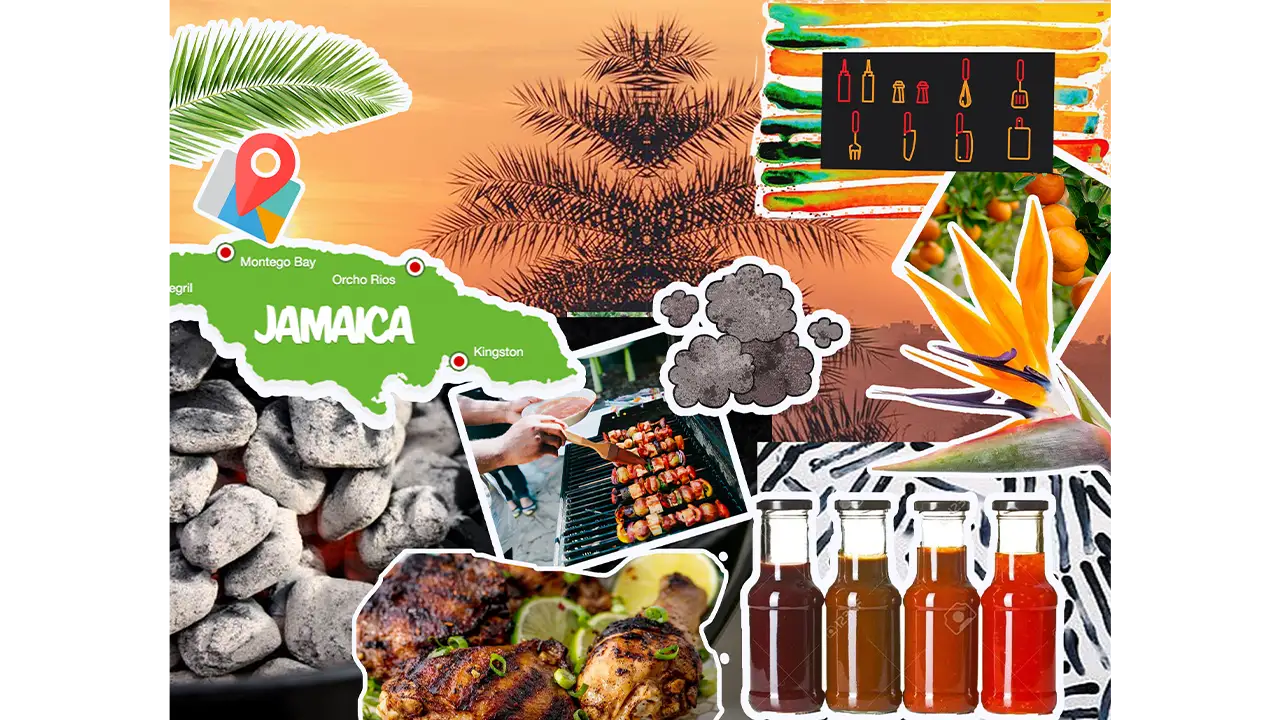
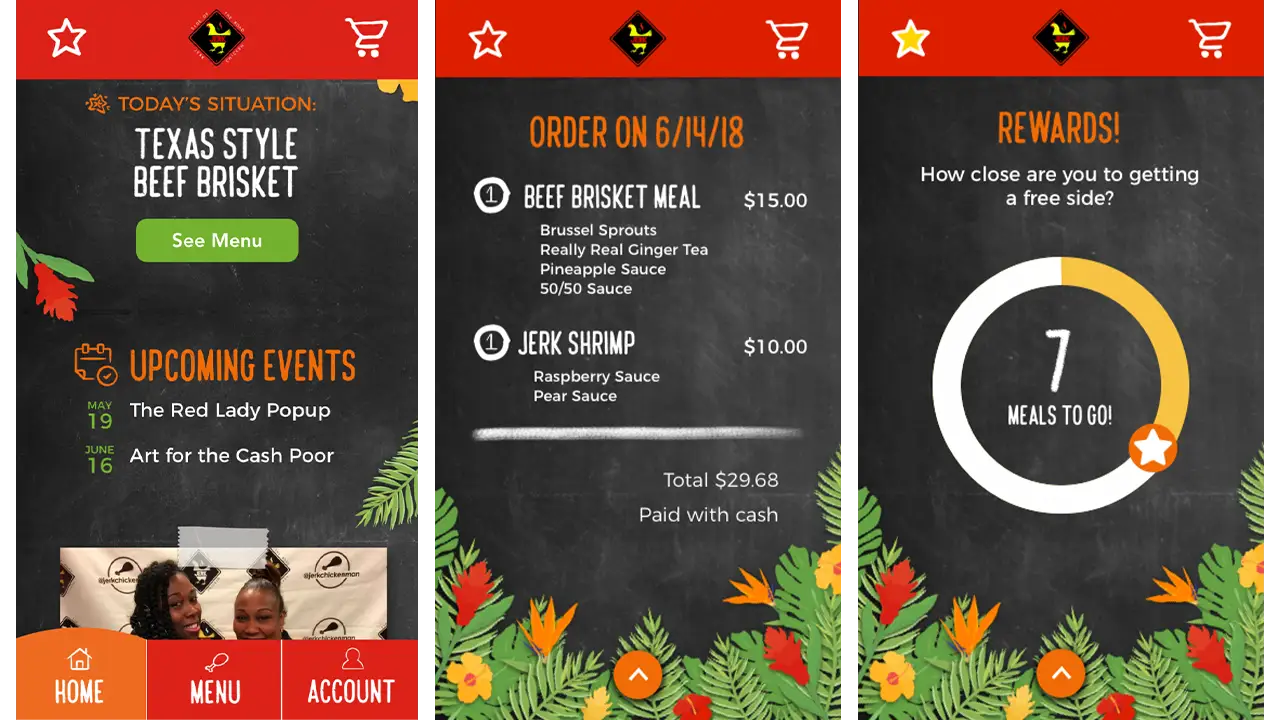
    The branding of our app was a challenge in itself because we had to find a way to bring a very rich feeling to a digital format which would breathe life into our product. What made this task demanding was the fact that we had to a lot of rebranding. This is because while Side of the Road Jerk Chicken has a website, James was not happy with the design of it in the slightest. We began tackling this process by creating individual mood boards and from there, agreed on a dark, chalkboard theme, green and yellow accents from the Jamaican flag and vibrant tropical flowers scattered about.

    Collage of images that inspired the aesthetic of the app.

    From that point forward, we were making the vector graphics of the fruits and flowers to create that warm atmosphere we were striving for.  After we put the wireframes through two rounds of usability testing with we began the process of adding fonts and colors to the prototype. After adding the styling to our app we ran it through two more rounds of usability testing and continued to make minor changes to the layout. Our end product blends the vibrant colors of Jamaica with a hands-on chalkboard texture which gives a touch of James’ personal brand and business model to our food ordering process.

    Homescreen, cart screen, and rewards screen on new ordering app for Side of the Road Jerk Chicken.

    The Results

    From where we began to the final product, our team could not be more proud. After only ten weeks and losing a key member of our team, we encountered our fair share of challenges; however, in the end, you would have no idea. Our concept of an island-themed, user-friendly application that used common practices to solve the challenge of mobile food ordering was a success. It is a personalized, intuitive application that has ample opportunity for customization and stays true to our goals.

    We’ve learned so much about empathic research and user-centered design throughout this term. Our team can’t wait to share this prototype with the world!

  • Governors Ball

    IDM240: Interactive Graphics

    By Sanika Rann – 2018

  • GRIMES

    IDM240: Interactive Graphics

    By Sarah Bray – 2018

  • Sxmniak

    IDM240: Interactive Graphics

    By Robert Nashed – 2018

  • Folsom Street Fair

    *WARNING: Flashing Colors*

    IDM240: Interactive Graphics

    By Jordan Zagerman – 2018

  • Quote of the Day: Inspirational Words from Famous People on Their Birthdays

    IDM362: Interactive App Design II by Seamus Donaldson

    Background

    “Quote of the Day” is a concept I came up with for my Interactive App Design course. Since this was my first time experimenting with apples integrated development environment, Xcode, I knew I wanted to create something simple so that I could focus on learning the basics. The concept for Quote of the Day came to me after seeing an inspirational quote on Facebook; my idea was to show users inspirational quotes every day from influential people on their birthdays, thus Quote of the Day was created.

    Design

    Sitemap

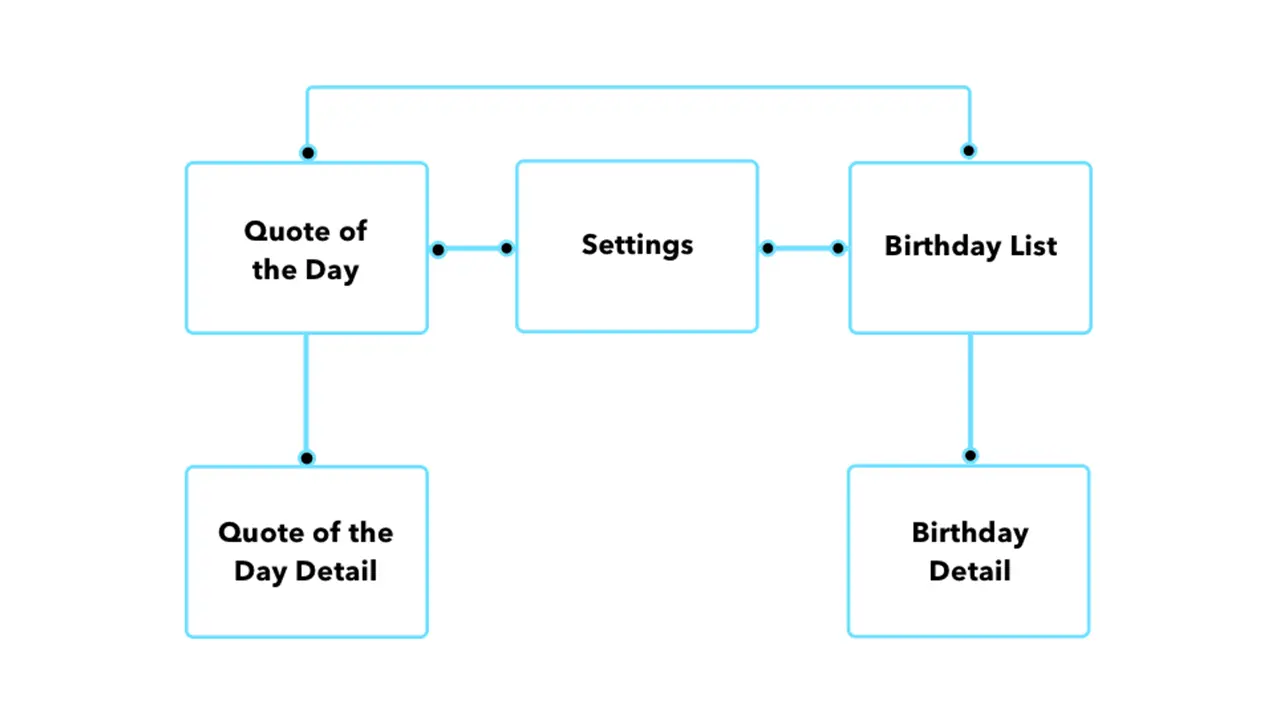
    Once I had the idea for my app I needed to organize the content I wanted to include in a way that would make things easily accessible and user friendly. By creating a sitemap, I was able to clearly understand how users would get through the flow of the app. My goal was to make all pages accessible with just two taps.

    Chart displaying how a user could travel through the Quote of the Day app.

    Sketches

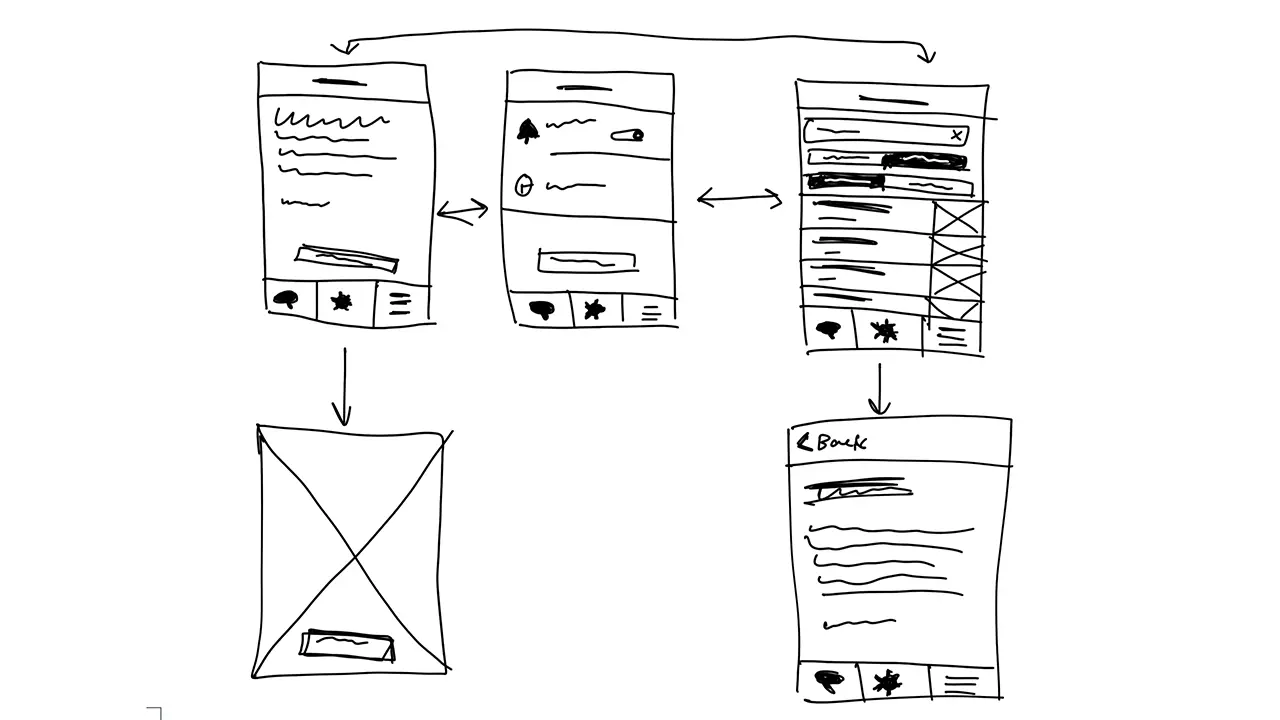
    Before I could start designing my screens in Xcode I had to come up with some sketches that I could refer back to throughout development. I wanted the screens to be clean and free of all unnecessary content so I made sure to only include functional elements.

    Sketches showing the placement of the elements on each screen.

    Quote of the Day

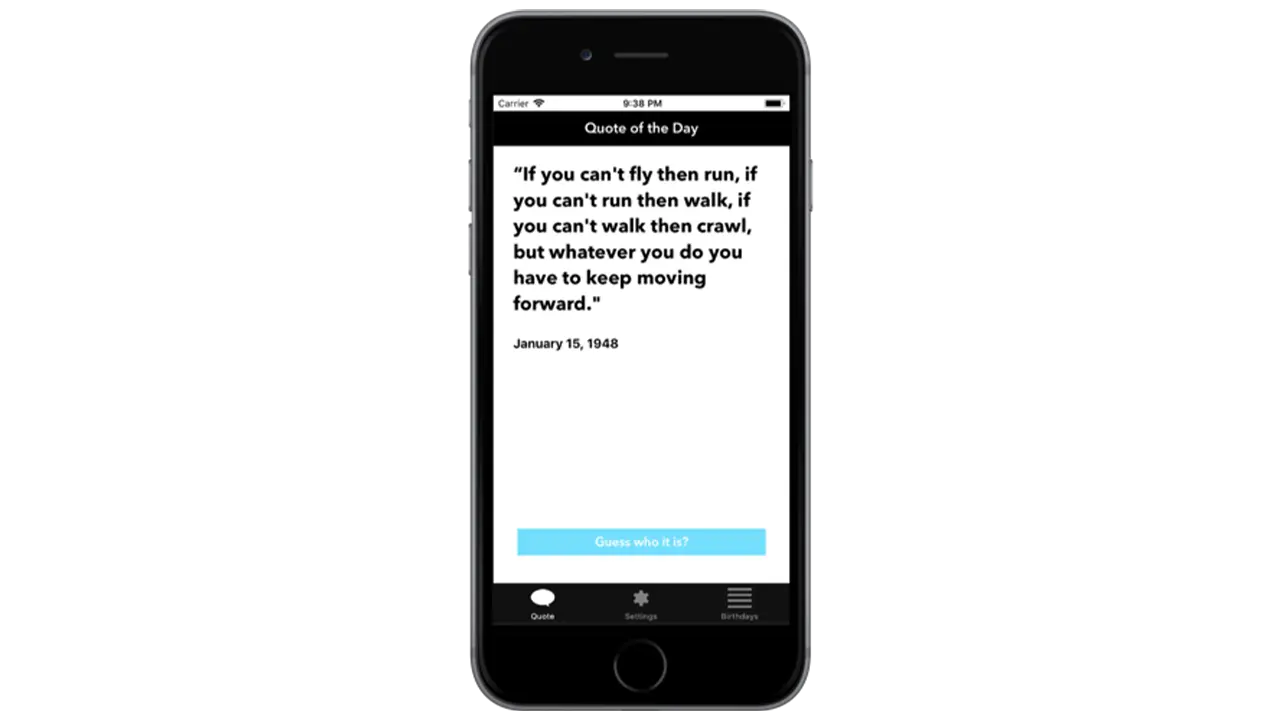
    The first page I wanted people to see when opening up the app was the ‘Quote of the Day’. This is the primary function of the app so it made sense to show people the relevant quote of the day first. To make it a little more interesting I left out the name and picture of the person who’s being quoted so users could guess. Once a user had an idea, or just wanted to know who the quote came from, they could simply click ‘Guess who it is’ and the page would flip, showing the full portrait of the person as well as their name.

    Screen from the Quote of the Day app, showing the quote for January 15th.

    Settings

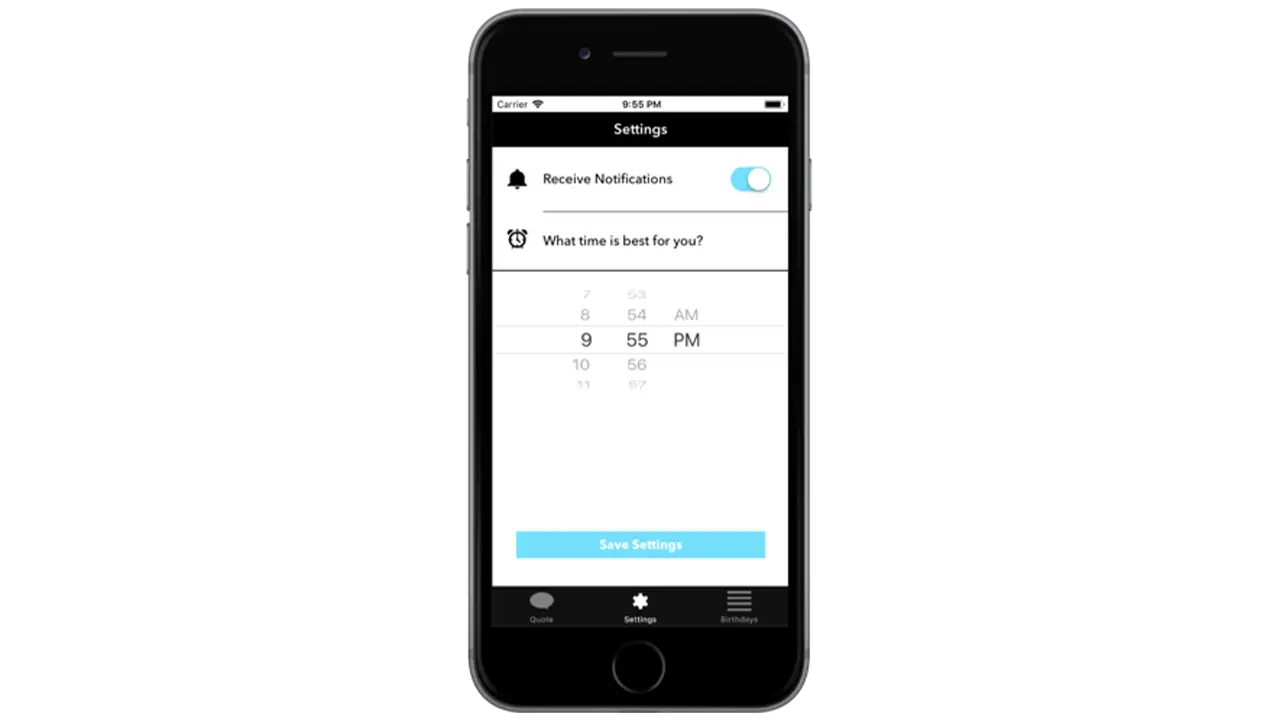
    The settings page isn’t very interesting but when you’re creating a native app that takes advantage of notifications, it’s important to provide users with options for when they want to receive them, if at all. By simply asking users if and when they want to receive the notification for the quote of the day, I was able to create a clean and easy to understand interface that took advantage of premade elements in Xcode.

    Screen from the Quote of the Day app, showing settings for if the user wishes to receive notifications for their daily quote and what time they want to receive it.

    Birthday List

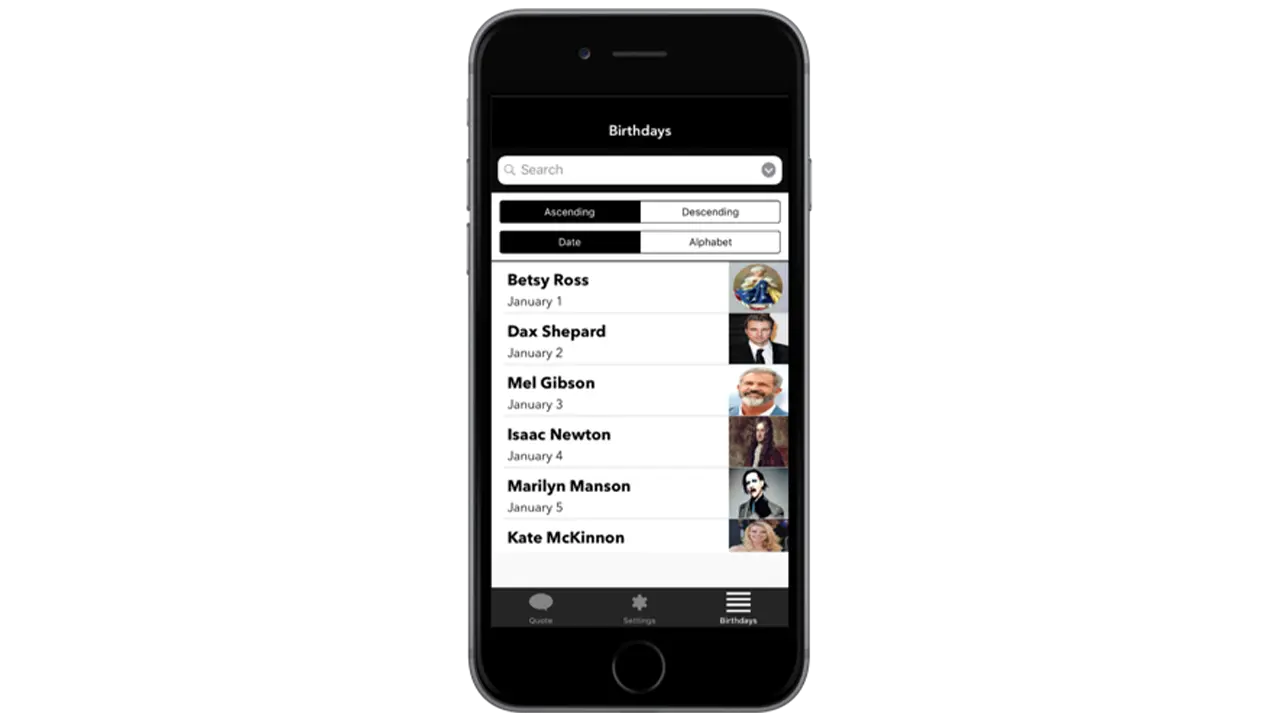
    The birthday listing page is the secondary function of the app which is why it’s not the first page you see. If a user is curious to see more quotes they can go to the birthday listing page to see who’s featured on the app, and if they’re interested in seeing that persons quote, they can simply tap on their cell block and go to a detailed page that shows their quote.

    Screen from the Quote of the Day app, showing the list of dates and which famous person the quote from that date comes from.

    Fonts and Colors

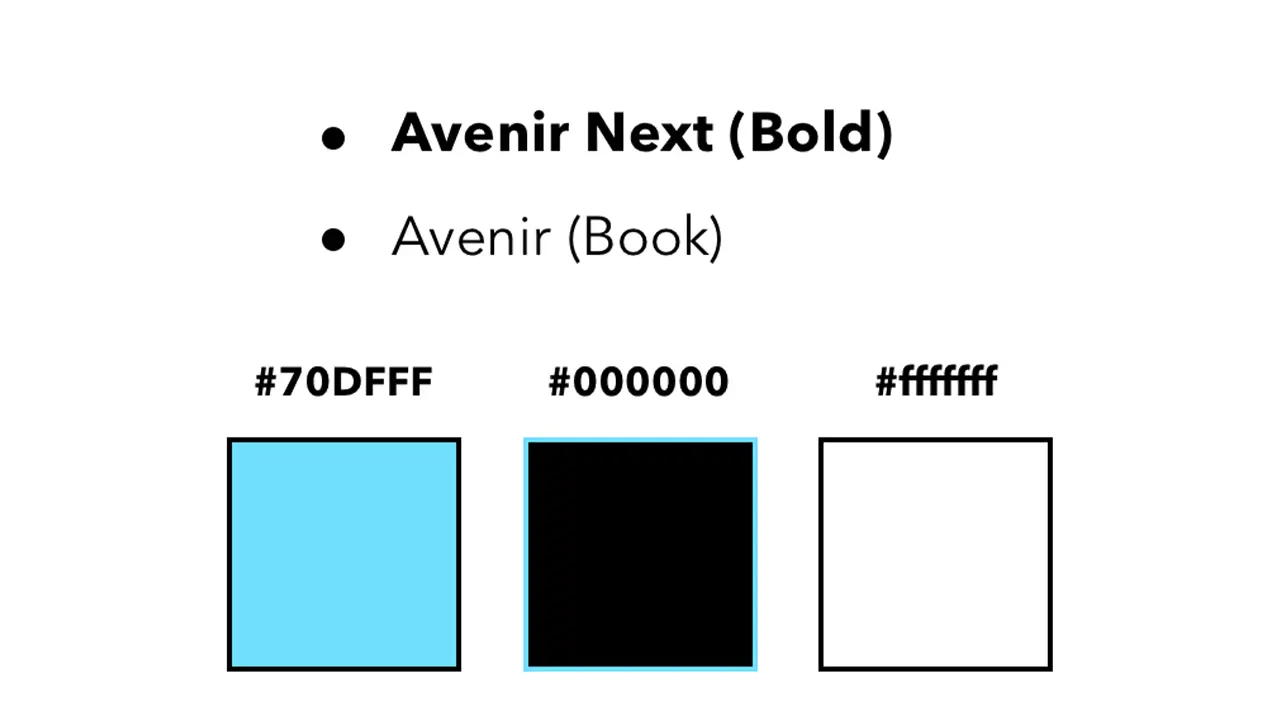
    I wanted the aesthetic of the app to feel modern and sleek which is why I chose a black and white color scheme complimented by blue to represent functional buttons. I used Avenir next and regular because they’re both sans serif fonts and are easily readable.

    Style guide featuring the colors and fonts used on the Quote of the Day app.

    Tools

    All assets were created using Illustrator and Sketch. This included custom icons used throughout the app as well as the app icon. All images featuring influential people were edited in Photoshop to share equal proportions. The app was styled using Xcodes premade elements and constraints, and was then made functional using Swift.

    Logos of tools used to create the Quote of the Day app, including Adobe Illustrator, Adobe Photoshop, Sketch, Xcode, and Swift.

    Conclusion

    To conclude, I’d first say, this was an awesome learning experience and definitely something I’d do again. Working in Xcode was not nearly as difficult as I thought it would be, and given that I’m very interested in app design, it’s a relief knowing I’ve got some experience under my belt. For the future, I’d try and get some more of my functionality down, but for now I am satisfied with what I’ve created.

  • CO2Black: Revealing the Truth of Climate Pollution

    OVERVIEW

    Carbon dioxide (CO2) is the single largest contributing factor to global climate change. If CO2 was black, together as a society, we would have taken strides to reduce it years ago.

    Our solution to this problem was to create a way for people to view the world around them as if CO2 was visible, and give people achievable tasks that would help reduce their carbon footprint. It is easy to believe that your actions as an individual have no impact, but we wanted to show users that even something as small as turning off the lights when you leave a room can make a huge impact over time.

    By repeating agile development sprints of research, prototyping, and testing over the course of IDM junior workshop, we achieved our goal of creating an AR app that raise awareness of the CO2 emissions in Philadelphia and ultimately made people more conscious of the impact of their carbon footprint.

    The Team:

    • Martina Calluori
    • Jacob Culp
    • Tri Do
    • Brendan Luu
    • Brendan Russo
    • Erin Wiegman

    PROCESS

    Our first task was research. We needed to get each team member familiarized with CO2 and its impact on the environment. As we gained fundamental knowledge of the issue, we identified it as good problem to solve with augmented reality, being that CO2 is everywhere in the environment around you. With a strict 6 month timeline we decided for the sake of scope to focus on Philadelphia because of the ability to make an impact within our city.

    With basic project scope outlined, we assigned general roles, Brendan Luu as team manager, Martina Calluori, Jacob Culp, Erin Wiegman, and Brendan Russo would focus on augmented reality development, and Tri Do would focus on design, with all team members helping out in different departments as needed.

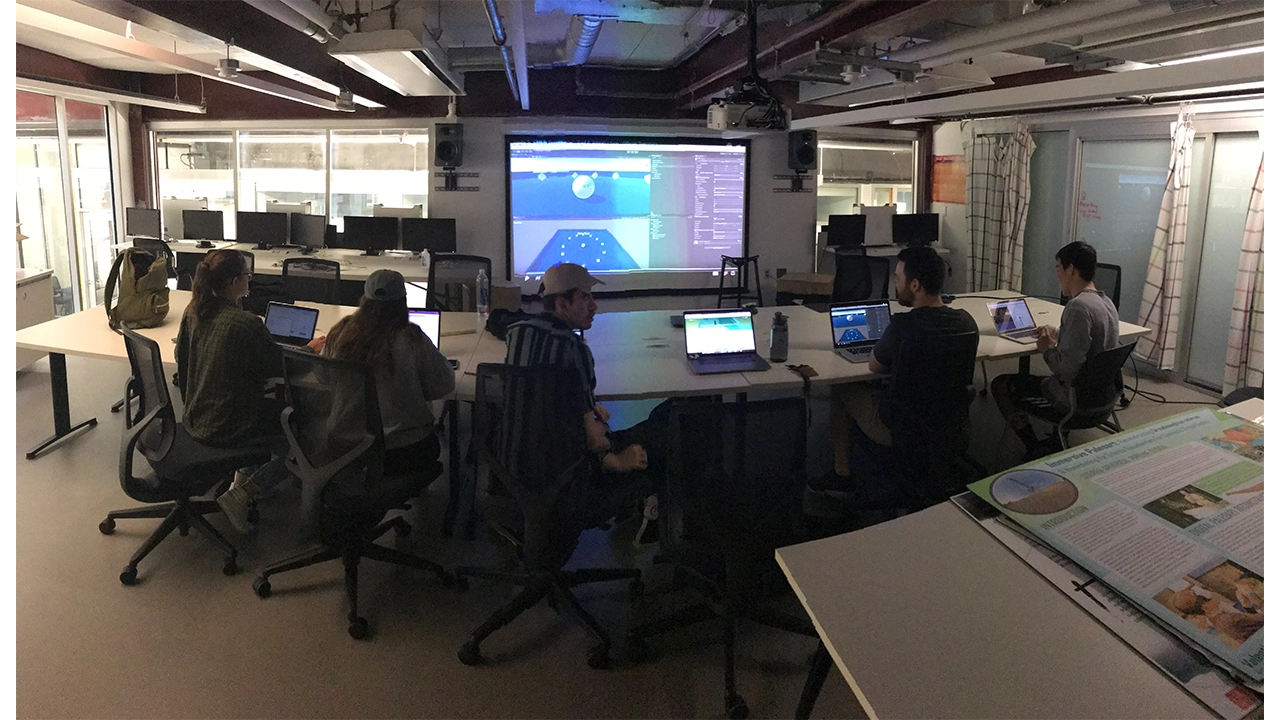
    Our final task before diving into our design sprints was getting familiar with Unity, a game engine that we were all using for the first time and also learning the pipeline of augmented reality development in Unity with Apple’s ARKit framework.

    CO2Black team testing tools used to create their project.

    LOW-FI

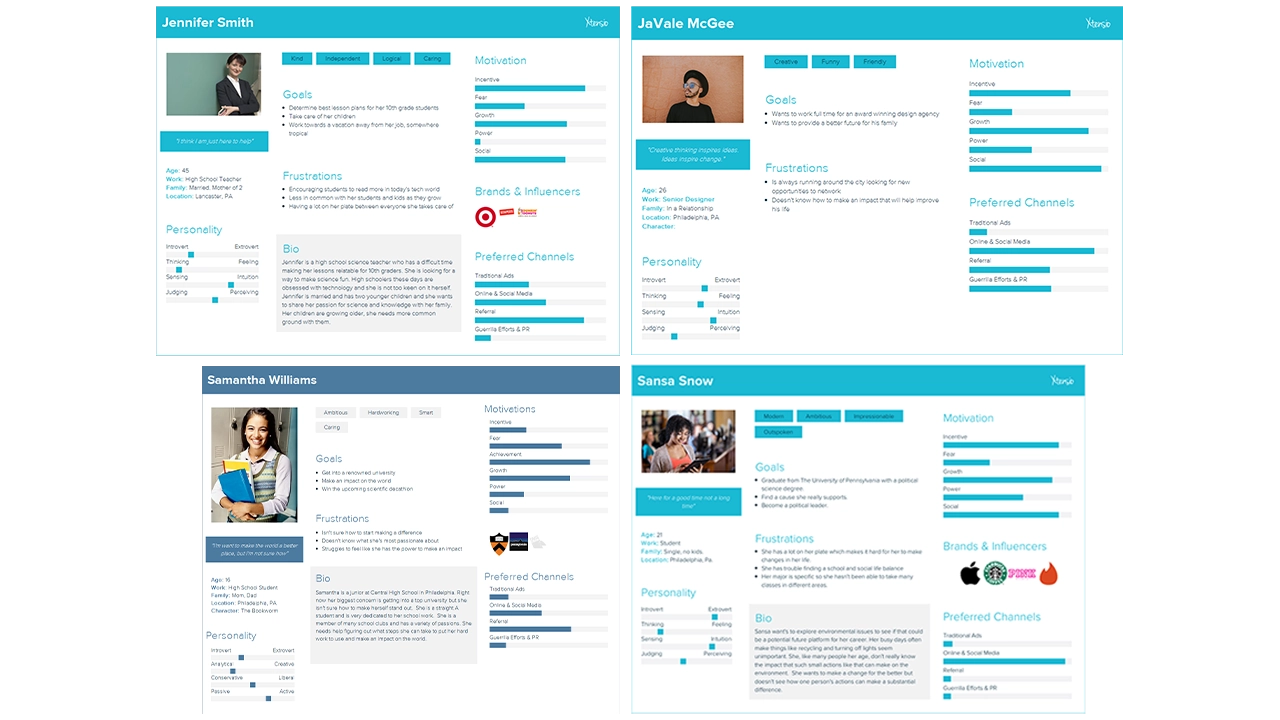
    Our first design sprint started by defining our target audience, students primarily in the high school and college age range (15-22). We identified this age range because students are typically the most open to change and learning, and their changes would have the largest impact over their lifetime. We created user persona’s based on interviews we had with students in Philadelphia that fit into our target audience so we could easily picture actual people using our app rather than a number representing an age range.

    User personas representing the audience CO2Black is aimed at.

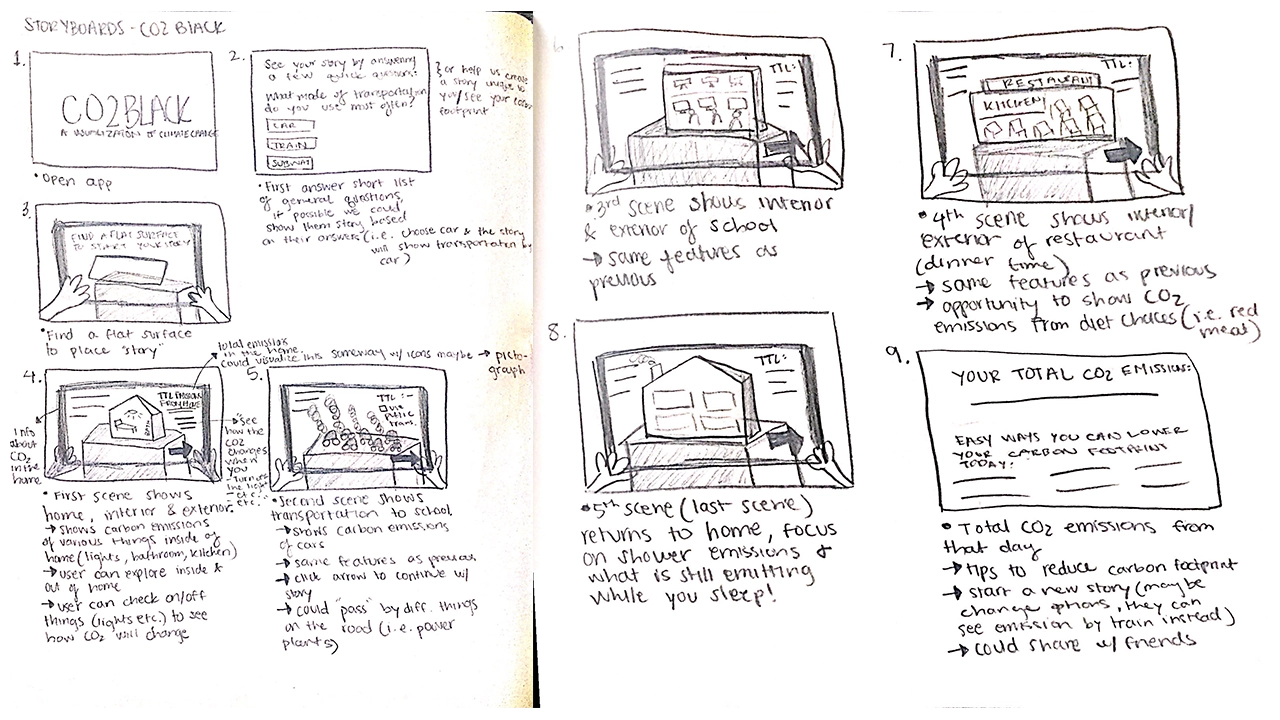
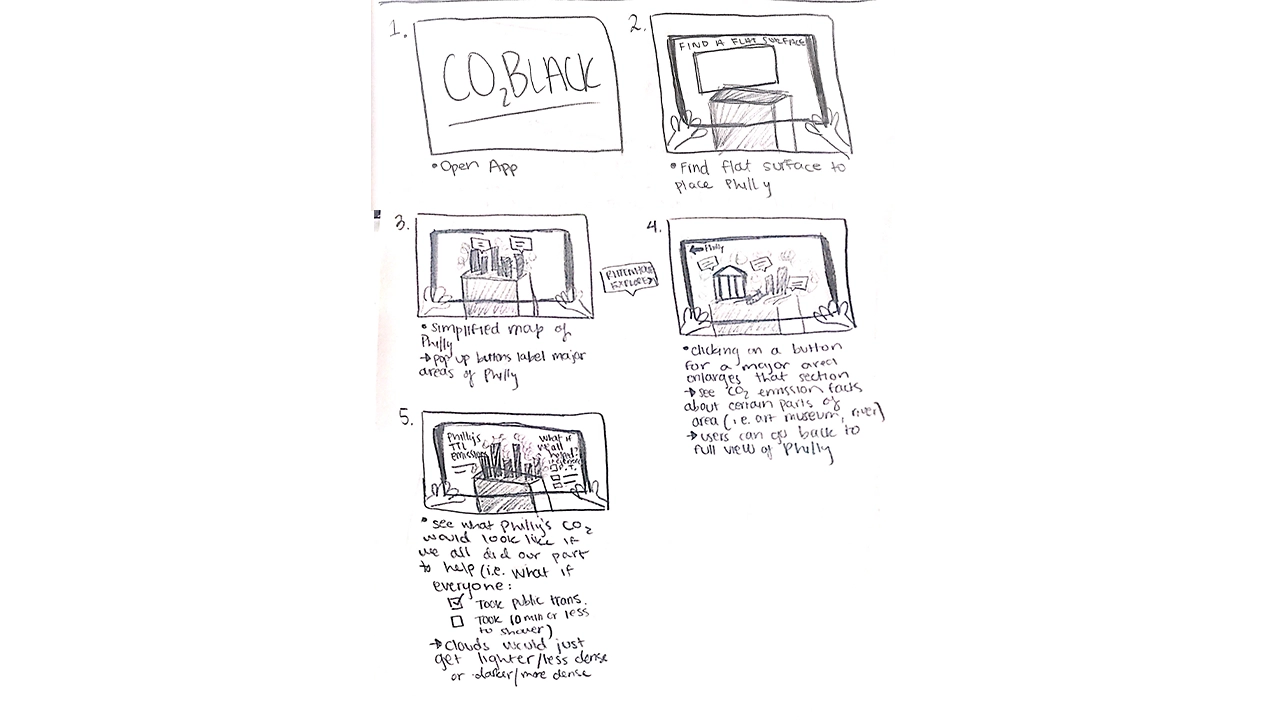
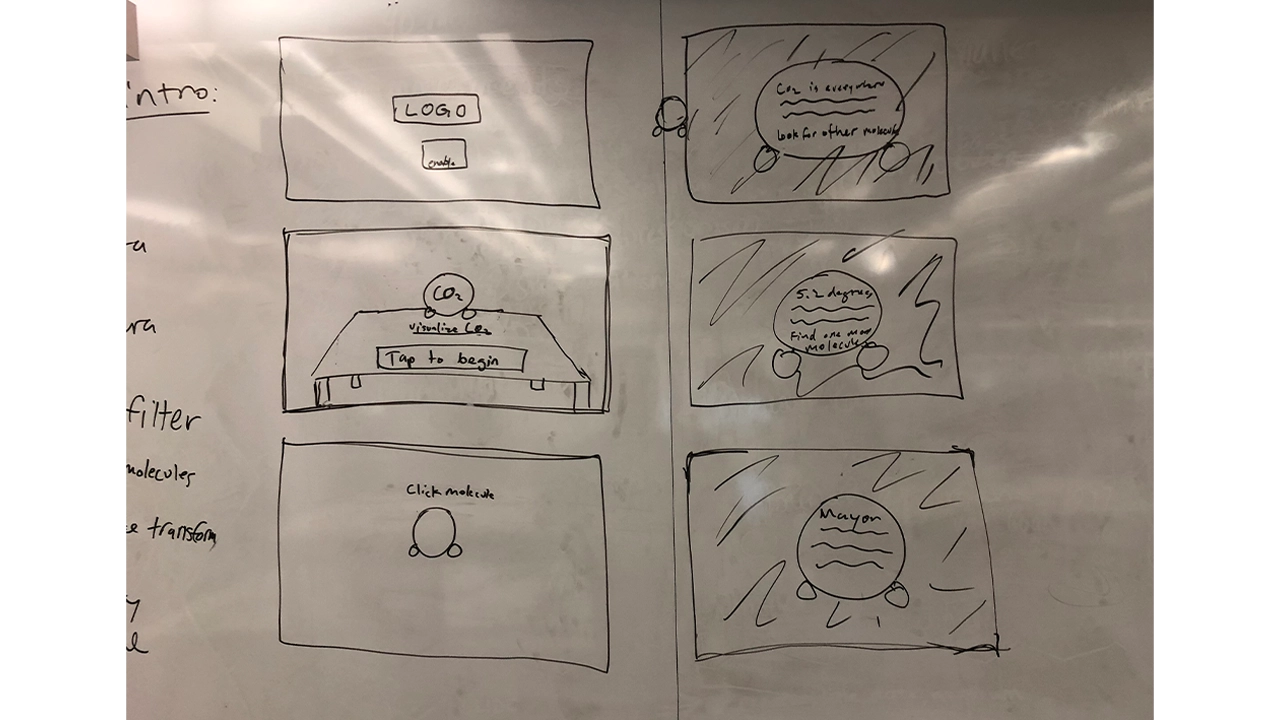
    We then conceptualized storyboards to outline our vision for the app. Our first iteration started off with people navigating through dark clouds that represented CO2 and reading facts off of 3D models of CO2 molecules that were scattered around them. The second half of the experience allowed the user visualize CO2 in a completely different way by showing a miniature 3D map of Philadelphia being filled to the top with the dark smoke to show the smoke on a larger scale. Before getting into development, we wanted to see how people would interact with this new environment.

    Storyboard of first part of the CO2Black experience.

    Storyboard of the second part of the CO2Black experience.

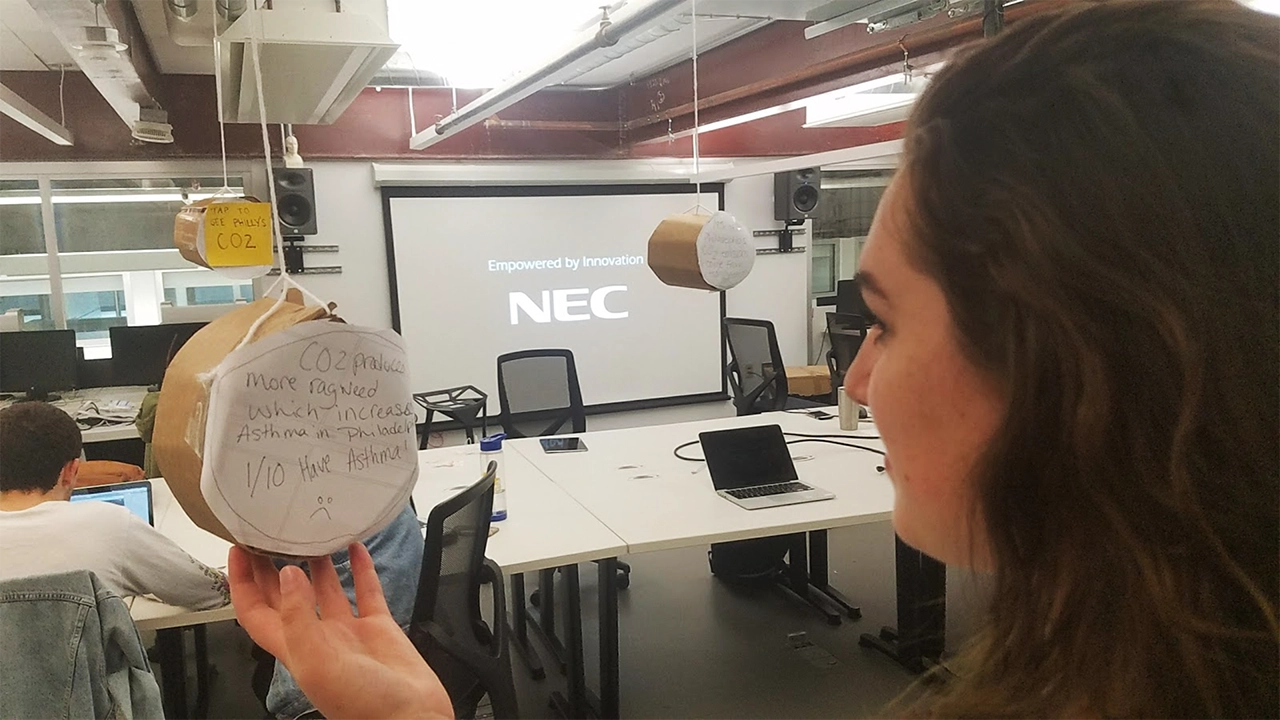
    To test this, we build all components of the storyboard with cardboard, tape, and paper and took photos of each step and put that into a clickable prototype and presented this prototype on a phone to users for usability testing. This new way of prototyping in for AR was a good idea, but was not entirely successful because users did not feel like this was representing augmented reality, and it felt just like clicking through photos. We realized that for future projects we would still build the prototype with cardboard, but instead of having users click through a prototype we would bring them into the room where the cardboard experience is being displayed and have them actually navigate around the room and see how they would interact with that.

    Paper prototype of the initial vision of the CO2Black app.

    Based on feedback from the cardboard usability testing, we went forward with creating a low fidelity prototype of this experience. We created the Carbon Dioxide molecules and displayed facts in a text format on them, but users struggled to read the text in AR, there were too many representations of CO2 which left users confused, and users didn’t know what to do with these facts and newly acquired information. We surveyed more people in our target audience and realized that we were approaching the problem all wrong, and shifted our focus to giving people achievable tasks, and making the data more geared towards the individual.


    MID-FI

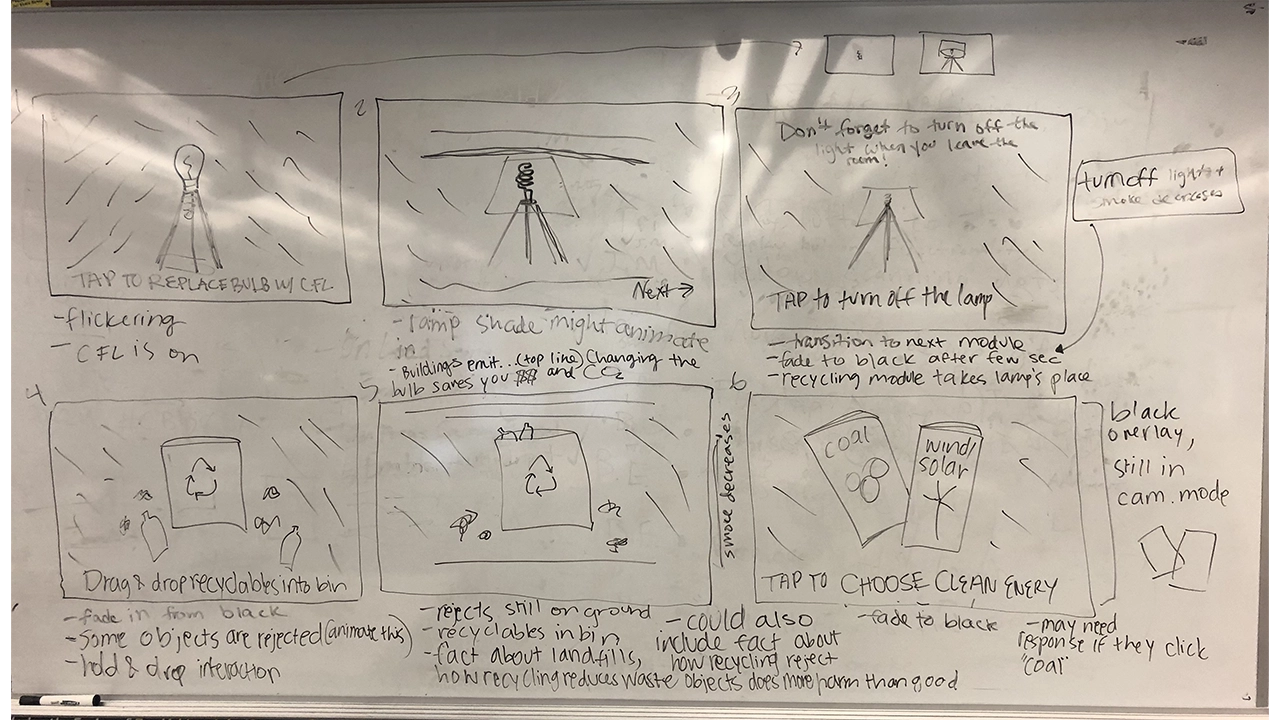
    With our failure and lessons learned from the first iteration of our app, we went back to the drawing board to create a more meaningful experience. For our next storyboards we focused on simple household tasks that have a big impact on individuals’ carbon footprints. We presented users with a 3D lamp in their environment surrounded by CO2 visualized by clouds of blackness. In the experience, users are prompted to switch from old light bulbs to energy efficient bulbs, and are informed that using the new bulbs for 1 year is equivalent to having removed as much greenhouse gas pollution as taking 2,000,000 cars off of the road. After, users are reminded that simply switching off the lights when you leave the room will also reduce their CO2 emissions. Each time a task is completed successfully, the clouds of CO2 would decrease. We built this in Unity and tested it with students around Drexel and found this new iteration to be extremely successful. Our success with this module confirmed our theory that people would enjoy a more kinesthetic learning experience. We decided to keep this idea for the rest of the app, and made the decision to break the app up into three “modules” or tasks for users to complete, all of which will help reduce their carbon footprint.

    Final storyboard for CO2Black, focusing more on the experience and imparting knowledge.

    Again, we went back to storyboarding and outlined a module that follows this lamp interaction but places an emphasis on recycling. We found from talking and surveying people in our target audience that not everyone recycles, and this is partly due to people not knowing what you can recycle or not. With this new module you are presented with a recycling bin with a mix of recyclables and trash scattered around. We wanted to gamify recycling, and created a trial and error game shows people what they can and cannot recycle while also encouraging people to think more about recycling an interactive experience. If a user attempts to recycle a piece of trash, it is rejected from the trash can and shown a message saying why the item was rejected. We used physics materials on the trash and recyclables to give a more realistic experience, so when the objects are thrown into the trash it mimics the way the objects would fall if not in an augmented reality experience. We wanted to use these physics materials and the accompanying animations to reinforce that this situation can be replicated in everyday life. This method was very effective, and through usability testing we realized that people did struggle with discerning what is recyclable versus what is not, so this became a very important module.

    User testing for the CO2Black app.

    The final module was intended to have users realize that they could change their energy to a cleaner source such as wind or solar in an easy and convenient way. After meeting with Drexel’s Institute for Energy and the Environment, we learned that one of the best things an individual can do to reduce their carbon footprint is change where they get their energy from. The original storyboard presented users with two pamphlets, one advertising coal and one advertising solar and wind powered energy. Users made their selection, and when they selected clean energy they were given more information on why switching reduces your CO2 emissions and how to switch. This module was very forgettable to users and was the least engaging.


    HI-FI

    Due to the fact that switching energy sources is one of the most effective ways to reduce your carbon footprint, we needed to fix this. We wanted to create a story for this module because energy consumption has changed so much over the past 200 years so for one last time, we revisited our story boards. At this point, users are shown 3D models of energy sources that society has relied on in the past starting with wood, and followed by gas, coal, and are finally presented with a solar panel and wind turbine. We wanted to show people that these nonrenewable energy sources are a thing of the past, and that clean energy is the future. Users are then prompted to select an energy source. When they select wood, gas, or coal they are shown a message that informs them that there is a cleaner energy source that has does not produce CO2 emissions. When they select wind and solar energy they are then shown how easy it is to switch your energy provider, and are presented with a novel AR laptop that gives a simplified demonstration of how easy it is to switch your energy from coal or gas to solar or wind without having to install anything into your home. After testing this new module, none of our users selected a nonrenewable energy, and were very surprised that switching your energy provider was really that easy.


    WHAT WE LEARNED

    Designing for AR has proven to be quite different from anything we have done so far because for the first time we are not designing for a screen, we are designing for the world. We have learned that the best AR UI is one that does not interfere with the experience itself unless it directly improved the current view. Interface is still a major factor in AR apps, despite how much it can get in the way, it is crucial to guide users through the app to avoid confusion. As AR is a new technology, most people do not have a mental model for this type interactive experience. A good interface was essential to our project as it will guide users through an experience they are currently uncomfortable with.

    For example, instruction text was extremely important. There needed to be readable text that told users where to look and what to tap. Without this instruction text, it is unlikely that users would even get the models placed in the scene. Instruction text occupies the top of the screen and is white with a dark shadow behind it. After testing, users never had a problem reading this text. If there is a major action to be completed, it is communicated at the top of the viewport.

    The shock factor of seeing CO2 visualized in your space is accompanied by text to inform users on relevant issues surrounding greenhouse gas emission. We decided to employ dialog boxes throughout the application to display this text. These dialogs are pushed to the bottom of the viewport and tapping anywhere on the screen, rather than just the dialog, progresses through the app. Contrast issues are much more complex in AR. We have no idea what these dialog boxes will be overlaid on. In order to combat this, the background of the dialog boxes are slightly transparent black boxes with white text inside of them. Based on user testing, this boxes are completely readable in all situations.

    Finishing a module of the main AR experience unlocks more information about the given topic. We communicated this information using what we call “Learning Layers”. These are large dialog boxes that summarize our scientific research and data surrounding the theme of the specific module. Learning Layers take up only 75% of the screen and use similar styling as the dialogs, they are semi-transparent. This way, users are never fully taken out of the immersion. In the 25% left at the top of the screen there are close and next buttons. The close button is red and accompanied by an X and functionally minimizes the Learning Layer. The next button is accompanied by and arrow and functionally progress through the Learning Layer and transitions to the next module.

    The last major interface element is the badges and guide. There are three distinct modules that, upon completion, award badges through the Learning Layer transitions. The badges then stay at the very top of the screen and give people a mental model of progression through the app. All three badges are grayed out until they are earned at the end of modules. The intention behind this was so users are aware of their progress in the app. It also adds a layer of gamification. There is a meaningful congratulatory achievement for completing each module.

    The only other instance of interface, besides the Learning Layer, taking up a significant amount of screen space is during the lamp scene where a silhouette of a new energy efficient bulb appears to guide users towards the proper action. This helps users understand they are replacing the old bulb on tap as well as leading users to aim the ray cast properly. This is a great example of development and design working symbiotically.

    RESULTS

    CO2Black is the result of 6 people, 6 months, and an entirely new realm of 3D application development that nobody had experience working with. We came together with the hope that when people used our app, they would walk away with the belief that their actions have a direct impact on the amount of carbon dioxide in the environment. We are unable to quantify success due to this, but our qualitative metric of success depended on how people felt after going through the app, and our users found the experience fun and engaging, and felt that the experience was much more interactive than just reading a pamphlet about carbon dioxide. With these aspects in mind, CO2Black is a success. One user said after experiencing when going throughout his day, when he would traditionally throw away his morning coffee he went out of his way to recycle it. This result is exactly what we were striving for. We broke CO2Black down into three modules that had everyday tasks in hopes of them influencing their everyday actions.

    The last six months was an incredible learning experience for our whole team. We learned that an agile approach is the best approach for this. This is a new technology that not many people have experience with, so it is a delicate balance between pushing the boundaries of the technology and defining interactions that people are comfortable using. We had the special task of not only trying to teach people about CO2 and the impact of their actions, but we also had to teach them how to use AR, usually for the first time. This was a particularly difficult task because we ourselves were learning how to design and develop using AR for the first time. Using AR for the sake of using AR is a lesson that we quickly learned was not the best idea. We wanted to use AR to enhance your experience, and we kept this mindset throughout the development of CO2Black. We found out through user testing that giving instant feedback, whether that is through animations, UI, color, or haptic feedback is very important to show the cause and effect of actions. Lastly, a solid team is one of the most important aspects of a successful project. We were able to depend and rely on each other and that sense of security allowed us to take risks in our ideas and development process.


  • My Story: A Chance for Senior Citizens to Connect on the Internet Comfortably

    Overview

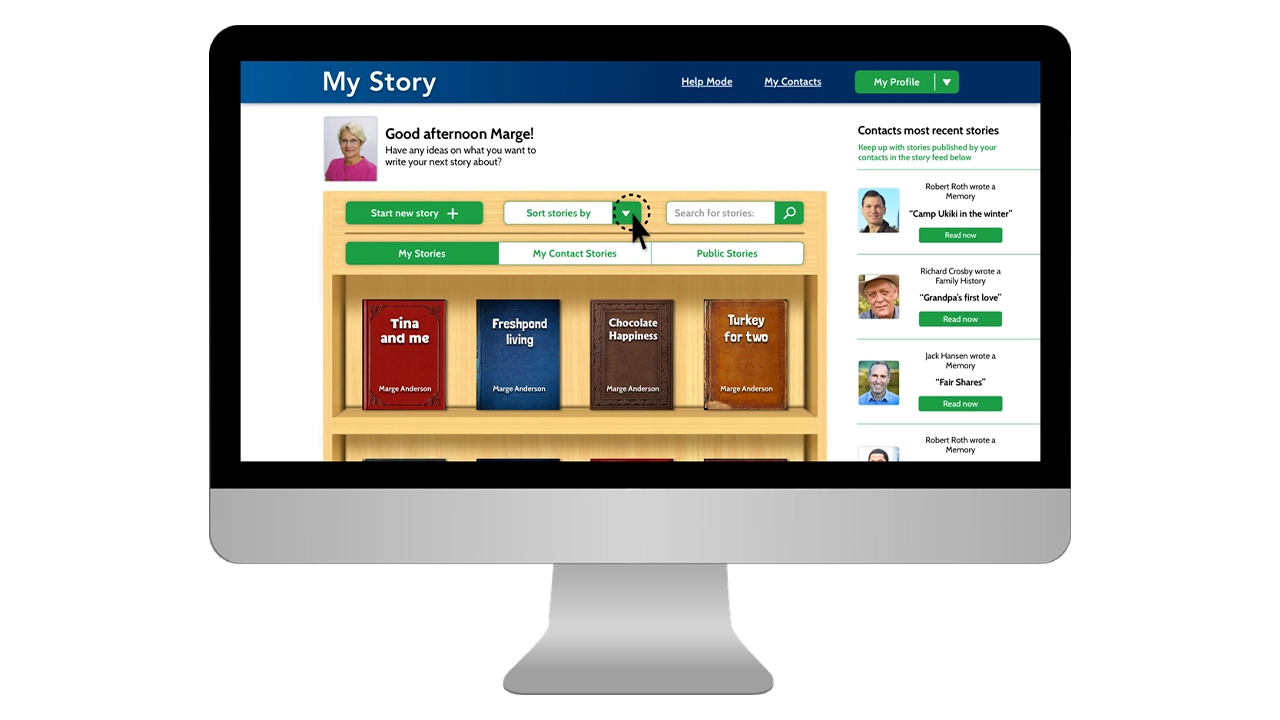
    My Story is a website designed specifically for senior citizens to create and share stories on. These days the world is more connected than it’s ever been, but often times as designers we don’t take into consideration the challenges the elderly face when dealing with technology. Our goal with My Story was to create a platform that anyone could use no matter their age or tech capability. Of course we acknowledge that in order to create a successful product, you must have a specific audience to target, but we figured if at the very least we could get seniors to understand the flows, than anyone could. Part of our success in doing this was our focus on creating skeuomorphic elements that users could easily identify with, like the ‘Bookshelf’ or the ‘Story Viewer’. By incorporating skeuomorphism and applying our research in design for the elderly we were able to create a site that users could sign up for and share stories from.

    The Team

    • Corey Hensley, Front-end Developer, WordPress Developer, UI Designer
    • Phoebe Bostwick, Back-end Developer, PHP/JS Developer, Front-end Developer
    • Seamus Donaldson, UX Designer, Front-end Developer, UI Designer

    Context and Challenge

    Background

    My Story was one of many ideas pitched at the beginning of our junior year’s workshop class. Everyone was tasked with coming up with an idea for a website or an application that a team could develop in six months, and My Story was one of the ideas selected. After voting and choosing who would do what, My Story ended up with three members, each with a set of skills and strong suits.

    The Problem

    Seniors are often overlooked as users of technology because a majority of the world has written them off as people who either have no business using technology or simply don’t believe that they’re equipped to understand it. Therefore their needs don’t get taken into consideration. While it is true that there are seniors out there that have no interest in joining the world online, it is still our job as designers and problem solvers to create user friendly solutions for everyone, not just the people who know it best.

    So it was our mission to create something that could be easily understood by those who are not as familiar with the inner workings of technology.

    Project Goals and Objectives

    From the very start we knew this would be an iterative, intensive process; if we were going to be designing for an audience that we personally had never addressed, we needed to understand how they thought, and the best way to do that was by actually meeting with them. Thus it was crucial that early on we made a connection with a senior center where we could go and do consistent usability testing.

    Phase One: Research

    It was clear from the start that whatever we designed needed to be backed up with thorough research and testing. What this meant for the team was that we needed to really dive in and understand technology from a seniors point of view. Since we didn’t have easy access to our target audience, we had to get creative when it came to gathering our research, so we tackled it in a few different ways.

    Survey & Interviews

    The first thing we needed was a proof of concept…would people actually use this? What would people use it for? Why would they want to use it? How often would they use it? What other sites do they use? What would they be willing to share?

    To answer these questions we needed a survey that we could send out to the masses, so we turned to our favorite free survey tool: Survey Monkey. Using the questions above we were able to gather over 60 responses, and as a result we found that there is a demand for My Story and people reported they’d use it.

    Competitive Analysis

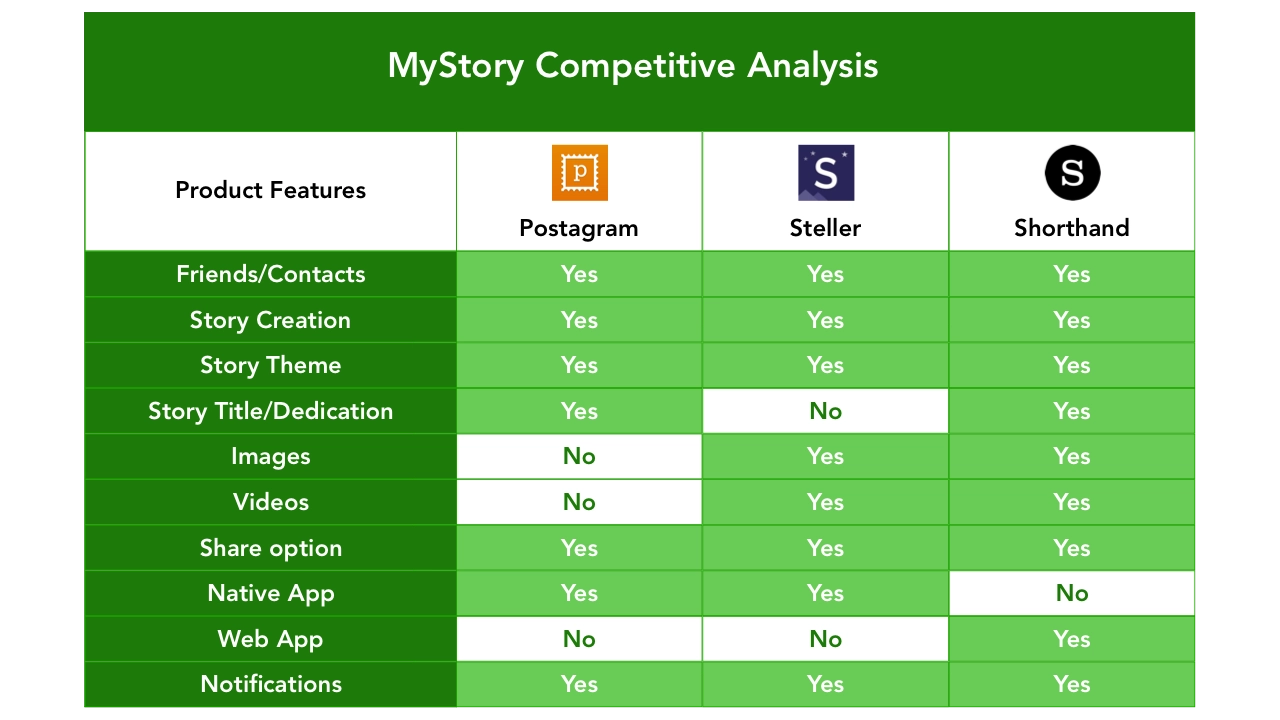
    Since there were already successful sites out there with similar concepts to My Story, we decided to do a competitive analysis to figure out what features we wanted on our site, and what features we could do without.

    Chart comparing websites similar to My Story's concept.

    Design for the elderly

    Before we could jump into any kind of design we needed to understand the challenges seniors face when it comes to interpreting content displayed on a web page, so a lot of our research was focused around text legibility and color contrast.

    • Icons should be simple, concrete symbols that look like the objects they represent and should be easily distinguished from others.
    • Buttons should have a minimum height of 40px and should include a label as well as an icon associated with the function of the button.
    • Fonts must be no less than 16pt and sans serif should be used for all text exceeding one sentence.
    • Colors should be high contrast as to distinguish background from the content within.

    Phase Two: Strategy

    Personas

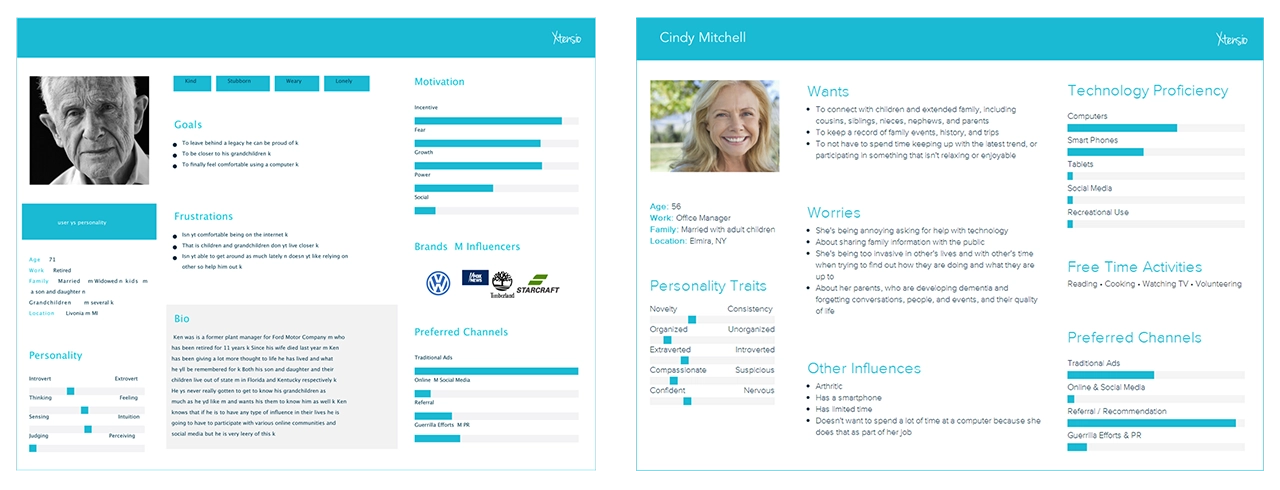
    Once we had a solid understanding of how to design for seniors, and what exactly we wanted to include on our site in terms of features, we needed to come up with a few user personas that we could refer to as we began creating the site.

    Target audience (60+ age range) & Secondary audience (40-60 age range)

    User personas representing what type of users My Story is created for.

    User Flow

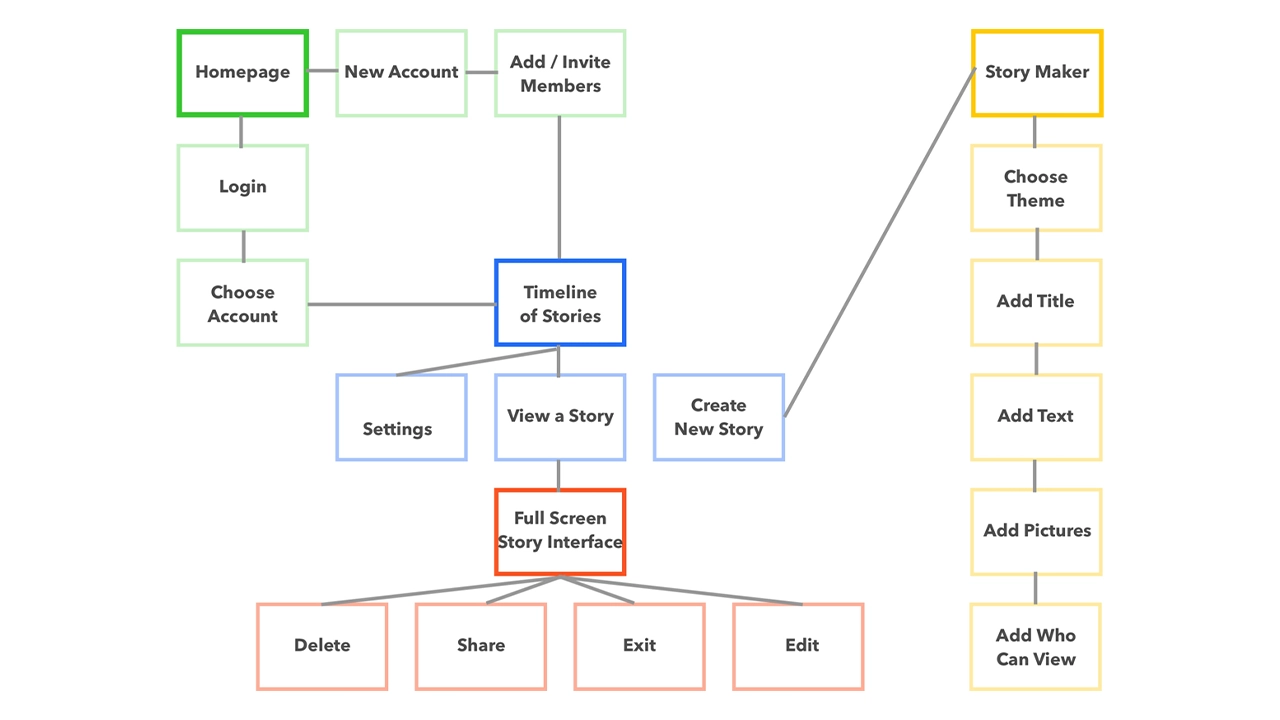
    After defining the functionality of our site, and the different pages we wanted to include, we created a site map in order to understand how users would navigate from page to page. This came in handy as it gave us an overview of how the site would work, and where users could go depending on where they were on the site. Our goal was to make every single page accessible with three clicks or less, and the sitemap helped us visualize what that would look like.

    Map of how the site works, visualizing where each page leads.

    Phase three: Design

    Sketches

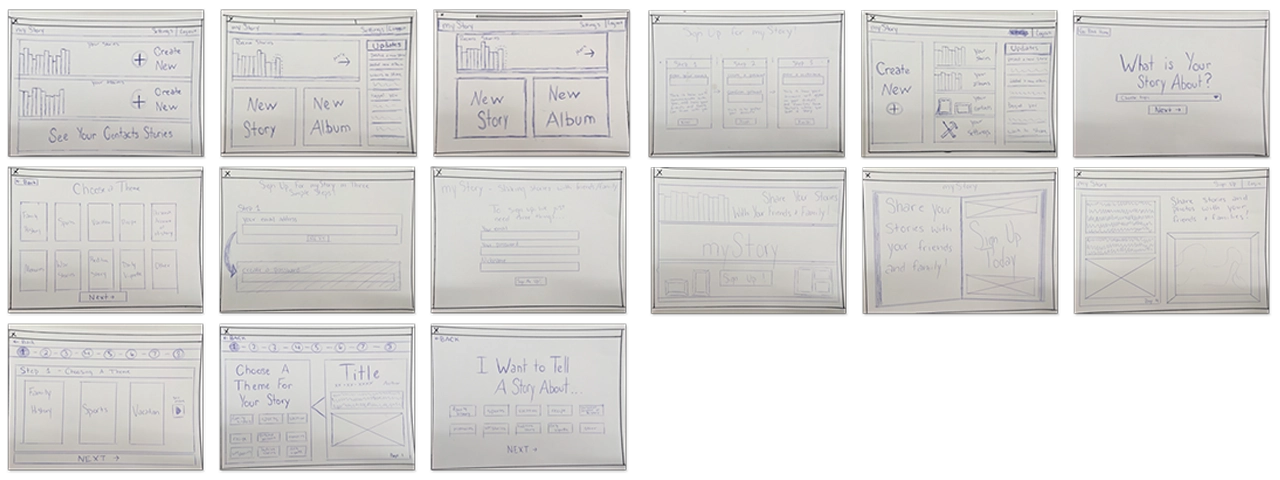
    Before we could start designing our interface on the computer we needed to brainstorm all the possible ways we wanted to display the content. Using pencil and paper, we were able to come up with many different concepts that we could quickly cover.

    Tools

    All sketches were done with good old fashion pencil and paper.

    Interface sketches for My Story.

    Low-Fidelity

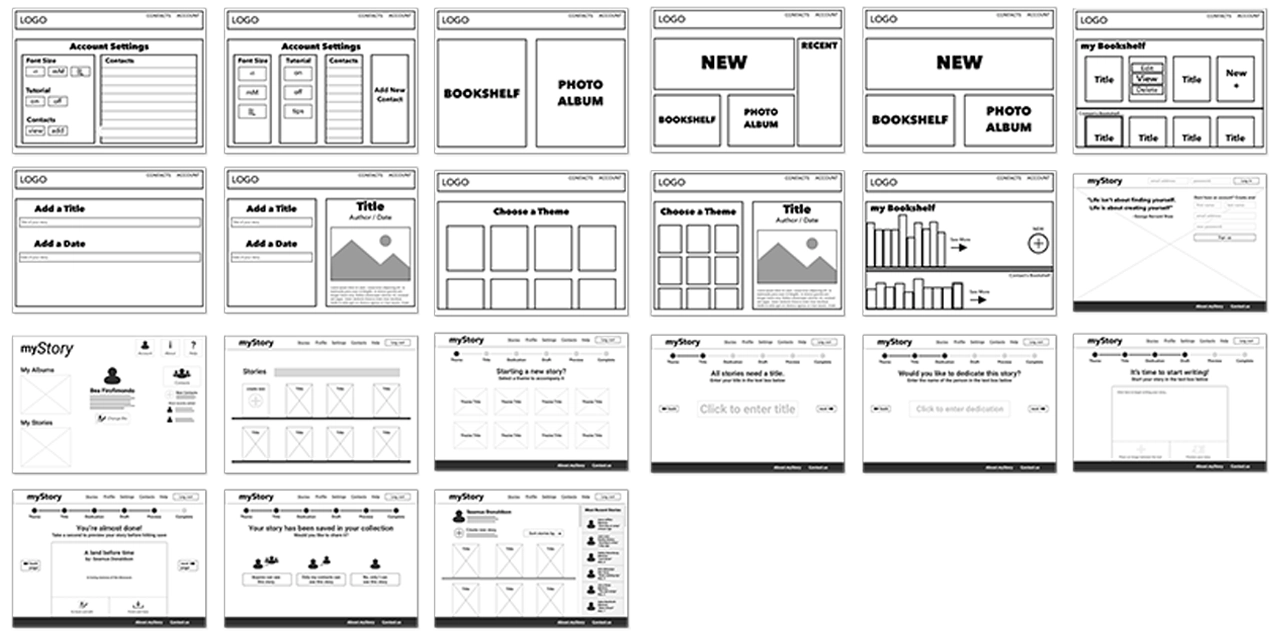
    Now that we had a solid foundation for the design of the site, we jumped into sketch and began wireframing.

    Tools

    Low fidelity screens were created in Sketch and Adobe Illustrator.

    Tools used to make the low-fidelity prototype, including Sketch and Adobe Illustrator.

    Low-fidelity prototype of My Story website.

    Mid-Fidelity

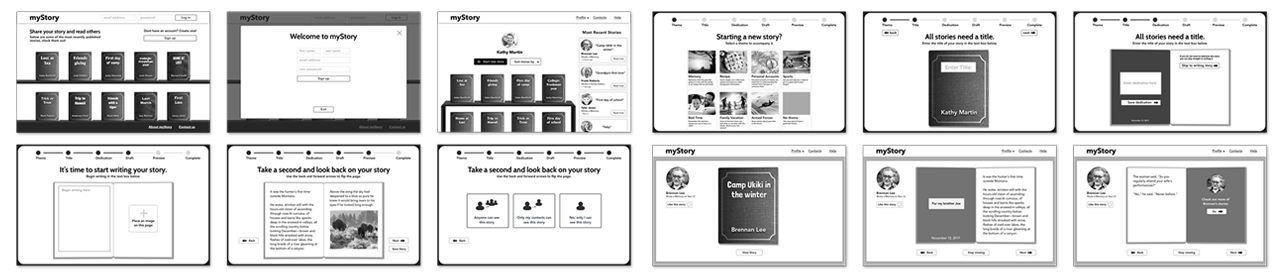
    After showing our class the progress we had made with the wireframes, we got feedback and decided on a layout that we could then refine and begin to stylize. Using the research we had done on fonts, we decided on ‘Cabin’ as our main font, and used it across the site with varying weights. We also brought in images and reworked the UI based on the feedback we got during critique.

    Tools

    All mid-fidelity screens were created in Sketch, then copied and pasted into Adobe Experience Design. Using XD we were able to create a flow connected by premade slide transitions. This wasn’t used for testing because it was too low-fidelity. We put it together so that we could better understand the flow of our story creation process.

    Tools used to make the mid-fidelity prototype, including Sketch and Adobe Experience Design.

    Mid-fidelity prototype of My Story website.

    High-Fidelity

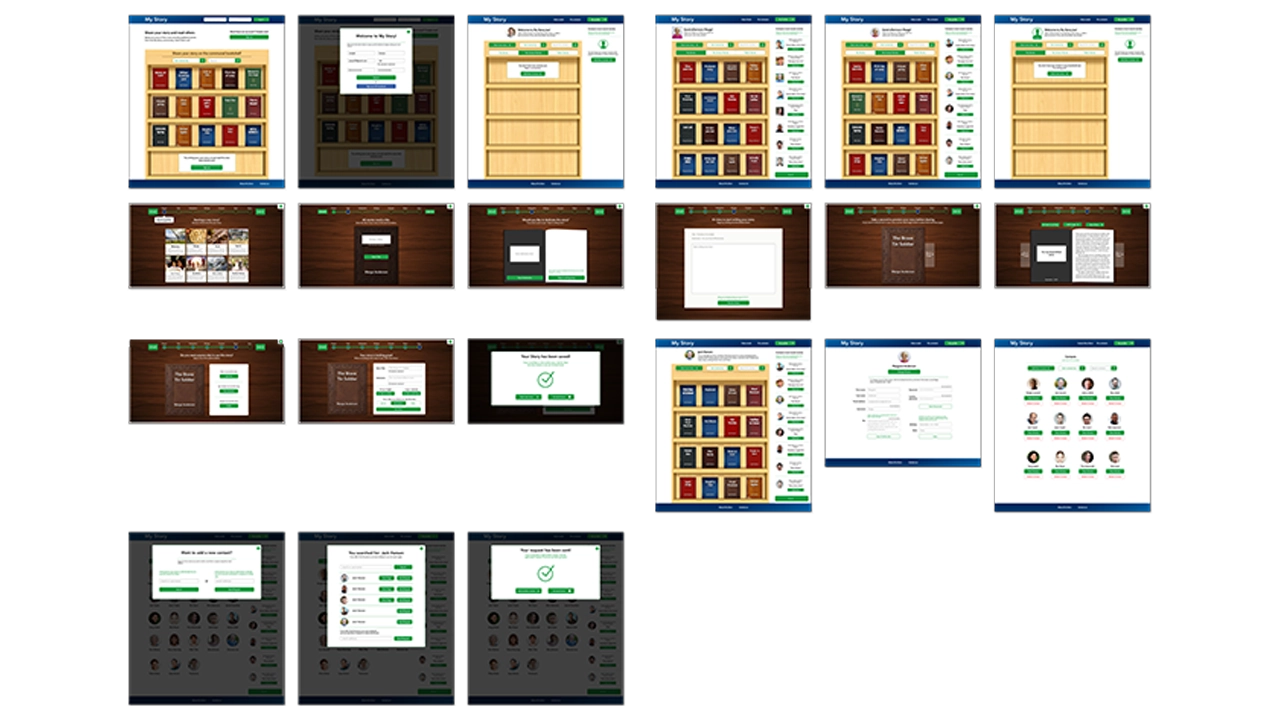
    At this point we had all the screens designed and were ready to implement colors and images across the site.

    Tools

    All high fidelity screens used in the prototype were exported from Sketch using the Flinto plugin. We were then able to manipulate the elements in Flinto to create links between pages using custom animations.

    Tools used to make the high-fidelity prototype, including Sketch and Flinto.

    High-fidelity prototype of My Story website.

    Final prototype of My Story on a screen.

    Usability testing – Prototype

    For two weeks we performed usability testing with both the primary and the secondary audiences. Each of us showed off the prototype, and explained to testers before they started what the site was about, and what the main features were. We also explained that they were testing with a prototype and some things may not be perfect. After we did our introduction we let them click through while asking them to complete certain tasks. Throughout testing we took notes, which we then reflected on as a team when we got back together.

    • Pop-up screens on dark overlays were confusing and disengaged users
    • Contact feed was distracting and was unnecessary
    • UI elements on the story creation page needed to be clearer and less distracting
    • Progress bar needed to be more distinguishable

    Phase Four: Development

    Initial Challenges

    At first we were a little bit worried about accomplishing all the things we wanted our site to do, in code. For a three person team, it seemed like a lot and with only three months left we knew we had to hit development hard. What we had promised for the final was a website that a users could create an account on, add contacts, share stories, and customize stories by theme. Not to mention the challenges we would have creating all of our elements with skeuomorphic styles… we had a lot to tackle but tackle it we did.

    Development Research

    The first thing we did was a ton of research. Because none of us had ever created a website with such a laundry list of features, we were for the most part going in blind. Quickly we realized that WordPress would be the most sensible place to start because it was built for content management and our site had a lot of it. We also decided that we would start with the ‘twenty sixteen child’ theme because it was already organized and had page templates for things we would need to eventually build ourselves.

    We then turned to the Ultimate Member plugin which seemed to solve all of our problems when it came to accounts and friends, but it also came with a set of challenges that sometimes slowed development. Without Ultimate Member we would have had to create a database from scratch that could store account info, request friends, and save stories. That said, Ultimate Member is also an extremely robust plugin so in order to target certain elements in PHP or CSS it took some digging.

    The other challenge was creating a custom animation that would naturally resemble a page flipping in a book. Luckily we found a script in a jQuery library called booklet, and just brought it into our code and customized it to fit our needs.

    Execution

    With all the research that we had done, we had a pretty good idea how to accomplish our goals so week after week, we just knocked items off our needs and wants list until we were down to our wants. The site was initially set up using a WordPress child theme called ‘Twenty Sixteen’. This gave us a solid foundation to start on. From there we began styling the home page. Since we wanted to create a minimum viable product as soon as possible for testing, we started with the skeuomorphic bookshelf on the home page. We used mix-it-up and a grid system to create the books and brought our bookshelf in as a background that could be populated.

    Our next step was implementing Ultimate Member. We started by getting account sign up working, and then moved on to adding friends. This was the easy part. The true challenge was how we were going to store the data specific to those accounts, and how we would be able to create share options based on the decisions users make.

    The next step was creating a taxonomy for our theme,s which would bring in a book cover style as well as a unique title text. We did this by pulling the category data and assigning a corresponding class, which would then display selected theme styles.

    Usability testing – Live site

    Once we had reached a point in development where our live site had the core functionalities of creating accounts, posting stories, and viewing stories, we decided to begin testing. The reason we chose to use the live site instead of the prototype was so users could then make their own decisions and become familiar with the flow. We also shifted our focus from design to development and a majority of our UI changes were reflected in the live site as opposed to the prototype.

    • Story creation was drawn out and disengaged users
    • Story creation flow didn’t reflect a natural thought process when coming up with stories
    • UI needed to be more consistent across all pages to convey navigation
    • Users needed a delete and edit option for their stories
    • Prompting language on story creation process needed to be more specific

    Conclusion

    It has been incredible to see a vision like My Story turn into a reality. Over the past six months we’ve taken a concept from nothing to a fully fledged website and we couldn’t be more proud of the work we’ve done. While we haven’t gotten every last thing fine tuned and styled, we were able to knock everything off our needs list, and we are successfully delivering on what we’ve promised. If we were to take this to the next step, we would implement some type of social media login, potentially allow for sharing on social platforms; we would also find a way for authors to include images in their stories, and would look to refine the skeuomorphic elements even more to create that feeling of a real book. All in all, My Story has been an amazing experience for all of us, and from the testing to the debugging, we’ve learned a lot.

    Final Showcase

  • Landmark: Finding, Recording, and Checking off Bucket List Places

    IDM362: Interactive App Design II by Kristen Rehm

    Overview

    Simply put, Landmark is a travel companion application. But it’s also much more than that. The idea for Landmark originated as an AR application – one where a user could pick up 3D collectables once they’re at a physical tourist attraction. However, time (and knowledge) constraints left me condensing the idea into a tracking application instead. Landmark allows its users to track the tourist attractions they’ve visited, and create a bucket list of the ones they want to visit next. It features an interactive map, where users can explore the city they’re in, and see the popular spots to visit within.

    Context and Challenge

    This app was created with the intention of solving a problem – the cluttered camera roll. Oftentimes people who frequently travel, document their experiences by taking lots of photos on their mobile devices. But there isn’t a satisfying way to track where you’ve been, or what you’ve seen while traveling. Sure, you can scroll through vast amounts of pictures to finally find your selfie with Mount Rushmore – or you could use Landmark to document the experience, have it conveniently saved in one location, and to find new places you’d like to go next. Landmark is designed specifically to inspire it’s users to add to their bucket list.

    Creating a native app for the first time meant a lot of challenges – aside from learning the ins-and-outs of xCode. One of those was discovering a solid task flow from screen to screen; what did users want to see first? Were they more interested in the map or the bucket list? The places they’ve already visited, perhaps? This led to user testing, which helped me solve some of these problems upfront. But as with any project, more roadblocks – and need for iteration – came after.

    Process and Insight

    While creating Landmark, there were some ideas that I had to scrap. I originally was going to have a search feature for different cities and locations, thinking this would be the best way for people to discover new places for their bucket list. However, I found that users typically already have an idea in mind of where they’re going next – or want to go. Rather than having search functionality, I created an add button that allowed users to input their own locations and landmarks. This allows for more customization, and a more personalized experience.

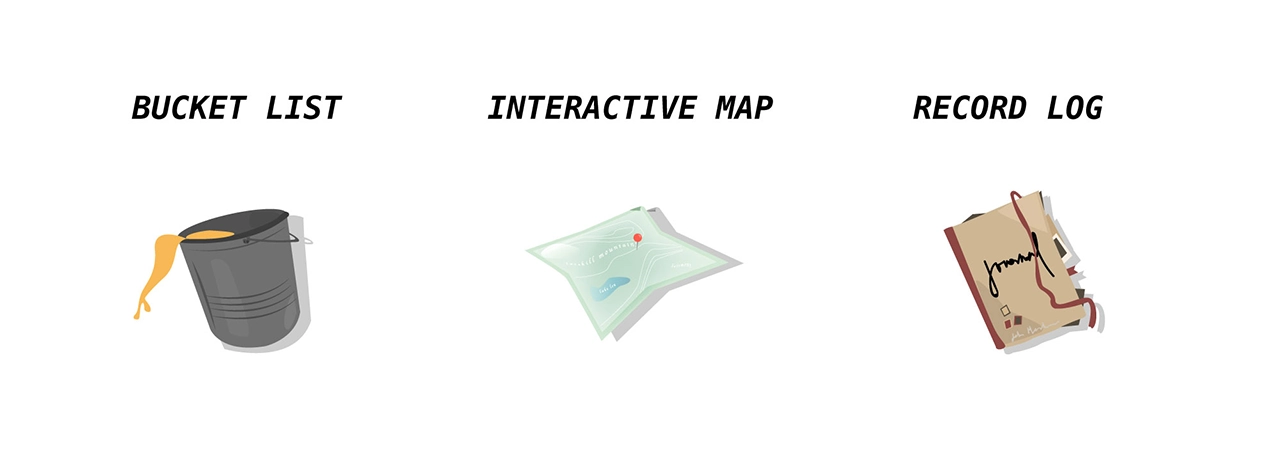
    Three main features of the Landmark app: A bucket list, an interactive map, and a record log.

    Solution

    Landmark helps users record where they’ve been, when they visited a famous tourist location, and keep track of what they want to see next. It provides a unique space for this task, and is a great application for anyone who wants to travel more, document their experiences, or see what else is out there that they might’ve missed. I ensured the task-flow was simple and straightforward — there’s nothing more stressful and frustrating than not understanding how an application works. It might be simple in nature, but this really allows users of Landmark to take it and run with it. After several uses, Landmark becomes a reminiscent journal of sorts – one where you can enjoy the things you’ve done and seen, and look forward to the future and what’s next.

    The Results

    Despite being unable to create all that I envisioned, I think Landmark is absolutely a success. I wanted an app that users could keep returning to in order to track where they’ve been, and I’ve successfully created that. While additional features, such as AR collectables, gamification, etc would have been added bonuses, Landmark serves it’s original purpose, and serves it well. That being said, I am incredibly happy with the outcome of this app, and would enjoy working on it more in the future to live up to the higher potential it has.

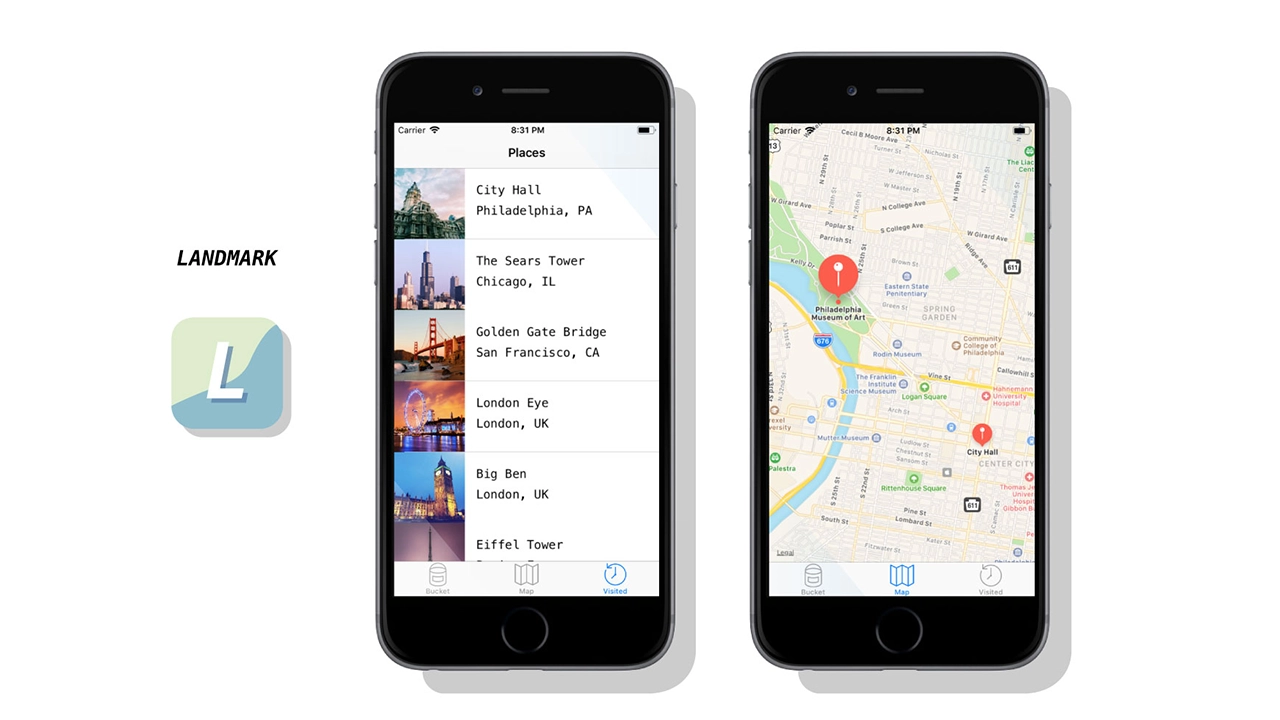
    Final product including app icon and example screens.